
How to Erase Safari History: A Step-by-step Guide
Are you tired of seeing other people’s browsing history on your iPhone, Mac, or iPad? Do you want to erase the chronology of Safari without any hassle? Look no further! This article will guide you through a simple process to delete your Safari history and keep your online activities private.
Why Erase Safari History?
Before we dive into the steps, let’s understand why erasing Safari history is important. When you use Safari on your device, it stores a record of all the websites you’ve visited, including passwords, search queries, and browsing history. This information can be synced across all your Apple devices using iCloud, making it easy to access from anywhere. However, this also means that someone else could potentially access your browsing history if they have access to your device or account.
Erasing Safari History on Mac
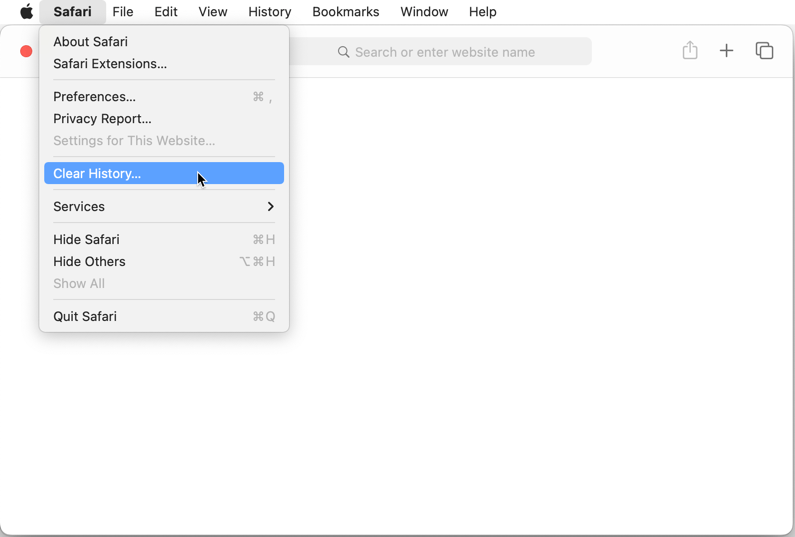
To erase Safari history on your Mac, follow these steps:
- Open Safari: Click on the Safari icon in your Dock or Launchpad.
- Click on Menu: Click on “Safari” in the top menu bar and select “Preferences.”
- Select Chronology: In the preferences window, click on the “Chronology” tab.
- Erase History: Select “Clear all history” to erase your entire browsing history or choose a specific time range (e.G., Today, yesterday, last hour) by clicking on the dropdown menu next to “Clear.”
- Confirm Erase: Click “OK” to confirm that you want to erase your Safari history.
Erasing Safari History on Iphone
To erase Safari history on your iPhone, follow these steps:
- Open Settings: Tap on the “Settings” icon.
- Tap on Safari: Scroll down and tap on “Safari.”
- Erase Data And Chronology: Tap on “Clear History and Website Data.”
- Confirm Erase: Tap “Delete History and Website Data” to confirm.
Erasing Safari History on Ipad
The process for erasing Safari history on your iPad is identical to that of an iPhone. Simply follow the steps above.
What Happens When You Erase Safari History?
When you erase Safari history, it will delete all browsing data, including:
- Browsing history
- Search queries
- Passwords (if stored in Keychain)
- Website cookies
However, keep in mind that if you’ve synced your Safari history with iCloud, erasing it on one device will also delete it on other connected devices.
How to Erase Specific Websites From Safari History
If you only want to erase specific websites from your Safari history without deleting all browsing data, follow these steps:
- Open Safari: Open the Safari browser.
- Go to Chronology: Click on the “Safari” menu and select “Chronology.”
- Select Specific Websites: Hold down the Option (⌥) key while clicking on “Erase History,” then choose specific websites from the dropdown menu.
Frequently Asked Questions
Q: Will erasing Safari history delete all my passwords?
A: No, if you’ve stored your passwords in Keychain, they will remain intact after deleting Safari history.
Q: Will erasing Safari history affect other Apple devices connected to iCloud?
A: Yes, if you’ve synced your Safari history with iCloud, it will also delete on other connected devices.
Q: How often should I erase my Safari history?
A: You can erase your Safari history as frequently as you like. However, be aware that deleting your browsing history may affect website functionality or online services.
Conclusion
In conclusion, erasing Safari history is a simple process that helps maintain your online privacy and security. By following these steps on Mac, iPhone, or iPad, you can delete your browsing data and keep your personal information safe from prying eyes. Remember to always be mindful of your online activities and take necessary precautions to protect yourself.
Frequently Asked Questions (FAQs)
- Q: How do I Erase Safari History on a Mac?
A: To erase Safari history on a Mac, open the Safari browser, click on “Safari” in the top menu bar, select “Preferences,” and then click on the “Chronology” tab to choose an option. - Q: Will Erasing Safari History Delete All my Passwords?
A: No, if you’ve stored your passwords in Keychain, they will remain intact after deleting Safari history. - Q: How Often Should I Erase my Safari History?
A: You can erase your Safari history as frequently as you like; however, be aware that deleting your browsing history may affect website functionality or online services. - Q: What Happens When I Erase Safari History on One Device?
A: If you’ve synced your Safari history with iCloud, erasing it on one device will also delete it on other connected devices. - Q: How do I Stop Safari From Syncing Across All my Apple Devices?
A: To stop Safari from syncing, go to Settings (on iPhone or iPad) or Preferences (on Mac), and toggle off the option for iCloud syncing.
I hope this article has been helpful in guiding you through the process of erasing your Safari history.


