
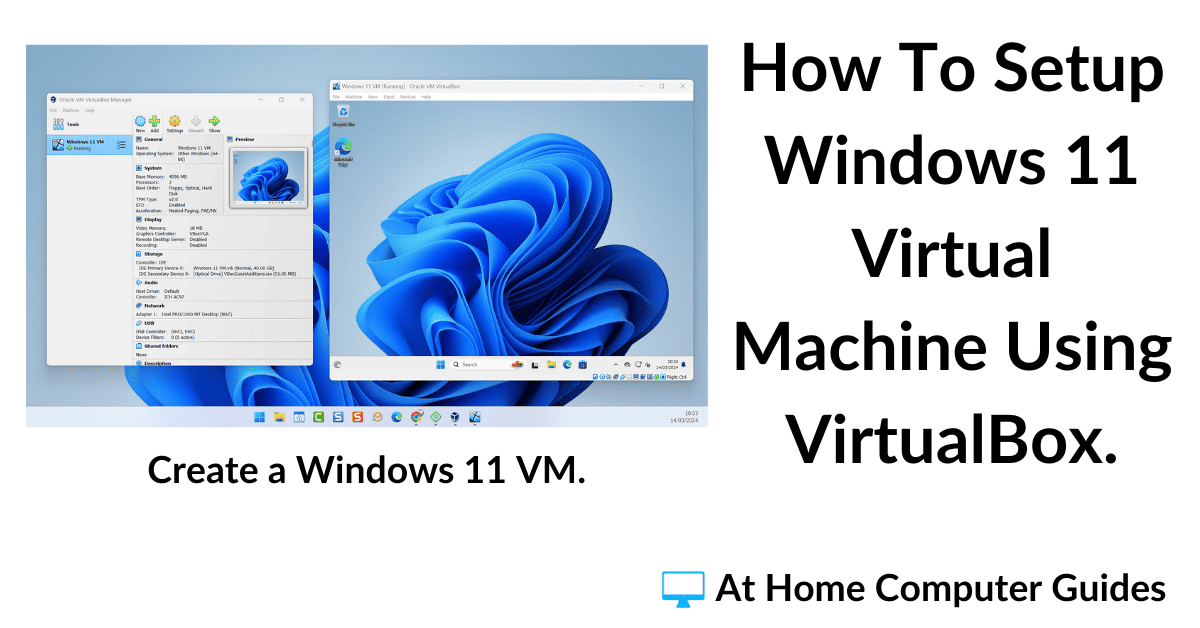
The Ultimate Guide to Using Virtualbox
Are you looking to expand your knowledge on operating systems? Do you want to experiment with various OS without worrying about errors or system crashes? Look no further than VirtualBox, a powerful virtualization tool that can help you achieve your goals.
What is Virtualbox?
VirtualBox is a free and open-source virtual machine software developed by Oracle Corporation. It allows you to create and run multiple virtual machines on a single physical host machine, each with its own operating system, including Windows, macOS, and Linux.
Benefits of Using Virtualbox
Using VirtualBox offers several benefits, including:
- Error-free Experimentation: With VirtualBox, you can experiment with different OS without risking your main system or files.
- Increased Flexibility: VirtualBox allows you to run multiple OS on a single machine, making it ideal for developers, testers, and IT professionals.
- Easy Deployment: VirtualBox is easy to install and use, even for those new to virtualization.
Getting Started With Virtualbox
To get started with VirtualBox, follow these steps:
- Download And Install Virtualbox: Visit the official VirtualBox website and download the software for your operating system (Windows, macOS, or Linux).
- Install The Guest Additions: Once you’ve installed VirtualBox, install the Guest Additions to enhance your virtual machine experience.
- Create a New Virtual Machine: Create a new virtual machine by selecting the OS you want to run and configuring its settings.
Tips For Using Virtualbox
Here are some tips to help you get the most out of VirtualBox:
- Use The Correct Iso File: Make sure you use the correct ISO file for your desired operating system.
- Configure Your Virtual Machine Settings: Adjust your virtual machine settings according to your needs, such as RAM allocation and network configuration.
- Share Devices And Folders: Share devices and folders between your host and guest OS to simplify your work.
Conclusion
VirtualBox is a powerful tool that can help you expand your knowledge on operating systems without risking your main system or files. By following these steps and tips, you can get the most out of VirtualBox and achieve your goals in a safe and efficient manner.
Frequently Asked Questions (FAQs)
Here are some frequently asked questions about VirtualBox:
- What is The Difference Between Virtualbox And Other Virtualization Tools?
- VirtualBox is known for its ease of use, flexibility, and error-free experimentation.
- Can I Run Multiple OS on a Single Machine With Virtualbox?
- Yes, you can run multiple OS on a single machine with VirtualBox.
- How do I Share Devices And Folders Between my Host And Guest Os?
- You can share devices and folders by using the “Devices” menu in VirtualBox.
Conclusion
VirtualBox is an excellent choice for anyone looking to experiment with various operating systems without risking their main system or files. By following these steps and tips, you can get the most out of VirtualBox and achieve your goals in a safe and efficient manner.


