
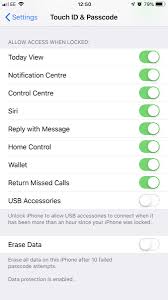
How to Contact Touch ID on Instagram: A Step-by-step Guide
Are you tired of worrying about someone accessing your Instagram account while using your iPhone? Do you want to add an extra layer of security to protect your online presence? Look no further! In this article, we will guide you through the process of contacting Touch ID on Instagram for both iOS and Android devices.
Table 1: Contacting Touch ID on Instagram For Ios
| Step | Action |
|---|---|
| 1. Go to Settings | Tap on the Settings app icon on your iPhone’s home screen. |
| 2. Select General | Scroll down and tap on the “General” option. |
| 3. Choose Restrictions | Tap on the “Restrictions” option. |
| 4. Set Up Restrictions | Enter a 4-digit PIN to set up restrictions. |
| 5. Add Instagram App | Search for and add the Instagram app to the restricted list. |
Table 2: Contacting Touch ID on Instagram For Android
| Step | Action |
|---|---|
| 1. Go to Settings | Tap on the Settings app icon on your Android device’s home screen. |
| 2. Select Apps & Notifications | Scroll down and tap on the “Apps & notifications” option. |
| 3. Choose Instagram App | Search for and select the Instagram app from the list. |
| 4. Set Lockscreen PIN | Enter a 4-digit PIN to set a lockscreen password. |
Understanding Touch ID
Touch ID is a feature that allows you to use your fingerprint as a form of authentication on iOS devices. However, in order to contact Touch ID on Instagram, we need to use the “Restrictions” feature on iOS or the “App Lock” feature on Android.
How to Contact Touch ID on Instagram For Ios
To contact Touch ID on Instagram for iOS, follow these steps:
- Go to Settings and select General.
- Choose Restrictions and set up a 4-digit PIN.
- Add the Instagram app to the restricted list.
- Set up a lockscreen password for the Instagram app.
How to Contact Touch ID on Instagram For Android
To contact Touch ID on Instagram for Android, follow these steps:
- Go to Settings and select Apps & notifications.
- Choose the Instagram app from the list.
- Set a lockscreen PIN for the Instagram app.
- Add the Instagram app to the restricted list.
Tips And Variations
- If you have an iPhone with Face ID, you can follow the same steps as above to contact Touch ID on Instagram.
- If you’re using an Android device without a fingerprint scanner, you can still set up a lockscreen PIN to add an extra layer of security to your Instagram account.
- You can also customize the settings for each app individually to suit your needs.
Conclusion
In conclusion, contacting Touch ID on Instagram is a simple process that can be completed in just a few steps. By following the instructions above, you can add an extra layer of security to your online presence and protect yourself from unwanted access to your Instagram account.
Frequently Asked Questions (FAQs)
- Q: What is Touch Id?
A: Touch ID is a feature that allows you to use your fingerprint as a form of authentication on iOS devices. - Q: How do I Contact Touch ID on Instagram?
A: To contact Touch ID on Instagram, follow the steps outlined in this article for both iOS and Android devices. - Q: What Are The Benefits of Using Touch ID on Instagram?
A: Using Touch ID on Instagram adds an extra layer of security to your online presence, protecting you from unwanted access to your account. - Q: Can I Customize The Settings For Each App Individually?
A: Yes, you can customize the settings for each app individually to suit your needs. - Q: What if I Have an Iphone With Face Id?
A: If you have an iPhone with Face ID, you can follow the same steps as above to contact Touch ID on Instagram. - Q: Can I Use Touch ID on Android Devices Without a Fingerprint Scanner?
A: Yes, you can set up a lockscreen PIN on Android devices without a fingerprint scanner to add an extra layer of security to your Instagram account. - Q: How do I Disable The Function?
A: To disable the function, follow the steps outlined in this article and select “OFF” for the Touch ID feature. - Q: Can I Use Third-party Apps to Block Access to Instagram?
A: Yes, you can use third-party apps to block access to Instagram on both iOS and Android devices.


