
How to Contact The Chat on Obs: A Step-by-step Guide
Are you tired of manually switching between your live stream and chat on OBS (Open Broadcasting Software)? Do you want to interact with your audience directly from within the program? Look no further! In this article, we will guide you through the process of contacting the chat on OBS.
What You Need to Know Before Starting
Before we dive into the nitty-gritty details, it’s essential to know that OBS offers two ways to integrate chat functionality: By adding a YouTube or Twitch chat directly within the program, and by displaying a live chat feed from an external service like Streamlabs. In this guide, we will cover both methods.
Method 1: Integrating Chat on Obs
To add a chat window directly within OBS, follow these steps:
Step 1: Get Your Chat Url
Access the chat section of your YouTube or Twitch channel and copy the URL from the address bar. For example, if you want to integrate the chat from Twitch, log in to your account, navigate to the channel settings, and click on “Chat.” Copy the URL that appears in the address bar.
Step 2: Create a New Panel in Obs
Open OBS and go to Settings > Panels > Browser Personalized. Click the “+” button to add a new panel. Name this panel something like “Chat” and insert the URL you copied earlier into the address field. Click “Apply” to create the new panel.
Step 3: Add The Chat Panel to Your Stream
Drag the newly created chat panel to the desired location on your screen. You can resize it as needed, but be sure to click the lock icon to secure its position and dimensions.
Method 2: Displaying a Live Chat Feed With Obs
For this method, you will need an external service like Streamlabs. Here’s how to set it up:
Step 1: Create an Account on Streamlabs
Go to Streamlabs.Com and sign up for an account using your Twitch or YouTube credentials.
Step 2: Connect Your Channel
Link your channel to Streamlabs by clicking the “Connect” button. If you’re using a different platform, follow their instructions to link it to Streamlabs.
Step 3: Set Up Your Chat Widget
Log in to your Streamlabs account and navigate to the dashboard. Click on the “Widgets” tab and select the “Chat Box” option. You can customize the appearance of your chat widget by adjusting settings like colors, font size, and badges.
Step 4: Add The Chat Feed to Obs
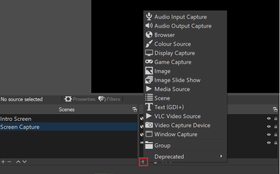
Open OBS and go to Settings > Sources. Click the “+” button to add a new source. Select “Browser” from the list and name this source something like “Chat.” Enter the URL of your Streamlabs chat feed into the address field and adjust the width, height, and position as needed.
Tips And Tricks
When using OBS, you can customize the appearance of your chat panel or widget by adjusting settings in both programs. Some popular options include:
- Adding Badges: You can display badges for moderators, subscribers, or other users.
- Customizing Colors: Choose a color scheme that matches your brand’s identity.
- Adjusting Font Size: Ensure the text is easily readable for your audience.
Common Questions Answered
Q: What if I’m using OBS on macOS?
A: The steps outlined above are primarily designed for Windows users. If you’re using OBS on macOS, consult their official documentation for specific instructions on adding chat functionality.
Q: Can I use multiple chat services at once?
A: Yes! With OBS, you can add multiple sources, including different chat services, to your stream. This allows you to interact with various communities simultaneously.
Q: How do I troubleshoot issues with my chat feed?
A: If you encounter problems displaying the chat feed in OBS, check that:
- The URL is correct and accessible.
- You have followed the correct setup procedures for your chosen chat service.
- Your Streamlabs account is active and connected to your channel.
Conclusion
Now that you’ve learned how to contact the chat on OBS using both methods, take advantage of this feature to elevate your streaming experience! Interact with your audience directly within the program, and explore various customization options to match your brand’s identity. Happy streaming!
Frequently Asked Questions (FAQs)
- Q: What if I’m already using Streamlabs, but want to integrate chat on OBS instead?
A: You can remove the Streamlabs widget from your stream by following their official documentation and replacing it with the OBS-integrated chat functionality. - Q: Can I use other services besides YouTube and Twitch for my chat feed?
A: Yes! While this guide focuses on integrating YouTube and Twitch chats, you can experiment with other video streaming platforms to find the best fit for your community. -
Q: How do I ensure my chat feed displays correctly in OBS?
A: Double-check that:- The URL is correct and accessible.
- You have followed the correct setup procedures for your chosen chat service.
- Your Streamlabs account is active and connected to your channel.
This FAQ section provides quick answers to common questions, ensuring a smooth transition from reading the guide to putting its knowledge into practice.


