
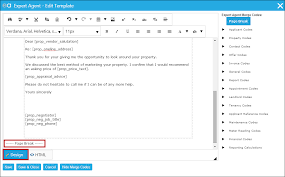
Deleting Page Interruptions on Word: A Step-by-step Guide
Are you tired of dealing with pesky page interruptions on your Microsoft Word documents? Look no further! In this article, we’ll guide you through the process of deleting page interruptions on Word for Windows, Mac, Online, and even on your smartphone or tablet.
What Are Page Interruptions on Word?
Page interruptions on Word are those annoying lines that appear between pages in a document. They can be frustrating to deal with, especially when working on long documents. But don’t worry, we’ve got you covered!
Deleting Manual Page Interruptions on Word (Windows)
If you’re using Microsoft Word for Windows, deleting manual page interruptions is relatively easy.
- Open The Document: First, open the document where you want to delete the page interruptions.
- Display All Elements: Click on the “Display All Elements” button in the Home tab of the ribbon. Alternatively, press Ctrl+Shift+8 on your keyboard.
- Select The Interruption: Place your cursor at the beginning of the line with the interruption and press the Delete key (or Backspace).
- Repeat For Each Interruption: Repeat steps 2-3 until you’ve removed all manual page interruptions from your document.
Deleting Manual Page Interruptions on Word (Mac)
If you’re using Microsoft Word for Mac, deleting manual page interruptions is just as easy.
- Open The Document: First, open the document where you want to delete the page interruptions.
- Select The Interruption: Place your cursor exactly before the paragraph symbol (¶) on the line with the interruption and press Backspace.
- Repeat For Each Interruption: Repeat steps 1-2 until you’ve removed all manual page interruptions from your document.
Configuring Automatic Page Interruptions on Word (Windows)
If you want to control how automatic page interruptions are added to your documents, follow these steps:
- Open The Document: First, open the document where you want to configure the automatic page interruptions.
- Display All Elements: Click on the “Display All Elements” button in the Home tab of the ribbon. Alternatively, press Ctrl+Shift+8 on your keyboard.
- Configure The Settings: In the Layout tab of the ribbon, click on the “Paragraph” dropdown menu and select “Distribution Text.” Then, toggle off the options for inserting page interruptions between paragraphs.
Configuring Automatic Page Interruptions on Word (Mac)
If you’re using Microsoft Word for Mac, configuring automatic page interruptions is similar to the Windows version.
- Open The Document: First, open the document where you want to configure the automatic page interruptions.
- Select The Paragraph: Click on the “Paragraph” dropdown menu in the Home tab of the ribbon and select “Paragraph.”
- Configure The Settings: In the Distribution Text section, toggle off the options for inserting page interruptions between paragraphs.
Deleting Page Interruptions on Word Online
If you’re using Microsoft Word Online, deleting page interruptions is relatively easy:
- Open The Document: First, open the document where you want to delete the page interruptions.
- Select The Interruption: Click on the line with the interruption and select it by clicking twice on the mouse button (or tap twice on your touchscreen).
- Delete The Interruption: Press the “Delete” key or Backspace.
Troubleshooting
If you’re still having trouble deleting page interruptions, try these troubleshooting steps:
- Make sure you’re using the latest version of Microsoft Word.
- Try opening the document in a different application to see if the issue persists.
- If you’re experiencing issues with automatic page interruptions, try configuring the settings as described above.
Conclusion
Deleting page interruptions on Word is relatively easy and straightforward. Whether you’re working on Windows, Mac, Online, or even on your smartphone or tablet, we’ve got a step-by-step guide to help you achieve this task.
Frequently Asked Questions (FAQs)
- What Are Page Interruptions on Word?
Page interruptions on Word are the annoying lines that appear between pages in a document. - How do I Delete Manual Page Interruptions on Windows?
To delete manual page interruptions on Windows, press Ctrl+Shift+8 and then select the line with the interruption and press Backspace. - Can I Configure Automatic Page Interruptions on Mac?
Yes, you can configure automatic page interruptions on Mac by following the steps outlined above. - Why Won’t my Word Online Document Let me Delete Page Interruptions?
If you’re unable to delete page interruptions on Word Online, try opening the document in a different application or contact Microsoft Support for assistance. - How do I Prevent Page Interruptions From Being Added Automatically?
To prevent automatic page interruptions from being added, toggle off the options in the Layout tab of the ribbon as described above.
We hope this article has helped you to delete page interruptions on Word with ease!


