
How to Block Unwanted Emails: A Step-by-step Guide
Are you tired of receiving unwanted emails that clutter your inbox? Do you want to know how to block these pesky messages once and for all? Look no further! In this article, we’ll show you how to block unwanted emails on various email clients, including Gmail, Outlook, Yahoo!, and more.
Why Block Unwanted Emails?
Before we dive into the step-by-step guide, let’s talk about why blocking unwanted emails is important. Receiving unwanted emails can be frustrating and time-consuming. It can also lead to identity theft, spamming, and other security issues. By blocking these emails, you’ll be able to keep your inbox organized and focused on what matters most – receiving messages from people you actually know and trust.
Blocking Unwanted Emails on Gmail
If you use Gmail as your primary email client, here’s how to block unwanted emails:
- Access Your Account: Log in to your Gmail account using your credentials.
- Open an Unwanted Email: Find the email from the person or organization you want to block and open it.
- Click on The Three Dots: In the top right corner of the email, click on the three dots (⋯).
- Select “Block”: From the dropdown menu, select “Block” to block the sender’s email address.
- Confirm The Action: Confirm that you want to block the sender by clicking on the “Block” button.
Alternatively, you can create a filter to automatically forward unwanted emails to your spam folder:
- Open Gmail Settings: Click on the gear icon in the top right corner of the page and select “See all settings”.
- Click on “Filters And Blocked Addresses”: Scroll down to the “Filters and Blocked Addresses” section.
- Create a New Filter: Click on the “Create a new filter” button.
- Enter The Sender’s Email Address: Enter the email address of the person or organization you want to block in the “From” field.
- Select “Block”: Select “Block” as the action for the filter.
Blocking Unwanted Emails on Outlook
If you use Outlook as your primary email client, here’s how to block unwanted emails:
- Access Your Account: Log in to your Outlook account using your credentials.
- Open an Unwanted Email: Find the email from the person or organization you want to block and open it.
- Right-click on The Email: Right-click on the email and select “Block Sender”.
- Confirm The Action: Confirm that you want to block the sender by clicking on the “OK” button.
Alternatively, you can create a rule to automatically forward unwanted emails to your junk folder:
- Open Outlook Settings: Click on the gear icon in the top right corner of the page and select “Options”.
- Click on “Rules”: Scroll down to the “Rules” section.
- Create a New Rule: Click on the “New” button to create a new rule.
- Enter The Sender’s Email Address: Enter the email address of the person or organization you want to block in the “From” field.
- Select “Move it to The Junk Folder”: Select “Move it to the junk folder” as the action for the rule.
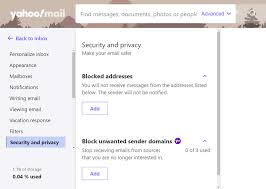
Blocking Unwanted Emails on Yahoo!
If you use Yahoo! Mail as your primary email client, here’s how to block unwanted emails:
- Access Your Account: Log in to your Yahoo! Mail account using your credentials.
- Open an Unwanted Email: Find the email from the person or organization you want to block and open it.
- Click on The “Spam” Button: Click on the “Spam” button in the top right corner of the page.
- Confirm The Action: Confirm that you want to mark the email as spam by clicking on the “Mark as Spam” button.
Alternatively, you can create a filter to automatically forward unwanted emails to your junk folder:
- Open Yahoo! Mail Settings: Click on the gear icon in the top right corner of the page and select “Settings”.
- Click on “Filters”: Scroll down to the “Filters” section.
- Create a New Filter: Click on the “New Filter” button.
- Enter The Sender’s Email Address: Enter the email address of the person or organization you want to block in the “From” field.
- Select “Block”: Select “Block” as the action for the filter.
Blocking Unwanted Emails on Other Email Clients
If you use other email clients, such as Apple Mail, Mozilla Thunderbird, or Android and iOS devices, here’s how to block unwanted emails:
- On Apple Mail, go to Preferences > Rules, click on the “+” button, and select “Block Sender”.
- On Mozilla Thunderbird, go to Tools > Message Filters, click on the “+” button, and select “Block Sender”.
- On Android devices, open the email client app, tap on the three dots (⋯) in the top right corner of the screen, and select “Settings” > “Blocked Senders”.
- On iOS devices, open the email client app, tap on the settings icon, and select “Blocked Senders”.
Conclusion
Blocking unwanted emails is an essential step in maintaining a clutter-free inbox. By following these step-by-step guides for various email clients, you’ll be able to keep your inbox organized and focused on what matters most – receiving messages from people you actually know and trust.
Remember to always check the settings of your email client periodically to ensure that unwanted emails are being blocked correctly. If you have any issues or concerns, feel free to reach out to us in the comments section below.


