
Unlocking Stuck Files: A Comprehensive Guide
Are you tired of dealing with files that refuse to be deleted? Do you find yourself struggling to free up space on your computer because certain files are stuck in a perpetual state of being “in use”? You’re not alone! In this article, we’ll explore the world of stuck files and provide you with actionable solutions to unlock them.
Understanding Stuck Files
Stuck files, also known as locked or blocked files, occur when a file is opened or being used by another program, making it inaccessible for deletion. This can happen due to various reasons such as:
- A program or application holding onto the file
- The file being in use by the operating system
- File permissions or access control issues
Windows-specific Solutions
If you’re using a Windows-based computer, here are some solutions to help you unlock stuck files:
Method 1: Close The Program Holding The File
- Identify the program holding the file by checking the Task Manager (Ctrl+Shift+Esc) or the system tray.
- Close the program to release its hold on the file.
- Attempt to delete the file again.
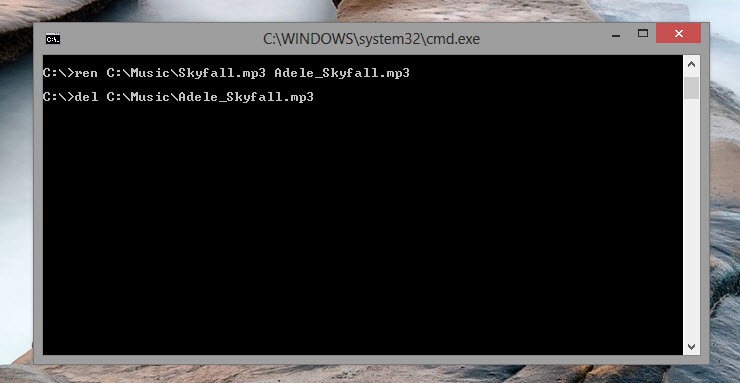
Method 2: Use The Command Prompt
- Open the Command Prompt as an administrator (right-click on the Start button and select “Command Prompt (Admin)”).
- Type
del /f /sfollowed by the file path (e.G.,Del /f /s C:\Users\Username\Desktop\File.Txt) to force delete the file. - Press Enter to execute the command.
Method 3: Use a Third-party Tool
- Download and install a third-party tool like LockHunter or Wise Force Deleter.
- Run the tool, select the stuck file, and follow the on-screen instructions to unlock and delete it.
Mac-specific Solutions
If you’re using a Mac, here are some solutions to help you unlock stuck files:
Method 1: Close The Application Holding The File
- Identify the application holding the file by checking the Activity Monitor (Command+Option+Esc).
- Quit the application to release its hold on the file.
- Attempt to delete the file again.
Method 2: Use Terminal Commands
- Open Terminal and type
rm -rffollowed by the file path (e.G.,Rm -rf /Users/Username/Desktop/File.Txt) to force delete the file. - Press Enter to execute the command.
Smartphone And Tablet Solutions
If you’re experiencing stuck files on your smartphone or tablet, here are some solutions:
Method 1: Close Unnecessary Apps
- Identify and close any unnecessary apps that may be holding onto the file.
- Attempt to delete the file again.
Method 2: Use a Third-party App
- Download and install a third-party app like LockHunter or Wise Force Deleter.
- Run the app, select the stuck file, and follow the on-screen instructions to unlock and delete it.
Conclusion
Dealing with stuck files can be frustrating, but by following these solutions, you should be able to unlock them and free up space on your computer. Remember to always exercise caution when using third-party tools or Terminal commands, as they may have unintended consequences.
Frequently Asked Questions (FAQs)
- Q: What Causes Stuck Files?
A: Stuck files occur due to various reasons such as a program or application holding onto the file, the file being in use by the operating system, or file permissions or access control issues. - Q: Can I Delete a Stuck File Without Closing The Program Holding It?
A: No, you cannot delete a stuck file without closing the program holding it. Attempting to do so may result in data loss or other unforeseen consequences. - Q: Are Third-party Tools Safe to Use?
A: Generally, third-party tools are safe to use. However, it’s essential to exercise caution and only download tools from reputable sources. - Q: Can I Force Delete a File on my Mac Using Terminal Commands?
A: Yes, you can force delete a file on your Mac using Terminal commands. However, be cautious when using these commands, as they may have unintended consequences.
Feel free to ask if you have any further questions or concerns!


