
How to Mount a Video on Mac: A Step-by-step Guide
Are you looking for ways to create stunning videos on your Mac? Look no further! In this article, we will guide you through the process of mounting a video on Mac using various software options.
What is Video Editing And Why Do You Need It?
Before we dive into the specifics, let’s talk about why video editing is essential. When you record a video, it’s often long and unedited. Video editing allows you to trim unnecessary parts, add transitions, and make your video more engaging. With the right tools, you can create stunning videos that showcase your creativity.
Top 5 Software Options For Mounting Videos on Mac
- Imovie: The Perfect Starter Kit
- IMovie is a free video editing software developed by Apple.
- It’s easy to use and comes with a variety of templates and effects.
- Perfect for beginners who want to create high-quality videos without spending money.
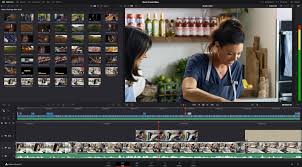
- Davinci Resolve: The Professional’s Choice
- DaVinci Resolve is a powerful video editing software that’s free to download.
- It offers advanced features like color grading, audio editing, and visual effects.
- Ideal for professionals who want to take their video editing skills to the next level.
- Capcut: A User-Friendly Editor
- CapCut is a popular video editing app developed by Bytedance.
- It’s free to download and offers advanced features like keyframing, chroma keying, and color grading.
- Perfect for beginners who want to create high-quality videos without investing in expensive software.
- Avidemux: A Free and Open-Source Editor
- Avidemux is a free and open-source video editing software that’s available for Mac.
- It offers advanced features like color correction, audio editing, and visual effects.
- Ideal for professionals who want to take their video editing skills to the next level without breaking the bank.
- Final Cut Pro X: The Ultimate Editor
- Final Cut Pro X is a professional-grade video editing software developed by Apple.
- It offers advanced features like color grading, audio editing, and visual effects.
- Perfect for professionals who want to take their video editing skills to the next level.
How to Mount a Video on Mac Using Imovie
Mounting a video on Mac using iMovie is easy and straightforward. Here’s a step-by-step guide:
- Open iMovie and select “Create New” from the menu bar.
- Select “Filmed” from the menu that appears.
- Drag and drop your filmed into the area of work.
- Add transitions, effects, and titles to your video using the icons in the timeline.
- Export your video by clicking on the icon of the arrow inside a square.
How to Mount a Video on Mac Using Davinci Resolve
Mounting a video on Mac using DaVinci Resolve is also easy and straightforward. Here’s a step-by-step guide:
- Open DaVinci Resolve and select “Create New” from the menu bar.
- Select “Media” from the menu that appears.
- Drag and drop your filmed into the area of work.
- Add transitions, effects, and titles to your video using the icons in the timeline.
- Export your video by clicking on the icon of the floppy disk.
How to Mount a Video on Mac Using Capcut
Mounting a video on Mac using CapCut is easy and straightforward. Here’s a step-by-step guide:
- Open CapCut and select “Create New” from the menu bar.
- Select “Media” from the menu that appears.
- Drag and drop your filmed into the area of work.
- Add transitions, effects, and titles to your video using the icons in the timeline.
- Export your video by clicking on the icon of the floppy disk.
How to Mount a Video on Mac Using Avidemux
Mounting a video on Mac using Avidemux is easy and straightforward. Here’s a step-by-step guide:
- Open Avidemux and select “Create New” from the menu bar.
- Select “Media” from the menu that appears.
- Drag and drop your filmed into the area of work.
- Add transitions, effects, and titles to your video using the icons in the timeline.
- Export your video by clicking on the icon of the floppy disk.
How to Mount a Video on Mac Using Final Cut Pro X
Mounting a video on Mac using Final Cut Pro X is also easy and straightforward. Here’s a step-by-step guide:
- Open Final Cut Pro X and select “Import Media” from the menu bar.
- Select your filmed from the media library.
- Add transitions, effects, and titles to your video using the icons in the timeline.
- Export your video by clicking on the icon of the floppy disk.
Conclusion
Mounting a video on Mac is easier than you think! With the right software tools, you can create stunning videos that showcase your creativity. From iMovie to Final Cut Pro X, there are various options available for you to choose from. Whether you’re a beginner or a professional, we hope this article has provided you with the information and guidance you need to get started.
Frequently Asked Questions (FAQs)
- Q: What is Video Editing?
A: Video editing is the process of selecting, arranging, and editing individual shots or segments into a cohesive whole. - Q: Which Software Should I Use For Video Editing on Mac?
A: It depends on your skill level and requirements. IMovie is perfect for beginners, while DaVinci Resolve, CapCut, Avidemux, and Final Cut Pro X are ideal for professionals. - Q: Can I Export my Video in Different Formats Using These Software Tools?
A: Yes! Each of the software tools mentioned above allows you to export your video in various formats, including MP4, MOV, AVI, and more. - Q: Do I Need a Mac to Use These Software Tools?
A: No! While some of the software tools are exclusive to Mac, others can be used on Windows or Linux operating systems. - Q: Can I Add Music And Effects to my Video Using These Software Tools?
A: Yes! Each of the software tools mentioned above allows you to add music and effects to your video, making it more engaging and enjoyable for viewers. - Q: Are There Any Free Versions or Trials Available For These Software Tools?
A: Yes! Some of the software tools mentioned above offer free versions or trials, allowing you to test their features before committing to a purchase. - Q: Can I Use These Software Tools on my Mobile Device?
A: No! While some of the software tools can be used on mobile devices, they are primarily designed for desktop use.
References
- IMovie official website
- DaVinci Resolve official website
- CapCut official website
- Avidemux official website
- Final Cut Pro X official website


