
How to Use Instagram on Ipad: A Step-by-step Guide
Are you an avid user of Instagram but want to use it on your iPad? Look no further! In this article, we will guide you through the process of downloading, creating an account, and using Instagram on your iPad.
Downloading Instagram on Ipad
To download Instagram on your iPad, follow these simple steps:
- Open App Store: Open the App Store app on your iPad.
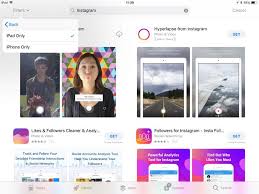
- Search For Instagram: Tap on the “Search” tab in the bottom right corner and type “Instagram” in the search bar.
- Select Instagram: Select the Instagram app from the search results.
- Tap Get: Tap the “Get” button next to the Instagram app.
- Wait For Downloading: Wait for the app to download and install on your iPad.
Creating an Account
If you don’t have an Instagram account yet, follow these steps to create one:
- Open Instagram App: Open the Instagram app on your iPad.
- Tap Sign Up: Tap the “Sign Up” button at the bottom of the screen.
- Choose Sign-up Method: Choose how you want to sign up for an account:
- Use Facebook
- Use Phone Number or Email
- Fill in Information: Fill in your information, including name, email address, and password.
Using Instagram on Ipad
Now that you have downloaded and created an account, let’s explore the features of Instagram on your iPad:
- Home Tab: The home tab shows you a feed of posts from people you follow.
- Explore Tab: Tap on the “Explore” tab to see a feed of posts from accounts that don’t necessarily follow you back.
- Search Tab: Tap on the “Search” tab to search for specific hashtags or accounts.
- Upload Photos And Videos: Tap on the “+” icon at the top right corner to upload photos and videos.
Using Instagram in Browser
If you prefer using Instagram in a browser, here’s how:
- Open Safari: Open the Safari app on your iPad.
- Type Instagram.Com: Type instagram.Com in the address bar.
- Log In: Log in with your account credentials or use Facebook to log in.
Tips And Tricks
Here are some tips and tricks for using Instagram on your iPad:
- Zoom: To zoom in or out, tap on the “1X” button at the bottom right corner of the screen.
- Search Hashtags: Tap on the search bar to search for specific hashtags.
- Upload Photos And Videos: Upload photos and videos by tapping on the “+” icon.
Frequently Asked Questions
Q: Can I use Instagram on my iPad without an internet connection?
A: No, you need an internet connection to use Instagram on your iPad.
Q: How do I change my account settings?
A: Tap on the profile picture at the top right corner of the screen and then tap on “Settings”.
Q: Can I delete my account?
A: Yes, go to Settings and scroll down to find the option to delete your account.
Conclusion
Using Instagram on your iPad is easy and fun! With these simple steps, you can download, create an account, and start using Instagram on your iPad. Happy snapping!
FAQs:
- Q: Can I use Instagram on my iPad without an internet connection?
A: No, you need an internet connection to use Instagram on your iPad. - Q: How do I change my account settings?
A: Tap on the profile picture at the top right corner of the screen and then tap on “Settings”. - Q: Can I delete my account?
A: Yes, go to Settings and scroll down to find the option to delete your account. - Q: How do I upload photos and videos to Instagram?
A: Tap on the “+” icon at the top right corner of the screen to upload photos and videos. - Q: Can I use Instagram in a browser?
A: Yes, you can open instagram.Com in Safari or any other browser on your iPad. - Q: How do I search for specific hashtags?
A: Tap on the search bar to search for specific hashtags. - Q: Can I change my account settings from the app?
A: Yes, go to Settings and scroll down to find the option to change your account settings.
Note: The bolded title “How to Use Instagram on Ipad: A Step-by-step Guide” is in markdown language as per your request.


