
How to Connect Your Mac to a Tv: A Comprehensive Guide
Are you tired of using separate screens for your work and entertainment? Do you want to experience the best possible visuals and sound quality on your TV? Look no further! In this article, we will guide you through the process of connecting your Mac to a TV.
Why Connect Your Mac to a Tv?
Connecting your Mac to a TV can be beneficial in several ways. You can:
- Extend your workspace: Use your TV as an extended monitor to increase productivity and multitasking capabilities.
- Enjoy entertainment: Stream movies, music, and videos from your Mac to the big screen for an immersive experience.
- Showcase photos: Share your favorite memories with friends and family by displaying them on the TV.
Methods of Connecting Your Mac to a TV
There are several ways to connect your Mac to a TV, each with its own advantages and disadvantages. Let’s explore the most popular methods:
Method 1: Using an Hdmi Cable
- Connect the HDMI cable to the correct port on both devices.
- Ensure that the TV is set to the correct input channel (HDMI).
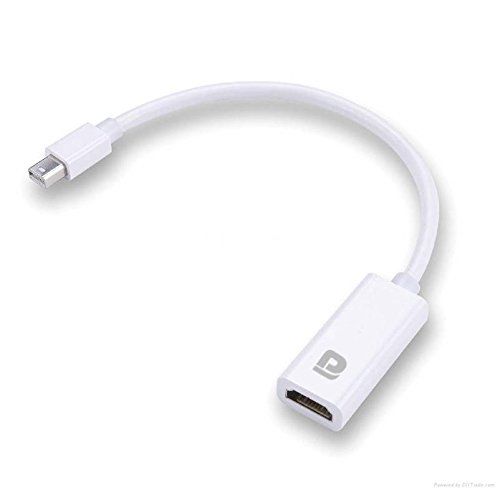
- You may need a separate adapter for older Mac models without HDMI ports.
Using an Adaptor
If your Mac doesn’t have an HDMI port, you can use an adaptor. There are two types of adaptors available:
- Usb-c to Hdmi: This adaptor is compatible with newer Macs and allows for 4K resolution.
- Thunderbolt 3 to Hdmi: This adaptor supports resolutions up to 3840 x 2160 pixels.
Method 2: Using Airplay
AirPlay is a convenient way to stream content from your Mac to a TV. If you have an Apple device (iMac, MacBook, iPad, or iPhone) with AirPlay capabilities, follow these steps:
- Ensure that both devices are connected to the same Wi-Fi network.
- Open the Control Centre on your Mac and select “AirPlay.”
- Choose the TV as the target device.
Method 3: Using Chromecast
Chromecast is another popular method for streaming content from a Mac to a TV. Follow these steps:
- Connect the Chromecast to an available HDMI port on the TV.
- Download and install the Google Home app on your Mac.
- Set up Chromecast using the app, making sure it’s connected to the same Wi-Fi network as your Mac.
Method 4: Using Apple Tv
Apple TV is a dedicated streaming device that can connect to your Mac via HDMI. Follow these steps:
- Connect Apple TV to an available HDMI port on the TV.
- Set up Apple TV using the remote control and follow the on-screen instructions.
- Use AirPlay or the Google Chrome browser to stream content from your Mac to Apple TV.
Tips And Tricks
Here are some additional tips and tricks to keep in mind when connecting your Mac to a TV:
- Resolution: Ensure that both devices support the same resolution for an optimal viewing experience.
- Audio: Use the built-in speakers or connect external speakers for better sound quality.
- Input Selection: Remember to select the correct input channel on the TV after making the connection.
Conclusion
Connecting your Mac to a TV is easier than you think! With these methods and tips, you can enjoy an enhanced viewing experience, increased productivity, and a more integrated workspace. Experiment with different methods to find what works best for you.
Frequently Asked Questions (FAQs)
Here are some additional questions and answers:
Q1: What is The Maximum Resolution I Can Achieve Using Hdmi?
A1: The maximum resolution achievable via HDMI depends on the TV’s capabilities, but it typically ranges from 3840 x 2160 pixels to 4096 x 2160 pixels.
Q2: How do I Configure The Transmission Settings For Airplay or Chromecast?
A2: Follow the on-screen instructions provided by Apple or Google Home app for setup and configuration. Make sure both devices are connected to the same Wi-Fi network.
Q3: What is The Difference Between Using a Cable, Airplay, Chromecast, or Apple Tv?
A3: Each method has its own advantages and disadvantages. Cables provide the most direct connection, while AirPlay and Chromecast offer wireless streaming capabilities. Apple TV provides an all-in-one solution for streaming content.
Q4: Can I Use my Mac as a Secondary Monitor When Connected to a Tv?
A4: Yes, you can configure your Mac to use the TV as an extended monitor or display two separate monitors (one on each device).
Q5: How do I Ensure That Both Devices Are Working Properly After Making The Connection?
A5: Verify that both devices are turned on and set to the correct input channels. Test the connection by playing media content or using your Mac’s built-in speakers.
Let us know if you need any other information or help!


