
How to Delete a Slide on Powerpoint: A Step-by-step Guide
Are you tired of cluttered presentations? Do you want to know how to delete a slide on PowerPoint without any hassle? Look no further! In this article, we will guide you through the process of deleting a slide on PowerPoint for both PC and mobile devices.
Introduction
PowerPoint is a powerful tool used for creating engaging presentations. However, sometimes you may need to remove slides that are no longer relevant or necessary. Deleting a slide can be a straightforward process if you know where to look. In this article, we will show you how to delete a slide on PowerPoint for both PC and mobile devices.
Deleting a Slide on Powerpoint (PC)
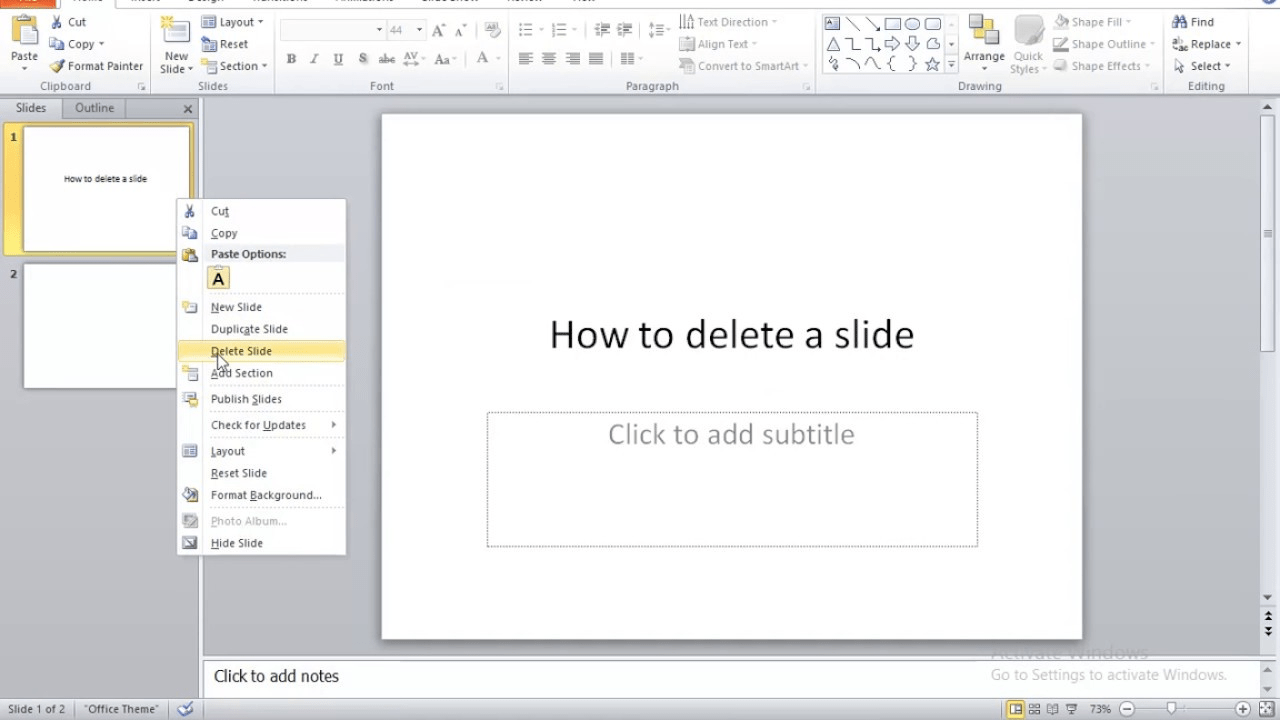
To delete a slide on PowerPoint for PC, follow these steps:
- Open Your Presentation: First, open the presentation file that contains the slides you want to delete.
- Select The Trailer: Click on the panel with the trailer of the slides located at the left side of the interface.
- Identify The Slide: Look for the slide you want to delete and click on it.
- Delete The Slide: Right-click on the selected slide and select “Delete” from the contextual menu.
Alternatively, you can use your keyboard to delete a slide by pressing the “Del” key or “Backspace” key.
Deleting Multiple Slides
If you want to delete multiple slides at once, follow these steps:
- Select The Trailer: Click on the panel with the trailer of the slides.
- Hold Ctrl And Click: Hold down the Ctrl key while clicking on the slides you want to delete.
- Delete: Right-click on the selected slides and select “Delete” from the contextual menu.
Undoing a Deletion
If you accidentally deleted a slide, don’t worry! You can undo it by pressing the Ctrl+Z keys (or Cmd+Z on macOS).
Deleting a Slide on Powerpoint (Mobile)
To delete a slide on PowerPoint for mobile devices, follow these steps:
- Android
- Open your presentation.
- Tap twice on one side to enter edit mode.
- Find the slide you want to delete and tap on it.
- Tap once again on the same slide to confirm deletion.
Note: On Android devices, you cannot select multiple slides at once for deletion.
- Iphone
- Open your presentation.
- Tap on one side to enter edit mode.
- Find the slide you want to delete and tap on it.
- Tap once again on the same slide to confirm deletion.
Conclusion
Deleting a slide on PowerPoint can be a straightforward process if you know where to look. Whether you’re using a PC or mobile device, we hope this guide has helped you understand how to delete a slide with ease. If you have any further questions or need more guidance, feel free to ask!
Frequently Asked Questions (FAQs)
- Q: How do I Undo a Deletion on Powerpoint?
A: Press the Ctrl+Z keys (or Cmd+Z on macOS) to undo a deletion. - Q: Can I Delete Multiple Slides at Once on Mobile Devices?
A: Unfortunately, no. On mobile devices, you can only delete one slide at a time. - Q: How do I Recover a Deleted Slide on Powerpoint?
A: Sorry! Once you’ve deleted a slide, it’s gone forever. However, if you have an auto-save feature enabled, you might be able to retrieve the deleted content from your backups. - Q: Can I Delete a Slide on Powerpoint Online?
A: Yes, deleting a slide on PowerPoint online is identical to deleting a slide on PC or mobile devices.
By following these simple steps and tips, you’ll be well on your way to mastering the art of deleting slides on PowerPoint!


