
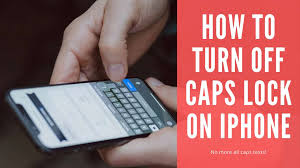
Removing Automatic Capital Letters on Iphone: A Step-by-step Guide
Are you tired of having your iPhone automatically capitalize the first letter of every word you type? Do you find yourself constantly correcting the text to fit your writing style? Look no further! In this article, we’ll show you how to remove automatic capital letters on your iPhone and customize your typing experience.
Why Remove Automatic Capital Letters?
Automatic capitalization can be frustrating for writers who prefer a more casual tone or need to type in all lowercase. It’s also inconvenient for those who use abbreviations or acronyms that don’t require capitalization. By disabling this feature, you can have greater control over your typing experience and reduce the need for manual corrections.
Disabling Automatic Capitalization on Iphone
To disable automatic capitalization on your iPhone, follow these steps:
- Open Settings: Tap on the “Settings” app icon on your Home screen or in the dock.
- General Options: Scroll down and tap on “General”.
- Keyboard: Tap on “Keyboard” from the list of options.
- Automatic Capitalization: Find the toggle switch labeled “Automatic Capitalization” and slide it to the left to disable it.
That’s it! You’ve successfully disabled automatic capitalization on your iPhone. If you ever want to re-enable this feature, simply go back to Settings > General > Keyboard and toggle the switch back to the right.
Additional Tips For Customizing Your Typing Experience
While disabling automatic capitalization is a great step, there are other features you can customize to improve your typing experience:
- Replace Text: This feature allows you to define custom text replacements for specific words or phrases. For example, if you frequently type “iOS” and want it to appear in all lowercase, you can create a replacement text by going to Settings > General > Keyboard and tapping on “Replace Text”.
- Automatic Spelling Correction: If you’re concerned about automatic capitalization affecting your spelling, you can disable automatic spelling correction altogether. To do this, go to Settings > General > Keyboard and toggle the switch labeled “Auto-Correction” to the left.
Removing Automatic Capital Letters From Specific Apps
While disabling automatic capitalization on iPhone-wide level is convenient, some apps might still insist on using it. In such cases, you can try disabling auto-correction for specific apps:
- Word: Open Word and tap on the settings icon (three horizontal lines) in the top left corner. Tap on “Settings” and toggle the switch labeled “Automatic Correction” to the left.
- Pages: Open Pages and tap on the settings icon (three horizontal lines) in the top right corner. Tap on “Document Settings” and toggle the switch labeled “Automatic Spelling Correction” to the left.
Conclusion
Removing automatic capital letters on your iPhone is a simple process that can greatly enhance your typing experience. By following these steps, you can customize your writing style and reduce the need for manual corrections. Remember to also explore other features like replace text and auto-spelling correction to further personalize your typing experience.
Frequently Asked Questions (FAQs)
- Q: Will Disabling Automatic Capitalization Affect my Iphone’s Overall Performance?
A: No, disabling automatic capitalization will not impact your iPhone’s performance. - Q: Can I Disable Automatic Capitalization For Specific Words or Phrases Only?
A: Yes, you can define custom text replacements using the “Replace Text” feature in Settings > General > Keyboard. - Q: Will Disabling Automatic Spelling Correction Affect my Typing Experience?
A: Disabling auto-spelling correction might not be ideal if you frequently type words with incorrect spellings. However, it’s still possible to correct these mistakes manually. - Q: How do I Re-enable Automatic Capitalization on Iphone?
A: Simply go back to Settings > General > Keyboard and toggle the switch labeled “Automatic Capitalization” to the right.
By following this guide and exploring additional customization options, you can take control of your typing experience and write with ease. Happy typing!


