
How to Connect Bluetooth Headphones to Samsung Phone: A Step-by-step Guide
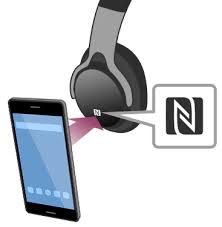
Are you tired of struggling to connect your Bluetooth headphones to your Samsung phone? Look no further! In this article, we will guide you through the process of pairing your headphones with your Samsung device, ensuring a seamless and hassle-free experience.
The Basics: Understanding Bluetooth Headphones And Phone Connection
Before we dive into the steps, let’s quickly cover the basics. Bluetooth technology allows devices to communicate with each other over short distances, eliminating the need for cables. When it comes to connecting Bluetooth headphones to a Samsung phone, the process is relatively straightforward. However, different brands and models may have slightly varying procedures.
Why Can’t I Connect My Bluetooth Headphones?
If you’re experiencing difficulties in pairing your headphones with your Samsung device, don’t worry! You’re not alone. Many users face this issue, often due to simple mistakes or misunderstandings about the connection process. In this article, we’ll walk you through each step, ensuring that you have a clear understanding of what to do.
Step 1: Charging Your Headphones
Before attempting to connect your Bluetooth headphones to your Samsung phone, ensure they are properly charged. A fully charged battery will guarantee a stable and reliable connection.
- Note: Some headphones may require a specific charging method or cable. Consult the user manual for more information.
Step 2: Downloading The Samsung Wearable App
To connect your Bluetooth headphones to your Samsung device, you’ll need to download the Samsung Wearable app from the Google Play Store or Samsung Galaxy Apps store. This app serves as an intermediary between your phone and headphones, making it easy to control and manage your audio settings.
- Step-by-step Instructions:
- Open the Google Play Store on your Samsung device.
- Search for “Samsung Wearable” and select the relevant result.
- Click “Install” to download the app.
- Wait for the installation process to complete.
- Launch the app and follow the prompts.
Step 3: Initializing The Connection
Once you’ve downloaded and installed the Samsung Wearable app, it’s time to initiate the connection between your headphones and phone.
- Step-by-step Instructions:
- Open the Samsung Wearable app on your device.
- Tap “Get Started” to begin the setup process.
- Allow the app to scan for nearby devices (your Bluetooth headphones).
- Select your headphones from the list of available devices.
Step 4: Confirming The Connection
After selecting your headphones, you’ll be prompted to confirm the connection. This step is crucial in establishing a stable and reliable link between your device and headphones.
- Step-by-step Instructions:
- Tap “Connect” to proceed with the setup process.
- Wait for the app to establish a secure connection.
- Confirm that your headphones are now connected to your Samsung device.
Connecting Bluetooth Headphones From Other Brands
While the steps outlined above apply to Samsung devices, connecting Bluetooth headphones from other brands follows a similar process. The main difference lies in the specific app required for each brand.
- Step-by-step Instructions:
- Download and install the relevant app (e.G., Google Fit, Bose Connect, or Apple Health).
- Follow the prompts to initialize the connection between your headphones and device.
- Confirm that your headphones are now connected to your Samsung phone.
Tips And Tricks
To ensure a smooth experience when connecting Bluetooth headphones to your Samsung phone:
- Ensure your headphones are fully charged before attempting to connect.
- Make sure your phone’s Bluetooth is enabled.
- Use the correct app for your brand of headphones (e.G., Google Fit, Bose Connect).
- Be patient during the setup process; it may take a few seconds for the connection to establish.
Conclusion
Connecting Bluetooth headphones to your Samsung phone can seem daunting, but with these step-by-step instructions and tips, you’ll be enjoying crystal-clear audio in no time! Remember to always follow proper charging procedures and use the correct app for your brand of headphones. If you’re still experiencing difficulties, feel free to consult the user manual or contact the manufacturer’s support team.


