
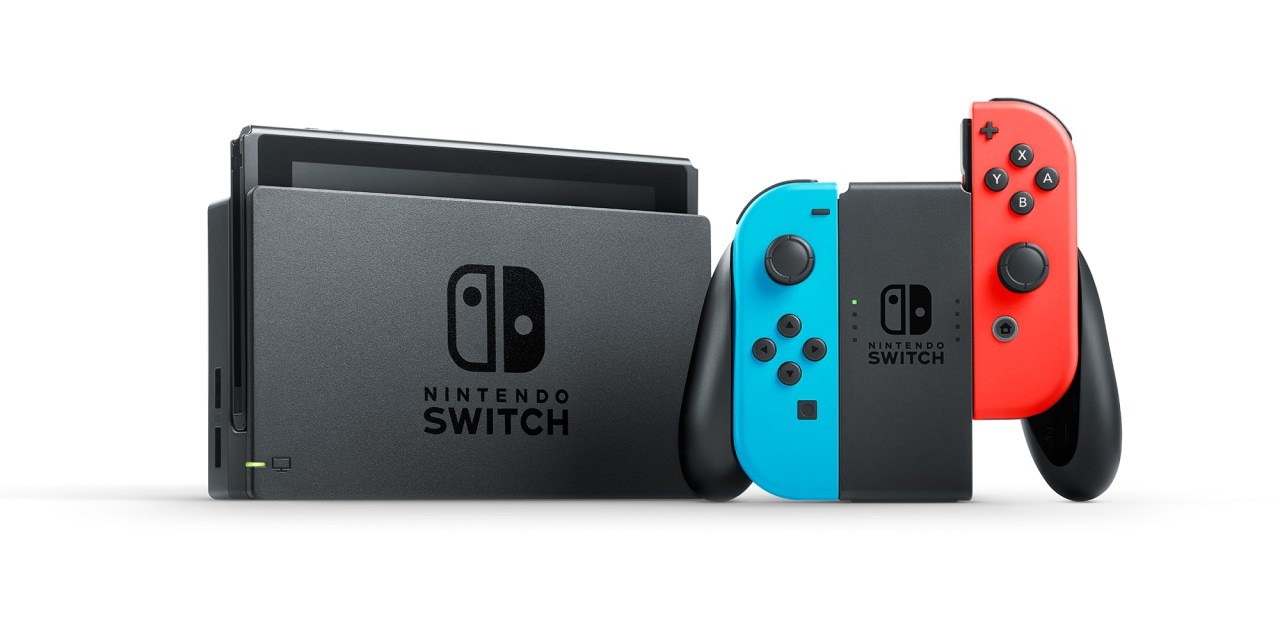
Protecting Your Online Identity: A Guide to 2FA on Nintendo Switch
As online gaming enthusiasts, we’re often gripped by the thrill of virtual adventures on our Nintendo Switch consoles. However, with great gaming comes great responsibility – safeguarding our online identities and accounts is crucial. In this guide, we’ll explore how to enable Two-Factor Authentication (2FA) on your Nintendo Switch, protecting your account from unauthorized access.
Understanding 2FA
Before diving into the setup process, it’s essential to understand what 2FA is. Unlike traditional password-based login systems, 2FA adds an extra layer of security by requiring a second form of verification, such as a code sent to your phone or a biometric authentication. This makes it much harder for hackers to access your account, even if they manage to guess or steal your password.
The Difference Between 2FA And Two-step Verification
It’s also important to note that 2FA is not the same as Two-Step Verification (TSV). While both methods involve an additional form of verification, TSV typically involves a one-time code sent via SMS or email. In contrast, 2FA often requires a longer-term token or authentication code.
Activating 2FA on Nintendo Switch
To enable 2FA on your Nintendo Switch:
- Connect to The Nintendo Eshop: Open the Nintendo eShop and sign in with your account details.
- Access Settings: Select the menu icon (three horizontal lines) and navigate to “Settings” > “Account & Security.”
- Check For Two-factor Authentication: Scroll down and select “Two-Factor Authentication.” If you haven’t already set it up, you’ll see a prompt to activate 2FA.
- Choose an Authentication Method: Select your preferred authentication method:
- Email: Nintendo will send a verification code to the email associated with your account.
- App Authenticator: Use a dedicated app like Google Authenticator (which we recommend).
- Enter Verification Code: Enter the code received via email or generated by the app authenticator.
Activating 2FA on Fortnite
To enable 2FA on your Fortnite account:
- Access Settings: Open Fortnite and navigate to “Settings” > “Account & Security.”
- Choose Authentication Method: Select “Two-Factor Authentication” and choose either “Email” or “App Authenticator.”
- Enter Verification Code: Enter the code received via email or generated by the app authenticator.
Using Google Authenticator
Google Authenticator is a popular and highly-recommended app for 2FA. To use it:
- Download And Install: Get Google Authenticator from the App Store (iOS) or Google Play Store (Android).
- Open The App: Launch Google Authenticator and tap “Start.”
- Scan The QR Code: Point your camera at the QR code displayed on the Nintendo Switch or Fortnite website.
- Generate a Verification Code: Enter the generated code into the corresponding field.
Tips For Secure 2FA Setup
To ensure secure 2FA setup:
- Use a Strong Password: Choose a unique and complex password for your account.
- Keep Your App Authenticator Up-to-date: Regularly update your app authenticator to prevent any potential security vulnerabilities.
- Store Backup Codes Safely: Save backup codes securely, but keep them confidential to avoid unauthorized access.
Conclusion
Enabling 2FA on your Nintendo Switch and Fortnite account is a simple yet crucial step in protecting your online identity. By following this guide, you’ll be well-equipped to safeguard your accounts from potential threats. Remember to stay vigilant and regularly review your security settings to ensure the highest level of protection.
Frequently Asked Questions (FAQs)
- Q: What Happens if I Lose my Phone or Device?
A: Don’t worry! You can still access your account using a backup code, which you should store securely. - Q: Can I Use Multiple Authentication Methods?
A: Yes, you can choose to use both email and app authenticator for added security. - Q: Will 2FA Affect my Gaming Experience?
A: No, enabling 2FA will not impact your gaming experience or performance. - Q: Can I Disable 2FA if I Forget my Password?
A: Unfortunately, no. Disabling 2FA will require you to reset your password and re-enable it separately. - Q: How do I Know Which Authentication Method is Best For Me?
A: Choose the one that suits your preference and needs. If in doubt, we recommend using Google Authenticator. - Q: Can I Use a Different App Authenticator Than Google Authenticator?
A: Yes, you can choose from various other app authenticators available on the App Store or Google Play Store. - Q: Will 2FA be Enabled Automatically For All Nintendo Switch And Fortnite Accounts?
A: No, enabling 2FA requires manual setup by each user to ensure maximum security. - Q: Can I Use a Third-party Authentication Service Instead of The Built-in Authenticator?
A: Yes, but we recommend using a reputable and well-established service like Google Authenticator for added security.
Stay safe online!


