
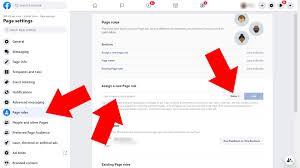
Unlocking Facebook Page Secrets: How to See Administrators
Are you curious about who’s behind your favorite Facebook Page? Do you want to know the administrators responsible for creating, managing, and promoting content on a particular page? Look no further! In this article, we’ll guide you through the process of discovering administrators on Facebook Pages using various methods.
Why Knowing Administrators Matters
Knowing who’s in charge of a Facebook Page is crucial for several reasons. As an administrator, one has complete control over the page, including creating posts, moderating comments, and even deleting the entire page if needed. This information can be vital when:
- Collaborating with page administrators
- Identifying potential issues or problems on the page
- Proposing collaborations or partnerships with page owners
How to See Administrators on Facebook Pages
Using a Smartphone or Tablet
To see administrators on a Facebook Page using a smartphone or tablet, follow these steps:
- Open the Facebook app.
- Access your account by tapping the “Menu” button (represented by three horizontal lines) and selecting “Pages.”
- Choose the page you’re interested in from the list of pages you manage.
- Tap the three dots (⋯) next to the page’s name and select “Settings & Privacy.”
- Scroll down to the “New” experience section and tap on “Access to the Page.”
- In the “People with Access to Facebook” section, you’ll find a list of users who manage the page.
Using a Computer
To see administrators on a Facebook Page using a computer:
- Log in to your Facebook account.
- Click on your profile picture in the top-right corner and select “Settings & Account.”
- In the left-hand menu, click on “See All Pages” and choose the page you’re interested in from the list.
- Click on the three dots (⋯) next to the page’s name and select “Edit Page.”
- Scroll down to the “New” experience section and click on “Access to the Page.”
- In the “People with Access to Facebook” section, you’ll find a list of users who manage the page.
Finding Administrators When You’re Not Part of The Page
If you’re not part of the page but want to know its administrators, try the following:
- Search for the page using Facebook’s search bar.
- Click on the “About” tab and scroll down to the “Transparency” section. Here, you’ll find information about the page, including its administrators.
Important Considerations
When searching for administrators on a Facebook Page:
- The role of administrator may not be publicly visible due to privacy concerns.
- Administrators can have different levels of access and control over the page.
- Some pages may have multiple administrators or contributors.
Conclusion
Knowing who manages a Facebook Page is essential for various purposes. By following these steps, you can discover administrators on Facebook Pages using smartphones, tablets, or computers. Remember to respect privacy concerns and understand the roles and responsibilities of page administrators.
Frequently Asked Questions (FAQs)
-
What Are The Different Levels of Access on a Facebook Page?
- Administrators have complete control over the page.
- Editors can create posts, moderate comments, and perform other tasks.
- Moderators can manage comments and other user interactions.
- Contributors can create content, but may not have as much control as administrators.
-
How do I Become an Administrator on a Facebook Page?
- You’ll need to be added as an administrator by the current page owner or another administrator.
- You can request access through the page’s settings or by contacting the page owner directly.
-
Can I See Administrators on a Private Facebook Group?
- No, only members of the group and administrators can view information about the group’s administrators.
-
What Happens if I’m Removed as an Administrator From a Facebook Page?
- You’ll lose access to administrative privileges, but you may still be able to view the page’s content.
-
How do I Contact Administrators on a Facebook Page?
- Try sending them a message through the page’s messaging system or using their email address if available.


