
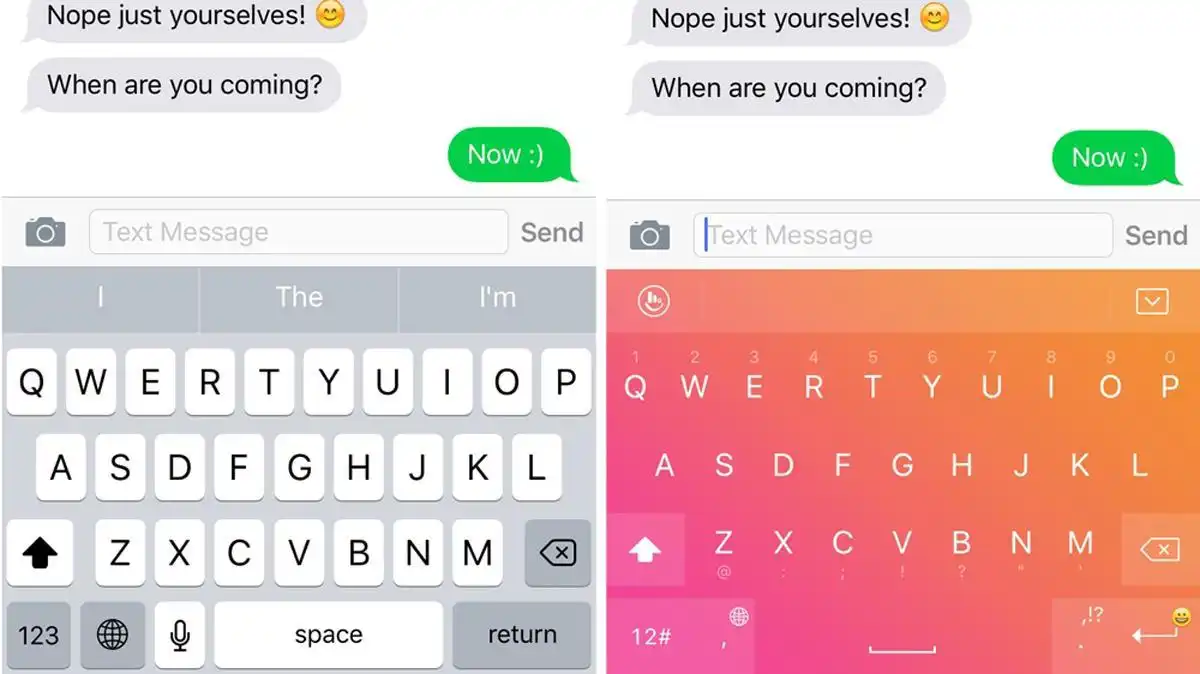
The Ultimate Guide to Keyboard Applications: Enhancing Your Typing Experience
Are you tired of using the default keyboard on your Android or iOS device? Do you want to experience a more personalized typing experience? Look no further! In this article, we will explore the world of keyboard applications and show you how to download and install them on your mobile device.
The Need For Keyboard Applications
Have you ever sensed that there’s more to typing than just using the default keyboard? With the rise of smartphones and tablets, the demand for better typing experiences has increased. That’s where keyboard applications come in – they offer a range of features and customization options that can enhance your typing experience.
Types of Keyboard Applications
There are several types of keyboard applications available for download on both Android and iOS devices. Some popular ones include:
- Gboard: Developed by Google, Gboard is a highly-rated keyboard application that offers personalized themes, custom keyboards, and advanced features like gesture typing.
- Microsoft Swiftkey: Another popular choice, Microsoft SwiftKey offers a range of customization options, including themes, layouts, and predictive text.
How to Download And Install Keyboard Applications
Downloading and installing keyboard applications is a straightforward process. Here’s a step-by-step guide:
- Search For The Application: Open the App Store (for iOS devices) or Google Play Store (for Android devices) and search for the keyboard application you want to install.
- Read Reviews And Ratings: Take some time to read reviews and check the ratings of the application. This will give you an idea of its quality and functionality.
- Download And Install: Once you’ve made your choice, click on the “Get” or “Install” button to download and install the application.
Customizing Your Keyboard Application
Once you’ve installed a keyboard application, it’s time to customize it to suit your needs. Here are some tips:
- Choose a Theme: Most keyboard applications come with pre-designed themes that you can choose from.
- Select a Layout: You can also select a layout that suits your typing style.
- Activate Advanced Features: Many keyboard applications offer advanced features like gesture typing, predictive text, and auto-correction.
Tips For Using Keyboard Applications
Here are some tips to keep in mind when using keyboard applications:
- Practice Makes Perfect: The more you use a keyboard application, the better you’ll get at typing on it.
- Experiment With Different Layouts: Try out different layouts to see which one works best for you.
- Customize Your Experience: Don’t be afraid to experiment with different themes and features.
Conclusion
In conclusion, keyboard applications offer a range of features and customization options that can enhance your typing experience. By following the steps outlined in this article, you can download and install a keyboard application on your Android or iOS device and start enjoying a more personalized typing experience.
Frequently Asked Questions (FAQs)
Here are some frequently asked questions about keyboard applications:
- Q: What is a Keyboard Application?
A: A keyboard application is a software program that provides an alternative to the default keyboard on your mobile device. - Q: How do I download and install a keyboard application?
A: To download and install a keyboard application, simply search for it in the App Store (for iOS devices) or Google Play Store (for Android devices). - Q: Can I Customize my Keyboard Application?
A: Yes, most keyboard applications offer customization options like themes, layouts, and advanced features. - Q: Are keyboard applications safe to use?
A: Generally, yes, but it’s always a good idea to read reviews and check ratings before installing any new software. - Q: Can I Switch Between Different Keyboards While Typing?
A: Yes, most keyboard applications allow you to switch between different keyboards during typing.
I hope this article has provided you with the information you need to get started with using a keyboard application. If you have any further questions or concerns, please don’t hesitate to ask.


