
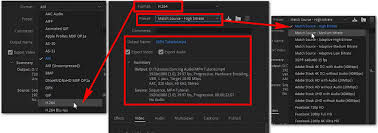
How to Export a Video From Premiere Pro: A Step-by-step Guide
Are you tired of struggling with exporting videos from Adobe Premiere Pro? Look no further! In this article, we’ll walk you through the process of exporting high-quality videos from Premiere Pro, covering various formats and settings.
Understanding Your Video Format Options
Before we dive into the export process, it’s essential to understand your video format options. Premiere Pro allows you to export in multiple formats, including MP4, MOV, and more. Each format has its own set of requirements and limitations.
- Mp4: A widely supported format for online sharing and social media platforms.
- Mov: A professional-grade format suitable for high-end video productions.
- H.264: A compression codec that balances quality and file size.
Step 1: Choose Your Export Settings
To export a video from Premiere Pro, follow these steps:
- Open your project in Premiere Pro and select the sequence you want to export.
- Go to the “Export” tab in the top menu bar and click on “Export.”
- In the Export settings window, choose the desired format (MP4, MOV, etc.) And resolution (HD, Full HD, etc.).
Step-by-step Guide
- Full HD (1080p): To export a video in full HD, select the “1080p” option under the “Resolution” dropdown menu.
- Lightweight: If you need to export a lightweight video, reduce the resolution to 480p or lower. You can also adjust the bitrate to minimize file size.
Additional Tips And Tricks
- Bitrate: Adjusting the bitrate can significantly impact your video’s quality. For Full HD, aim for a minimum of 2.5 Mbps.
- Frame Rate: The frame rate should match your footage’s original frame rate to maintain smooth motion.
- Color Depth: Choose the color depth that best suits your project (8-bit, 16-bit, etc.).
Conclusion
Exporting videos from Premiere Pro can be a straightforward process if you follow these steps and understand your format options. By choosing the right settings and adjusting parameters like bitrate, frame rate, and color depth, you can ensure high-quality exports for various platforms.
Frequently Asked Questions (FAQs)
Q: What is the best export format for social media platforms?
A: For social media platforms like Instagram, Facebook, and Twitter, MP4 is a widely supported format.
Q: How do I reduce the file size of my video?
A: To reduce file size, lower the resolution or adjust the bitrate to 1.5 Mbps or lower.
Q: What is the recommended frame rate for Full HD exports?
A: For Full HD (1080p) exports, a minimum of 24 FPS is recommended.
Exporting Videos For Specific Platforms
- Instagram: Export in MP4 format with a maximum resolution of 1080p and a frame rate of up to 60 FPS.
- Youtube: Export in MP4 or MOV format with a resolution of at least 240p and a maximum of 4320p (8K).
Exporting Videos From Adobe Premiere Pro
- Basic Export Settings: Choose the desired export settings, including resolution, frame rate, and format, to ensure high-quality exports.
- Advanced Export Settings: Adjust additional parameters like bitrate, color depth, and audio settings to fine-tune your exports.
By following these steps and tips, you’ll be well on your way to exporting stunning videos from Adobe Premiere Pro.


