
How to Join Rows in Microsoft Word: A Step-by-step Guide
Are you tired of dealing with multiple documents in Microsoft Word? Do you want to merge them into a single file without having to copy and paste every time? Look no further! In this article, we will guide you through the process of joining rows in Microsoft Word using various methods.
Method 1: Using The Built-in Function
If you’re using Microsoft Word 2016 or later, you can use the built-in function “Insert” to merge multiple documents into one. Here’s how:
- Open your first document and position your cursor at the end of the text.
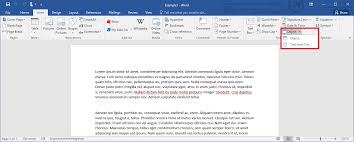
- Go to the “Insert” tab and click on “Object”.
- Select “Text from File” and choose the second document you want to merge.
- Repeat the process for each additional document, selecting “Add” instead of “Open” when prompted.
- Once all the documents are merged, save your file as a single document.
Method 2: Using Macros
If you’re comfortable with coding, you can use macros to automate the merging process. Here’s how:
- Open Microsoft Word and go to the “Development” tab in the ribbon.
- Click on “Macros” and then “Record Macro”.
- Name your macro (e.G., “MergeDocs”) and select “OK”.
-
In the Visual Basic editor, paste the following code:
“`
Sub MergeDocs()
Dim rng As Range
Dim MainDoc As DocumentSet MainDoc = Documents.Add
StrFile = Say$(strFolder & “.Docx”)Do Until strFile = “”
Set rng = MainDoc.Range
Rng.Collapse wdCollapseEnd
Rng.InsertFile strFolder & strFile
StrFile = Say$()
LoopEnd Sub
``strFolder` with the path to your folder containing the documents you want to merge.
* Replace
* Save your macro and run it by clicking on “Execute” in the Development tab.
Method 3: Using Libreoffice
If you’re not using Microsoft Word, you can use LibreOffice to merge multiple documents into one. Here’s how:
- Open LibreOffice Writer and create a new document.
- Go to the “Insert” menu and select “Document Master”.
- Choose the first document you want to merge and click on “Add”.
- Repeat the process for each additional document, selecting “Insert” instead of “Open” when prompted.
- Once all the documents are merged, save your file as a single document.
Method 4: Using Online Services
If you’re looking for an online solution, there are several services that allow you to merge multiple documents into one without having to install any software. Here’s how:
- Go to Aspose and select “Choose Word rows”.
- Upload the first document and name it (e.G., “Documento1”).
- Repeat the process for each additional document, naming them in a progressive order (e.G., “Documento2”, “documento3”, etc.).
- Once all the documents are uploaded, click on “Join” to merge them into a single file.
- Choose your preferred output format (e.G., Word, PDF, etc.) And download the merged file.
Method 5: Using Mobile Apps
If you’re using a smartphone or tablet, there are several mobile apps that allow you to merge multiple documents into one. Here’s how:
- Download Aspose.Words from the App Store or Google Play.
- Open the app and select “Join”.
- Upload the first document and name it (e.G., “Documento1”).
- Repeat the process for each additional document, naming them in a progressive order (e.G., “Documento2”, “documento3”, etc.).
- Once all the documents are uploaded, click on “Join” to merge them into a single file.
- Choose your preferred output format (e.G., Word, PDF, etc.) And save the merged file.
Conclusion
Merging multiple documents in Microsoft Word can be a breeze using these five methods. Whether you’re comfortable with coding or prefer online services, there’s an option for everyone. Remember to always save your files as single documents to avoid any issues down the line.
Faqs
- Q: Can I Merge Multiple Documents of Different Formats?
A: Yes, you can merge documents in various formats (e.G., Word, PDF, etc.) Using some online services or mobile apps. - Q: How do I Ensure That my Merged Document is Secure?
A: Always save your merged file as a single document and password-protect it if necessary. - Q: Can I Use These Methods to Merge Documents From Other Software Applications?
A: Yes, most online services and mobile apps allow you to import files from other software applications (e.G., Google Drive, Dropbox, etc.). - Q: What’s The Maximum Number of Documents I Can Merge at Once?
A: The maximum number of documents you can merge varies depending on the service or app you’re using. - Q: Can I Use These Methods to Merge Extremely Large Documents?
A: Some online services and mobile apps may have limitations for merging very large files, so it’s best to check their policies before attempting to merge large documents.
I hope this article has been helpful!


