
How to Actuate The Microphone on Whatsapp: A Step-by-step Guide
Are you experiencing issues with using the microphone on WhatsApp? Are you unable to record vocal messages or make video calls? Don’t worry, we’ve got you covered! In this article, we’ll guide you through a step-by-step process on how to actuate the microphone on WhatsApp for Android, iPhone, PC, and web.
Why is my Microphone Not Working on Whatsapp?
There could be several reasons why your microphone is not working on WhatsApp. It might be due to a setting issue on your device, or perhaps you haven’t granted permission for WhatsApp to access your microphone. Whatever the reason, we’ll help you resolve it in this article.
Actuating The Microphone on Whatsapp: A Step-by-step Guide
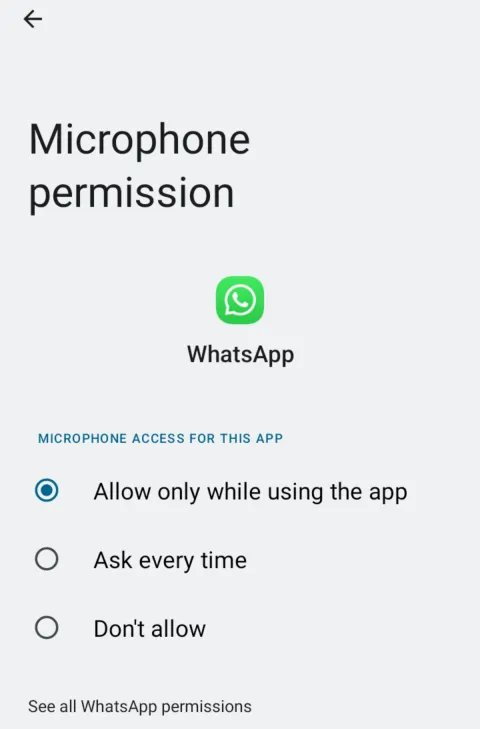
Actuating The Microphone on Whatsapp: Android
If you’re using an Android device and experiencing issues with the microphone on WhatsApp, follow these steps:
- Go to your device’s settings.
- Select the “Apps” or “Applications” option.
- Find and select the WhatsApp app from the list.
- Tap on the “Permissions” or “Authorizations” button.
- Select the microphone permission and ensure it’s turned ON.
Actuating The Microphone on Whatsapp: Iphone
If you’re using an iPhone and having trouble with the microphone on WhatsApp, follow these steps:
- Go to your device’s settings.
- Tap on the “General” option.
- Select the “Keyboard” option.
- Find and select the “Diction” or “Dictation” option.
- Ensure the microphone permission is turned ON.
Actuating The Microphone on Whatsapp: Pc
If you’re using a PC and having issues with the microphone on WhatsApp, follow these steps:
- Go to your device’s settings (Windows).
- Select the “Privacy” or “Security” option.
- Find and select the “Microphone” permission.
- Ensure it’s turned ON for the WhatsApp app.
Actuating The Microphone on Whatsapp: Web
If you’re using WhatsApp Web and having trouble with the microphone, follow these steps:
- Open your browser (Google Chrome or Safari).
- Go to the WhatsApp Web website.
- Click on the three dots at the top right corner of the page.
- Select the “Settings” option.
- Find and select the “Microphone” permission.
- Ensure it’s turned ON for the WhatsApp app.
Additional Tips
- To resolve microphone issues, restart your device or try using a different browser if you’re using WhatsApp Web.
- If you’re still experiencing issues, check that your device has the latest software updates installed.
- In some cases, you might need to reset your device’s settings to default.
Conclusion
Actuating the microphone on WhatsApp is a straightforward process that requires some basic settings adjustments. By following these steps, you should be able to resolve any issues related to your device’s microphone and enjoy uninterrupted video calls and voice messages on WhatsApp.
Frequently Asked Questions (FAQs)
- What if I Still Have Trouble With The Microphone After Following The Steps?
- Try restarting your device or using a different browser if you’re using WhatsApp Web.
- How do I Know Which Settings to Change on my Device?
- Consult the device’s user manual or online documentation for detailed instructions.
- Why is it Necessary to Grant Permission For Whatsapp to Access my Microphone?
- This ensures that WhatsApp can use your device’s microphone to make and receive audio calls.
- What if I’m Experiencing Issues With The Microphone on Multiple Devices?
- Try resetting each device’s settings to default or consult a professional for assistance.
How Do I Get In Touch With You?
Feel free to reach out to us through our website or social media channels if you have any further questions or concerns. We’re here to help!


