
Actuating Cookies on Iphone: A Comprehensive Guide
As a digital enthusiast, you’ve probably encountered the term “cookies” while browsing online. These little files of text are used by websites to personalize your experience and remember your preferences. However, dealing with cookies can be frustrating, especially when trying to navigate through Safari or Chrome on your iPhone. In this article, we’ll guide you through the process of actuating cookies on various browsers, including Safari, Chrome, Firefox, and Edge.
What Are Cookies?
Before diving into the technical aspects, let’s briefly discuss what cookies are. Cookies are small pieces of data stored on your device by websites to remember your preferences, login information, and other details. They can be generated directly by a website or third-party sites, such as social media platforms or advertising agents.
Why Do I Need to Actuate Cookies?
Cookies play a crucial role in online navigation, and disabling them might affect the functionality of certain websites. By actuating cookies on your iPhone’s browser, you’ll enable them to work properly, ensuring a smooth browsing experience.
Actuating Cookies on Safari Iphone
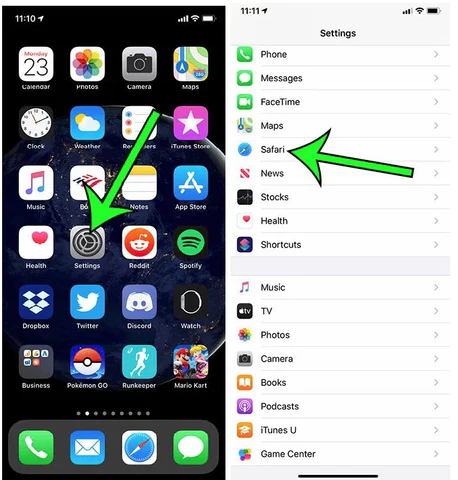
If you’re using Safari as your default browser on your iPhone, follow these steps to activate cookies:
- Open Safari and navigate to the home screen or Bookmarks app.
- Tap on the Settings icon (represented by a gear symbol).
- Select the option “Safari” from the menu.
- In the subsequent screen, toggle off the switch next to “Block all cookies” in the Privacy and Safety section.
- If you want to enable only third-party cookies, toggle off the switch next to “Block cross-site tracking.”
Actuating Cookies on Chrome Iphone
If you’re using Chrome as your default browser on your iPhone, follow these steps:
- Open Chrome and navigate to a new tab or search bar.
- Tap on the three dots (⋯) in the top-right corner of the screen.
- Select the “New incognito tab” option from the menu.
- This will open a new tab with standard navigation enabled, allowing cookies to work properly.
Actuating Cookies on Firefox Iphone
If you’re using Firefox as your default browser on your iPhone, follow these steps:
- Open Firefox and navigate to the settings icon (represented by three horizontal lines).
- Select the “Settings” option from the menu.
- In the subsequent screen, toggle off the switch next to “Protection” in the Privacy section.
- If you want to enable only certain categories of cookies, select the “Normal” option.
Actuating Cookies on Edge Iphone
If you’re using Edge as your default browser on your iPhone, follow these steps:
- Open Edge and navigate to the settings icon (represented by three horizontal lines).
- Select the “Settings” option from the menu.
- In the subsequent screen, toggle off the switch next to “Cookie” in the Privacy section.
- If you want to enable only third-party cookies, select the “Block only third-party cookies” option.
Common Issues And Solutions
Sometimes, issues may arise when trying to actuate cookies on your iPhone’s browser. Here are some common problems and their solutions:
- Cookies Not Being Enabled: Make sure you’re using the correct settings for each browser.
- Private Mode Interfering With Cookie Functionality: Check if you’re using private mode in Safari or Chrome. If so, try disabling it to enable cookies.
- Cookie Restrictions Affecting Website Functionality: Try enabling specific categories of cookies or adjusting your browser’s settings.
Conclusion
Actuating cookies on your iPhone’s browser is a straightforward process that can be completed within minutes. By following the steps outlined above for each browser, you’ll ensure a seamless browsing experience and enable cookies to work properly. Remember to adjust your browser’s settings according to your preferences, and don’t hesitate to reach out if you encounter any issues.
Frequently Asked Questions
- What Are Cookies, And Why do I Need Them?
Cookies are small files of text used by websites to personalize your experience and remember your preferences. - How do I Enable Cookies on my Iphone’s Browser?
Follow the steps outlined above for each browser (Safari, Chrome, Firefox, and Edge). - Can I Disable Cookies Completely?
Yes, but keep in mind that disabling cookies might affect website functionality. - Why Are Cookies Necessary For Online Navigation?
Cookies help websites remember your preferences, login information, and other details to provide a seamless browsing experience. - How do I Know if Cookies Are Enabled on my Iphone’s Browser?
Check the browser’s settings for each specific browser (Safari, Chrome, Firefox, and Edge). - Can I Enable Only Certain Categories of Cookies?
Yes, but this will depend on the specific browser you’re using. - Why do I Need to Adjust my Browser’s Settings?
Adjusting your browser’s settings can help resolve issues related to cookie functionality. - What if I’m Experiencing Issues With Cookie-enabled Websites?
Try adjusting your browser’s settings or enabling specific categories of cookies.
By following this guide, you’ll be able to actuate cookies on your iPhone’s browser and enjoy a smoother browsing experience. If you have any further questions or concerns, feel free to reach out!


