
How to Transfer Music From PC to Iphone: A Step-by-step Guide
Are you tired of dealing with the hassle of transferring music from your PC to your iPhone? Look no further! In this article, we’ll guide you through a step-by-step process on how to transfer music from your PC to your iPhone using various methods.
Why Use Itunes For Music Transfer?
ITunes is a free software provided by Apple that allows you to manage your digital media collection, including music, videos, and more. It’s the most straightforward way to transfer music from your PC to your iPhone. With iTunes, you can easily add, edit, and delete tracks in your music library, making it a great tool for music enthusiasts.
Method 1: Transferring Music Using Itunes on Windows
If you’re using a Windows PC, follow these steps:
- Download And Install Itunes: If you haven’t already, download and install iTunes from the Microsoft Store.
- Launch Itunes: Open iTunes on your PC and sign in with your Apple ID.
- Add Music to Itunes: Drag and drop the music files you want to transfer into the iTunes window. You can also add entire albums or playlists by selecting them and clicking “Add to Library”.
- Connect Your Iphone: Connect your iPhone to your PC using a Lightning cable. If prompted, authorize access on both devices.
- Synchronize Music: Select your iPhone in the top left corner of the iTunes window, click on the music icon, and check the boxes next to “Sync Music” and “Entire Library”. Click “Apply” to start the transfer process.
Method 2: Transferring Music Using Itunes on Mac
If you’re using a Mac, follow these steps:
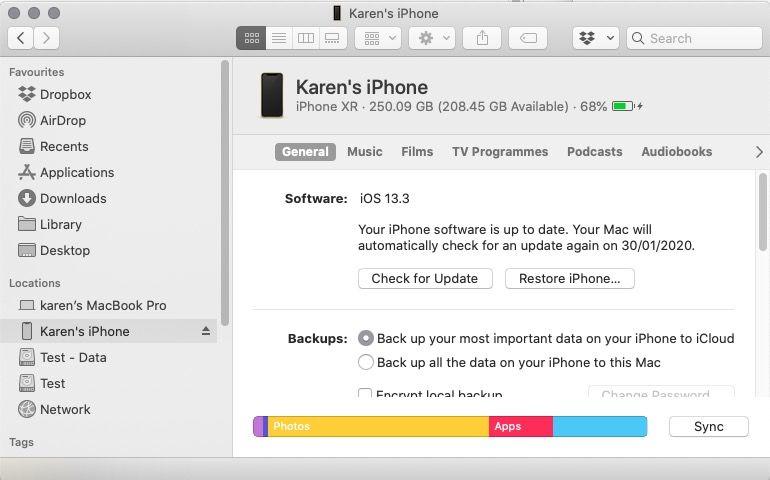
- Open Finder: Open Finder on your Mac and select your iPhone from the left sidebar.
- Select Music: Select the music icon in the top right corner of the window, then click on “Music” in the left menu bar.
- Sync Music: Check the boxes next to “Sync Music” and “Entire Library”. Click “Apply” to start the transfer process.
Method 3: Transferring Music Without Itunes
If you don’t want to use iTunes or Music, there are other alternatives:
- Imazing: This software allows you to manage your iPhone’s content, including music. You can download a free version and upgrade to a paid subscription for more features.
-
Apple Music: If you have an Apple Music subscription, you can access millions of songs directly on your iPhone. To transfer music from your PC to your iPhone using Apple Music, follow these steps:
-
Open Itunes/music: Open iTunes or Music on your PC and sign in with your Apple ID.
- Sync Icloud Library: Make sure iCloud Music Library is enabled on both devices.
- Transfer Music: Add music to your iTunes library on your PC, and it will automatically sync to your iPhone via iCloud.
Tips And Variations
- Filtering Music: When transferring music using iTunes or Music, you can filter the songs by artist, genre, playlist, or album.
- Wireless Syncing: You can also transfer music wirelessly using Wi-Fi. Make sure both devices are connected to the same network.
- Manual Management: If you want more control over your music library, consider using manual management options in iTunes or Music.
Conclusion
Transferring music from your PC to your iPhone doesn’t have to be a hassle anymore! With these step-by-step guides and tips, you can easily manage your digital music collection. Remember to always use the latest version of iTunes or Music for the best experience. If you have any questions or need further assistance, feel free to ask.
Faqs
- Q: How do I Transfer Music From my PC to my Iphone Without Itunes?
A: You can use iMazing or Apple Music as alternatives. - Q: Can I Filter The Music When Transferring it Using Itunes or Music?
A: Yes, you can filter by artist, genre, playlist, or album. - Q: How do I Enable Wireless Syncing For Music Transfer?
A: Make sure both devices are connected to the same Wi-Fi network. - Q: Can I Manually Manage my Music Library on Itunes or Music?
A: Yes, you can use manual management options in iTunes or Music for more control over your music library. - Q: How do I Know if my Iphone is Synchronized With my PC Using Itunes or Music?
A: Look for the “Synced” status icon next to your iPhone’s name in iTunes or Music. - Q: Can I Transfer Music From my PC to Multiple Iphones at Once?
A: Yes, you can synchronize multiple devices simultaneously using iTunes or Music. - Q: How do I Troubleshoot Issues With Music Transfer Between my PC And Iphone?
A: Check your connections, restart both devices, and ensure the latest version of software is installed.
Hope this helps!


