
How to Cancel Amazon Prime Video Subscription
Are you tired of Amazon Prime Video’s services but still stuck with a subscription? Look no further! In this article, we’ll guide you through the steps to cancel your Amazon Prime Video subscription.
What is Amazon Prime Video?
Amazon Prime Video is a streaming service that offers a wide selection of movies, TV shows, and original content. It’s included in Amazon Prime membership, which also provides benefits like free shipping, music streaming, and more.
Why Cancel Amazon Prime Video?
There are several reasons why you might want to cancel your Amazon Prime Video subscription:
- You’ve found other streaming services that better meet your needs
- You’re not interested in the content available on Amazon Prime Video
- You’re trying to save money by cutting back on subscriptions
Whatever your reason, we’ll show you how to cancel your subscription.
How to Cancel Amazon Prime Video Subscription
Step 1: Access Your Amazon Account
To cancel your Amazon Prime Video subscription, you need to access your Amazon account. If you’ve already signed in, proceed to the next step. Otherwise, follow these instructions:
- Go to www.Amazon.Com and sign in with your Amazon login credentials.
- Click on “Your Account” at the top right corner of the page.
Step 2: Cancel Your Prime Membership
To cancel your Amazon Prime membership, which includes Prime Video, follow these steps:
- Scroll down to the “Manage Your Content and Devices” section.
- Select “Prime Membership”.
- Click on “End membership”.
Note: If you’re still within the free trial period, you’ll need to wait for it to expire before canceling your subscription.
Step 3: Confirm Cancellation
Once you’ve ended your Prime membership, confirm that you want to cancel by following these steps:
- Select “Confirm cancellation”.
- You’ll receive a confirmation email with instructions on how to reactivate your account if needed.
Alternative Method: Cancel Amazon Prime Video on Mobile
If you prefer using the Amazon app on your mobile device, follow these steps:
- Open the Amazon app.
- Tap on “Account and Lists” at the bottom of the screen.
- Select “Your Account”.
- Scroll down to the “Prime Membership” section.
- Tap on “End membership”.
What Happens After Cancellation?
After canceling your Amazon Prime Video subscription, you’ll no longer have access to the service’s content. However, if you’ve already paid for a subscription period, you’ll still be able to enjoy the benefits until the end of that period.
How to Reactivate Your Account
If you change your mind or want to reactivate your account in the future, follow these steps:
- Go to www.Amazon.Com and sign in with your Amazon login credentials.
- Click on “Your Account” at the top right corner of the page.
- Select “Prime Membership”.
- Click on “Start Prime membership”.
Can I Cancel My Subscription Without Removing Amazon Prime Video?
Yes, you can cancel your subscription without removing Amazon Prime Video. However, this will not affect any active subscriptions to channels or add-ons.
How to Cancel Prime Video Channels And Add-ons
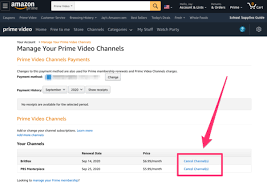
If you’ve subscribed to specific channels or add-ons on Amazon Prime Video, follow these steps to cancel them:
- Go to www.Amazon.Com and sign in with your Amazon login credentials.
- Click on “Your Account” at the top right corner of the page.
- Scroll down to the “Manage Your Content and Devices” section.
- Select “Prime Video Channels”.
- Find the channel or add-on you want to cancel and click on the three dots next to it.
- Select “Cancel subscription”.
Frequently Asked Questions
- What Happens if I Cancel my Amazon Prime Membership?
- Canceling your Amazon Prime membership will also cancel any associated services, including Prime Video.
- Can I Cancel my Subscription Without Removing Amazon Prime Video?
- Yes, you can cancel your subscription without removing Amazon Prime Video, but this won’t affect any active subscriptions to channels or add-ons.
- How do I Reactivate my Account if I’ve Canceled It?
- To reactivate your account, go to www.Amazon.Com, sign in with your login credentials, and follow the instructions to start a new Prime membership.
- Will I Still be Able to Access Amazon Prime Video Content After Canceling my Subscription?
- No, you won’t have access to Amazon Prime Video content once you’ve canceled your subscription.
Conclusion
Canceling your Amazon Prime Video subscription is a straightforward process that can be completed online or through the Amazon app. Remember to confirm cancellation and understand what happens after canceling your subscription. If you change your mind, you can always reactivate your account in the future.
Frequently Asked Questions (FAQs)
- What is Amazon Prime Video?
- Amazon Prime Video is a streaming service that offers movies, TV shows, and original content.
- Why Cancel my Amazon Prime Video Subscription?
- You might want to cancel your subscription if you’ve found other streaming services that better meet your needs or if you’re trying to save money by cutting back on subscriptions.
- How do I Cancel my Amazon Prime Membership?
- To cancel your Prime membership, access your Amazon account, scroll down to the “Manage Your Content and Devices” section, select “Prime Membership”, and click on “End membership”.
- Will I Still Have Access to Amazon Prime Video Content After Canceling my Subscription?
- No, you won’t have access to Amazon Prime Video content once you’ve canceled your subscription.
We hope this guide has helped you navigate the process of canceling your Amazon Prime Video subscription!


