
How to Capsize The State on Whatsapp: A Step-by-step Guide
Are you tired of having a boring WhatsApp state? Do you want to surprise your friends with a funny or inspiring phrase? Look no further! In this article, we will guide you through the process of capsizing the state on WhatsApp for Android, iPhone, and PC.
What is Whatsapp State?
WhatsApp allows users to set a personal state that appears at the top of their profile. This state can be updated frequently and is visible to all contacts. There are two types of states: Updates (or History) and Textual State (or Info).
Why Capsize The State on Whatsapp?
Capsizing the state on WhatsApp allows you to share your thoughts, feelings, or experiences with your friends. It’s a great way to express yourself and connect with others. Plus, it’s a fun and creative way to personalize your profile.
How to Capsize The State on Whatsapp For Android
To capsise the state on WhatsApp for Android, follow these steps:
- Open the WhatsApp app and navigate to the Updates/State tab.
- Tap on the pencil icon to edit the state.
- Type in the phrase you want to display, or record an audio message using the microphone icon.
- Add a photo or video by tapping on the camera icon.
- Use the filters and stickers to customize your state.
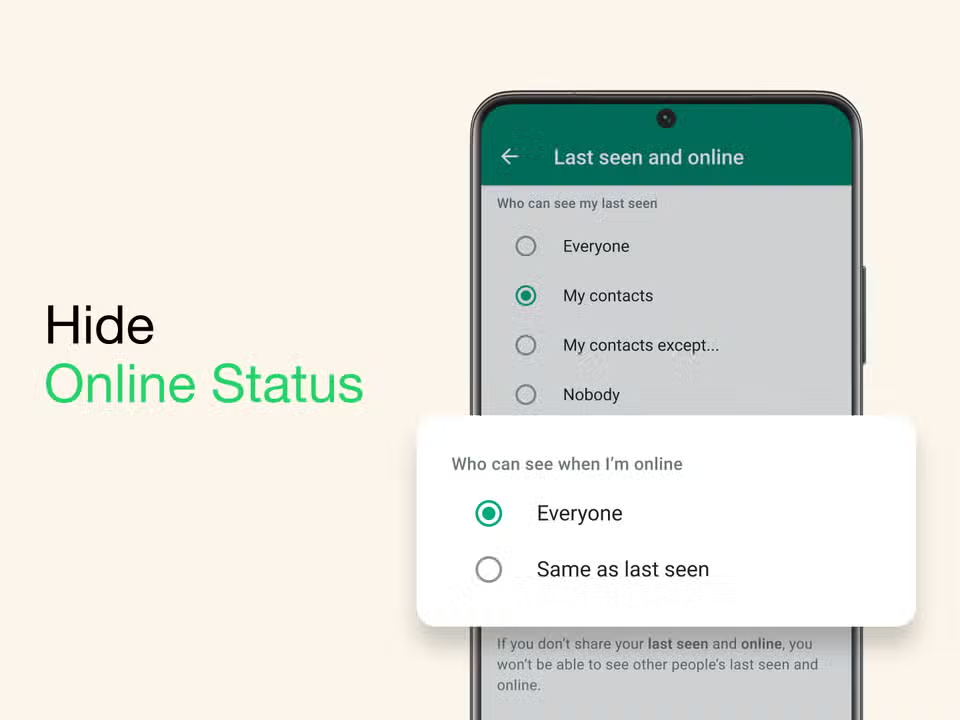
- Set the visibility of your state to “My contacts” or “Everyone”.
- Tap on the aeroplane icon to send your updated state.
How to Capsize The State on Whatsapp For Iphone
Capsizing the state on WhatsApp for iPhone is similar to Android:
- Open the WhatsApp app and navigate to the Updates tab.
- Tap on the “+” icon to create a new state.
- Choose between typing a message or recording an audio message using the microphone icon.
- Add a photo or video by tapping on the camera icon.
- Use the filters and stickers to customize your state.
- Set the visibility of your state to “My contacts” or “Everyone”.
- Tap on the aeroplane icon to send your updated state.
How to Capsize The State on Whatsapp For PC
To capsise the state on WhatsApp for PC, follow these steps:
- Open the WhatsApp Web version and navigate to your profile.
- Click on the pencil icon next to “Info” to edit the textual state.
- Type in the phrase you want to display, or use one of the pre-defined states.
- Set the visibility of your state to “My contacts” or “Everyone”.
Tips And Variations
- You can add a photo or video to your state by tapping on the camera icon.
- Use filters and stickers to customize your state.
- Set the visibility of your state to “My contacts”, “My contacts except…”, Or “Share only with…”.
- Delete an outdated state by accessing the Updates tab.
Common Questions
- What is The Maximum Length of a Textual State?
- The maximum length of a textual state is 140 characters, including blanks.
- Can I Add Emojis to my Textual State?
- Yes, you can add emojis to your textual state by tapping on the emoji icon.
- How Long Does a State Last?
- A state lasts for 24 hours and will automatically delete after that.
Conclusion
Capsizing the state on WhatsApp is a fun and creative way to express yourself and connect with others. Whether you’re using Android, iPhone, or PC, following these steps will guide you through the process of setting up your personal state. Don’t be afraid to get creative and try out different phrases or messages – it’s all part of the WhatsApp experience!
Frequently Asked Questions (FAQs)
- What is The Difference Between Updates And Textual State?
- Updates refers to the history of posts shared in the past 24 hours, while textual state refers to a personal message displayed on your profile.
- Can I Delete an Outdated State?
- Yes, you can delete an outdated state by accessing the Updates tab and tapping on the three dots next to the state you want to delete.
- How do I Add a Photo or Video to my State?
- To add a photo or video to your state, tap on the camera icon or navigate to your profile and click on the pencil icon next to “Info”.
- Can I Set The Visibility of my State to “Everyone”?
- Yes, you can set the visibility of your state to “Everyone” by navigating to the settings menu and selecting that option.
- How Long Does it Take For a New State to Appear?
- A new state will appear immediately after you’ve saved your changes.
- Can I Use Emojis in my Textual State?
- Yes, you can add emojis to your textual state by tapping on the emoji icon.
- What is The Maximum Length of a Textual State?
- The maximum length of a textual state is 140 characters, including blanks.
I hope this article has been helpful! If you have any further questions or need assistance with capsizing the state on WhatsApp, feel free to ask.


