
Sharing Monitor on Tv: A Step-by-step Guide
Are you tired of sharing photos and videos with friends and family, only to have them ask to see the full-screen experience? Do you want to show off your favorite games or movies on a bigger screen? Look no further! In this article, we’ll explore how to share your monitor on TV using various methods.
Why Share Your Monitor on Tv?
Sharing your monitor on TV can be a great way to enhance your entertainment and gaming experience. Imagine watching your favorite sports team play in full-screen glory or playing games with friends and family on the big screen. It’s also a convenient way to share photos and videos with loved ones.
Wireless Methods: Miracast And Google Cast
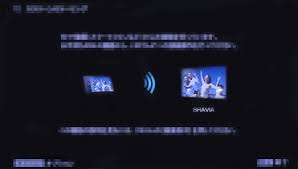
If you have a recent Smart TV, chances are it supports wireless transmission using technologies like Miracast and Google Cast. These methods allow for easy sharing without the need for cables or adapters.
- Miracast: This technology uses Wi-Fi Direct to connect your device to the TV without the need for an internet connection. Simply open the Settings app on your device, select the option to share your screen, and choose the Miracast option.
- Google Cast: If your TV has Google TV or Android TV built-in, you can use Google Cast to share your screen wirelessly. Open the Google Home app on your device, select the menu icon (three horizontal lines), and tap on “Share” to start casting.
Using a Cable: Hdmi Cables
If wireless methods aren’t an option for you, don’t worry! You can still share your monitor on TV using an HDMI cable. This method works best with devices that have an HDMI output, such as a PC or gaming console.
- Hdmi Cables: Choose a high-quality HDMI cable that supports the resolution and refresh rate of your device.
- Adapters: If you need to connect multiple devices to your TV, consider using adapters like a 4K HDMI adapter or a USB-C to HDMI adapter.
Sharing Monitor on Iphone or Ipad
If you have an iPhone or iPad, sharing your monitor on TV is relatively easy. You can use the built-in AirPlay feature to wirelessly share your screen with compatible TVs.
- Airplay: Make sure your TV and device are connected to the same Wi-Fi network. Open the Control Center on your device (swipe up from the bottom of the screen), tap on “Screen Mirroring,” and select your TV’s name.
- Cable Method: Alternatively, you can use an HDMI cable to connect your iPhone or iPad to your TV.
Sharing Monitor on PC
If you’re a PC user, sharing your monitor on TV is also possible. You can use the built-in Windows feature called Miracast to wirelessly share your screen with compatible TVs.
- Miracast: Make sure your TV and device are connected to the same Wi-Fi network. Open the Action Center (swipe from the right side of the screen), tap on “Connect,” and select your TV’s name.
- Cable Method: Alternatively, you can use an HDMI cable to connect your PC to your TV.
Sharing Monitor on Mac
If you’re a Mac user, sharing your monitor on TV is also possible. You can use the built-in AirPlay feature to wirelessly share your screen with compatible TVs.
- Airplay: Make sure your TV and device are connected to the same Wi-Fi network. Open the Apple menu, select “System Preferences,” and choose “Sharing.” Select the option to share your desktop on your TV.
- Cable Method: Alternatively, you can use an HDMI cable to connect your Mac to your TV.
Conclusion
Sharing your monitor on TV is easier than ever, thanks to various wireless and cable-based methods. Whether you’re a gamer, movie buff, or just want to share photos with loved ones, there’s a method that suits your needs. Try out one of the above methods today and enjoy a bigger and better viewing experience!
Frequently Asked Questions
- Q: What is Miracast?
A: Miracast is a wireless technology that allows devices to connect directly to each other without an internet connection. - Q: Can I Share my Monitor on TV Using Google Cast?
A: Yes, if your TV has Google TV or Android TV built-in, you can use Google Cast to wirelessly share your screen. - Q: What is The Best Hdmi Cable For Sharing my Monitor on Tv?
A: Choose a high-quality HDMI cable that supports the resolution and refresh rate of your device. - Q: Can I Share my Iphone or Ipad on TV Using an Hdmi Cable?
A: Yes, you can use an HDMI cable to connect your iPhone or iPad to your TV. - Q: How do I Set up Airplay on my Mac?
A: Open the Apple menu, select “System Preferences,” and choose “Sharing.” Select the option to share your desktop on your TV. - Q: Can I Share my Monitor on TV Using a 4K Hdmi Adapter?
A: Yes, you can use a 4K HDMI adapter to connect multiple devices to your TV. - Q: What is The Difference Between Miracast And Google Cast?
A: Miracast uses Wi-Fi Direct to connect devices wirelessly without an internet connection, while Google Cast requires an internet connection and uses the Google Home app. - Q: Can I Share my Monitor on TV Using a Usb-c to Hdmi Adapter?
A: Yes, you can use a USB-C to HDMI adapter to connect your Mac or other device with a USB-C port to your TV.


