
How to Erase Given Navigation on Your Browser
Are you tired of your browser slowing down or not displaying web pages correctly? Do you feel like there’s too much clutter in your browser history? You’re not alone! Many people experience this issue, and it’s often caused by an accumulation of browsing data. In this article, we’ll show you how to erase given navigation on various browsers, including Google Chrome, Microsoft Edge, Mozilla Firefox, and Safari.
Why Erase Browsing Data?
Before we dive into the instructions, let’s quickly discuss why erasing browsing data is important. Over time, your browser accumulates data such as cookies, site preferences, and search history. This can slow down your browser and make it harder to navigate. Additionally, some websites may store login credentials or other sensitive information in your browsing data. Erasing this data helps maintain your online security and ensures a smoother browsing experience.
How to Erase Browsing Data on Google Chrome
Google Chrome is one of the most popular browsers globally. Here’s how to erase browsing data on Google Chrome:
Erase Browsing Data on Google Chrome (Computer)
- Initiate the browser.
- Press on the three dots in the top-right corner and choose “Settings.”
- Select the option “Privacy and security” from the left-hand menu.
- Choose the option “Clear browsing data.”
- Select the type of data you want to erase (e.G., Browsing history, cookies, site data).
- Choose a time period for which you want to delete data (e.G., Last hour, today, this week).
- Press on the “Clear data” button.
Erase Browsing Data on Google Chrome (Smartphone And Tablet)
- Initiate the browser app.
- Press on the three dots in the top-right corner.
- Select the option “Settings.”
- Choose the option “Privacy and security.”
- Select the option “Clear browsing data.”
- Select the type of data you want to erase (e.G., Browsing history, cookies, site data).
- Press on the “Clear data” button.
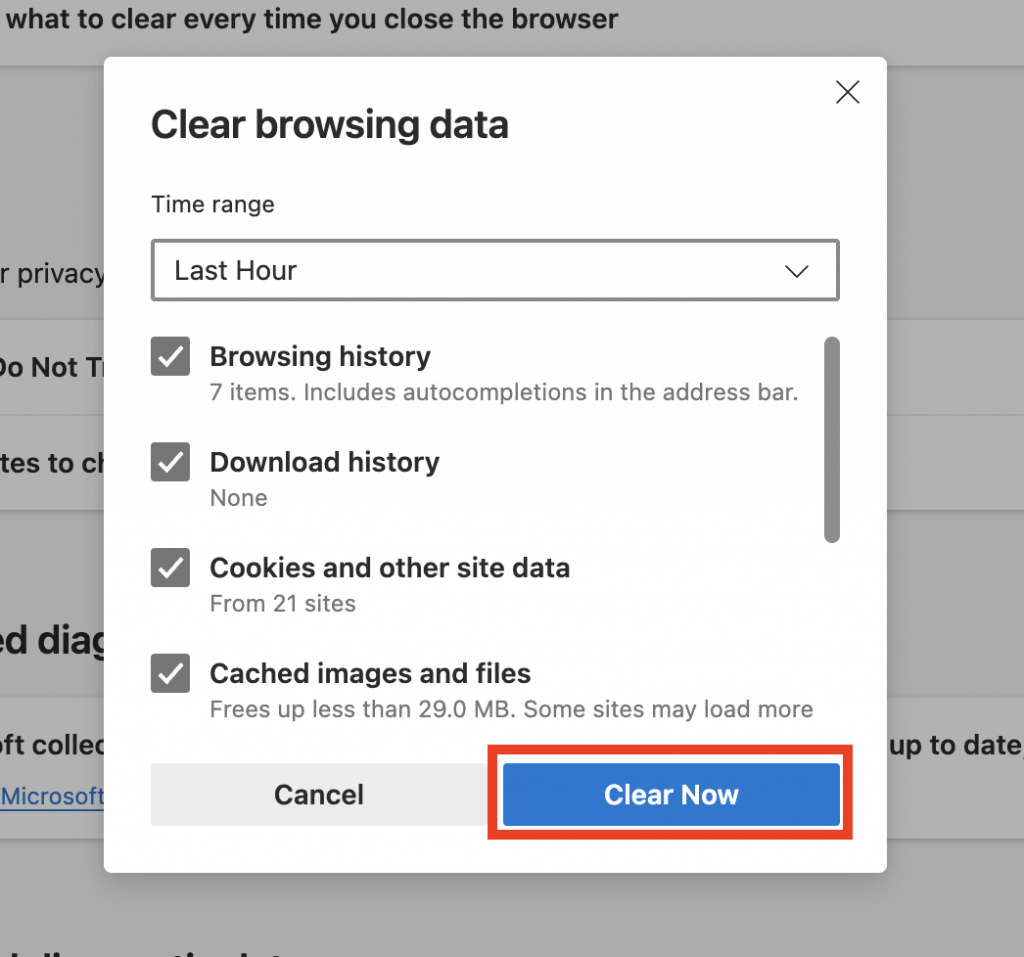
How to Erase Browsing Data on Microsoft Edge
Microsoft Edge is another popular browser that’s part of Windows operating systems. Here’s how to erase browsing data on Microsoft Edge:
Erase Browsing Data on Microsoft Edge (Computer)
- Initiate the browser.
- Press on the three dots in the top-right corner and choose “Settings.”
- Select the option “Privacy, search, and services.”
- Choose the option “Choose what to delete” under the section “Clear browsing data.”
- Select the type of data you want to erase (e.G., Browsing history, cookies, site data).
- Press on the “Delete” button.
Erase Browsing Data on Microsoft Edge (Smartphone And Tablet)
- Initiate the browser app.
- Press on the three dots in the top-right corner.
- Select the option “Settings.”
- Choose the option “Privacy, search, and services.”
- Select the option “Choose what to delete” under the section “Clear browsing data.”
- Select the type of data you want to erase (e.G., Browsing history, cookies, site data).
- Press on the “Delete” button.
How to Erase Browsing Data on Mozilla Firefox
Mozilla Firefox is another widely used browser that’s known for its customizability and security features. Here’s how to erase browsing data on Mozilla Firefox:
Erase Browsing Data on Mozilla Firefox (Computer)
- Initiate the browser.
- Press on the three dots in the top-right corner and choose “Options.”
- Select the option “Privacy & Security” from the left-hand menu.
- Choose the option “Clear your recent history.”
- Select the type of data you want to erase (e.G., Browsing history, cookies, site data).
- Press on the “OK” button.
Erase Browsing Data on Mozilla Firefox (Smartphone And Tablet)
- Initiate the browser app.
- Press on the three dots in the top-right corner.
- Select the option “Settings.”
- Choose the option “Privacy & Security.”
- Select the option “Clear your recent history.”
- Select the type of data you want to erase (e.G., Browsing history, cookies, site data).
- Press on the “OK” button.
How to Erase Browsing Data on Safari
Safari is a browser that’s exclusive to Apple devices, including Macs and iPhones/iPads. Here’s how to erase browsing data on Safari:
Erase Browsing Data on Safari (Computer)
- Initiate the browser.
- Press on the menu bar at the top of the screen and choose “Safari.”
- Select the option “Preferences” from the drop-down menu.
- Choose the option “Privacy” from the left-hand menu.
- Choose the option “Manage website data.”
- Select the type of data you want to erase (e.G., Browsing history, cookies, site data).
- Press on the “Remove all website data” button.
Erase Browsing Data on Safari (Smartphone And Tablet)
- Initiate the browser app.
- Press on the menu bar at the top of the screen and choose “Safari.”
- Select the option “Settings.”
- Choose the option “Clear history and website data.”
- Select the type of data you want to erase (e.G., Browsing history, cookies, site data).
- Press on the “Confirm” button.
How to Erase Browsing Data on Google
If you’re wondering how to erase browsing data specifically related to your Google account, follow these steps:
- Go to the Google account settings page.
- Select the option “Data and personalization.”
- Choose the option “Manage my device data.”
- Select the type of data you want to erase (e.G., Browsing history, cookies, site data).
- Press on the “Delete” button.
How to Erase Browsing Data on Instagram
To erase browsing data specifically related to your Instagram account:
- Go to the Instagram app settings page.
- Select the option “Account.”
- Choose the option “Security and login.”
- Select the type of data you want to erase (e.G., Browsing history, cookies, site data).
- Press on the “Delete” button.
Conclusion
Erasing browsing data is a simple process that helps maintain your online security and ensures a smoother browsing experience. By following these steps, you can delete browsing history, cookies, and site data from various browsers, including Google Chrome, Microsoft Edge, Mozilla Firefox, Safari, and Instagram. Remember to always review the types of data being erased and confirm before deleting.
Frequently Asked Questions
Q: What happens when I erase browsing data?
A: Erasing browsing data removes all stored history, cookies, and site preferences from your browser. This can improve your browser’s performance and security.
Q: Will erasing browsing data delete my login credentials or other sensitive information?
A: No, erasing browsing data will not delete any sensitive information. However, it is essential to keep in mind that some websites may store login credentials or other sensitive information in your browsing data.
Q: Can I erase specific types of data rather than all data at once?
A: Yes, most browsers allow you to select the type of data you want to erase (e.G., Browsing history, cookies, site data) and choose a time period for which you want to delete data.


