
How to Stir Up Suggestions of Chronology: A Guide
Are you tired of seeing unwanted suggestions on your browser? Do you want to know how to stir up the suggestions of chronology in Chrome, Edge, Firefox, Safari, and Google? Look no further! In this article, we will guide you through the process of stirring up the suggestions of chronology for each of these browsers.
Why Stir Up Suggestions of Chronology?
Stirring up the suggestions of chronology can help you avoid seeing unwanted suggestions on your browser. This is especially useful if you are using a public computer or sharing your device with others. By stirring up the suggestions, you can ensure that only relevant and secure data is displayed.
How to Stir Up Suggestions of Chronology: Chrome
For Chrome users, there are several ways to stir up the suggestions of chronology:
- Delete Single Suggestion: Open Chrome on your PC or mobile device, type something in the address bar, and see if a suggestion appears. If it does, move your cursor over the suggestion and click the X icon to delete it.
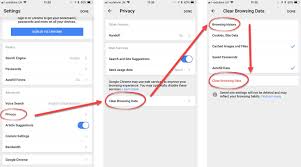
- Delete All Suggestions: To delete all suggestions on Chrome for desktop, go to Settings > Privacy and Safety, then select Erase Navigation Data. Choose the interval of time you want to erase the data from.
- Delete Single Suggestion on Mobile Devices: On mobile devices, open Chrome and tap the address bar to type something in. If a suggestion appears, hold your finger on it and tap OK to delete it.
How to Stir Up Suggestions of Chronology: Edge
For Edge users, there are also several ways to stir up the suggestions of chronology:
- Delete Single Suggestion: Open Edge on your PC or mobile device, type something in the address bar, and see if a suggestion appears. If it does, move your cursor over the suggestion and click the X icon to delete it.
- Delete All Suggestions: To delete all suggestions on Edge for desktop, go to Settings > Privacy, enquiry, and services, then select Choose what to erase under Erase data of navigation. Choose the interval of time you want to erase the data from.
- Delete Single Suggestion on Mobile Devices: On mobile devices, open Edge and tap the address bar to type something in. If a suggestion appears, hold your finger on it and tap OK to delete it.
How to Stir Up Suggestions of Chronology: Firefox
For Firefox users, there are also several ways to stir up the suggestions of chronology:
- Delete Single Suggestion: Open Firefox on your PC or mobile device, type something in the address bar, and see if a suggestion appears. If it does, move your cursor over the suggestion and click the three dots icon and then select “Forget” to delete it.
- Delete All Suggestions: To delete all suggestions on Firefox for desktop, go to Settings > Privacy & Security > Erase Navigation Data. Choose the interval of time you want to erase the data from.
- Delete Single Suggestion on Mobile Devices: On mobile devices, open Firefox and tap the address bar to type something in. If a suggestion appears, hold your finger on it and tap “Forget” to delete it.
How to Stir Up Suggestions of Chronology: Safari
For Safari users, there are also several ways to stir up the suggestions of chronology:
- Delete Single Suggestion: Open Safari on your PC or mobile device, type something in the address bar, and see if a suggestion appears. If it does, move your cursor over the suggestion and click the X icon to delete it.
- Delete All Suggestions: To delete all suggestions on Safari for desktop, go to Settings > Search > Erase History and Website Data. Choose the interval of time you want to erase the data from.
- Delete Single Suggestion on Mobile Devices: On mobile devices, open Safari and tap the address bar to type something in. If a suggestion appears, hold your finger on it and tap “Forget” to delete it.
How to Stir Up Suggestions of Chronology: Google
For Google users, there are also several ways to stir up the suggestions of chronology:
- Delete Single Suggestion: Open Google on your PC or mobile device, type something in the address bar, and see if a suggestion appears. If it does, move your cursor over the suggestion and click the X icon to delete it.
- Delete All Suggestions: To delete all suggestions on Google, go to Settings > Search History and click “Clear search history.” Choose the interval of time you want to erase the data from.
Conclusion
Stirring up the suggestions of chronology can help you avoid seeing unwanted suggestions on your browser. By following these steps for each browser, you can ensure that only relevant and secure data is displayed. Whether you’re using Chrome, Edge, Firefox, Safari, or Google, we hope this guide has been helpful in answering your questions.
Frequently Asked Questions (FAQs)
- Q: What Happens if I Don’t Stir up The Suggestions of Chronology?
A: If you don’t stir up the suggestions of chronology, unwanted suggestions may appear on your browser. - Q: How Often Should I Stir up The Suggestions of Chronology?
A: You should stir up the suggestions of chronology whenever you want to ensure that only relevant and secure data is displayed. - Q: Can I Delete All Suggestions at Once?
A: Yes, you can delete all suggestions at once by following the steps for each browser. - Q: Will Deleting All Suggestions Affect my Browsing History?
A: No, deleting all suggestions will not affect your browsing history. - Q: Can I Restore Deleted Suggestions?
A: No, deleted suggestions cannot be restored.


