
How to Enumerate Files in a Directory: A Comprehensive Guide
Are you tired of manually listing files in a directory? Do you want to save time and effort while maintaining accuracy? You’re not alone! Enumerating files in a directory can be a daunting task, especially when dealing with large folders or multiple directories. But don’t worry; we’ve got you covered.
In this article, we’ll explore various methods for enumerating files in a directory on Windows and macOS, including using PowerShell, the Command Prompt, Simple Rows Lister, Terminal, and Print Window. We’ll also discuss the importance of file management and provide tips for organizing your digital life.
Why Enumerate Files in a Directory?
Enumerating files in a directory is essential for several reasons:
- File Management: It helps you keep track of the files in your directories, making it easier to maintain organization and avoid clutter.
- Backup And Recovery: By creating lists of files, you can ensure that all important data is backed up and easily recoverable in case of a system failure or data loss.
- Sharing And Collaboration: Enumerating files in a directory facilitates sharing files with others by providing a clear list of contents.
Method 1: Using Powershell on Windows
If you’re running Windows, you can utilize PowerShell to enumerate files in a directory. Here’s how:
- Open the Command Prompt as an administrator.
- Navigate to the directory containing the files you want to list using
cd. - Type
Get-ChildItemfollowed by the file path and extension (e.G.,.Txt) to create a list of files. - Use
> filename.Txtto redirect the output to a text file.
Example:
PS C:\Users\Username> Get-ChildItem *.Txt > myfiles.Txt
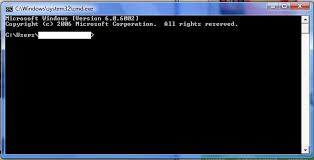
Method 2: Using The Command Prompt on Windows
If you’re running an older version of Windows without PowerShell, you can use the Command Prompt instead:
- Open the Command Prompt as an administrator.
- Navigate to the directory containing the files using
cd. - Type
dir /s > filename.Txtto list all files and subdirectories in the current directory.
Example:
C:\Users\Username> dir /s > myfiles.Txt
Method 3: Using Simple Rows Lister on Windows
Simple Rows Lister is a free utility for listing files in a directory:
- Download and install Simple Rows Lister.
- Run the application.
- Select the folder containing the files you want to list using
Open Folder. - Choose the output file format (e.G.,
.Txt) and location.
Method 4: Using Terminal on Macos
On macOS, you can use Terminal to enumerate files in a directory:
- Open Terminal.
- Navigate to the directory containing the files using
cd. - Type
ls > filename.Txtto list all files in the current directory.
Example:
Bash-3.2$ Ls > myfiles.Txt
Method 5: Using Print Window on Macos
Print Window is an application for exporting folder contents:
- Download and install Print Window.
- Run the application.
- Select the folder containing the files you want to list using
Open Folder. - Choose the output file format (e.G.,
.Txt) and location.
Tips And Tricks
Here are some additional tips and tricks for enumerating files in a directory:
- Use descriptive filenames and extensions to make it easier to identify files.
- Create backup copies of your important data regularly.
- Organize your digital life by categorizing files into folders and subfolders.
- Use search functions within applications or operating systems to quickly locate specific files.
Conclusion
Enumerating files in a directory is an essential task for maintaining organization, ensuring backup and recovery, and facilitating sharing and collaboration. By using various methods on Windows and macOS, including PowerShell, the Command Prompt, Simple Rows Lister, Terminal, and Print Window, you can efficiently list files in your directories.
Remember to stay organized, keep backups, and use search functions to quickly locate specific files. Happy enumerating!
Frequently Asked Questions
- Q: What is Enumerating Files in a Directory?
A: Enumerating files in a directory means creating a list of all files within a specified folder or set of folders. - Q: Why Enumerate Files in a Directory?
A: Enumerating files helps with file management, backup and recovery, and sharing and collaboration. - Q: What Are Some Common Methods For Enumerating Files on Windows?
A: Common methods include using PowerShell, the Command Prompt, and Simple Rows Lister. - Q: Can I Enumerate Files in a Directory on Macos?
A: Yes, you can use Terminal or Print Window to list files in a directory on macOS. - Q: How do I Ensure Accurate File Listing?
A: Use descriptive filenames and extensions, create backup copies of your important data, organize your digital life by categorizing files into folders and subfolders, and use search functions within applications or operating systems.
Related Topics
- File management
- Backup and recovery
- Sharing and collaboration
- PowerShell
- Command Prompt
- Simple Rows Lister
- Terminal
- Print Window


