
How to Watch Mediaset Infinity With Chromecast: A Step-by-step Guide
Are you tired of watching Mediaset Infinity on your small smartphone screen? Do you want to enjoy the show on a bigger, more comfortable TV experience? Look no further! In this article, we’ll guide you through the process of watching Mediaset Infinity with Chromecast.
What You Need to Know Before Getting Started
Before we dive into the step-by-step instructions, make sure you have the following:
- A Chromecast device (with or without Google TV)
- A smartphone or tablet running Android or iOS
- The Mediaset Infinity app installed on your smartphone or tablet
- A working internet connection
Step 1: Preliminary Operations
Before we explain how to watch Mediaset Infinity with Chromecast, you need to complete some preliminary operations. Don’t worry; it’s easy!
Mediaset Infinity App Installation
If you haven’t already installed the Mediaset Infinity app on your smartphone or tablet, now is the time to do so. You can download it from the Google Play Store (for Android) or the Apple App Store (for iOS).
Chromecast Configuration
If you’re using a Chromecast device with Google TV, make sure you’ve configured it correctly. This includes setting up your Wi-Fi connection and associating the device with your Google account.
If you have an older Chromecast model, don’t worry! We’ll cover that in the next section.
Step 2: Watching Mediaset Infinity on a TV Using Chromecast
Now that we’ve covered the preliminary operations, let’s get started!
Chromecast With Google Tv
If you’re using a Chromecast device with Google TV, follow these steps:
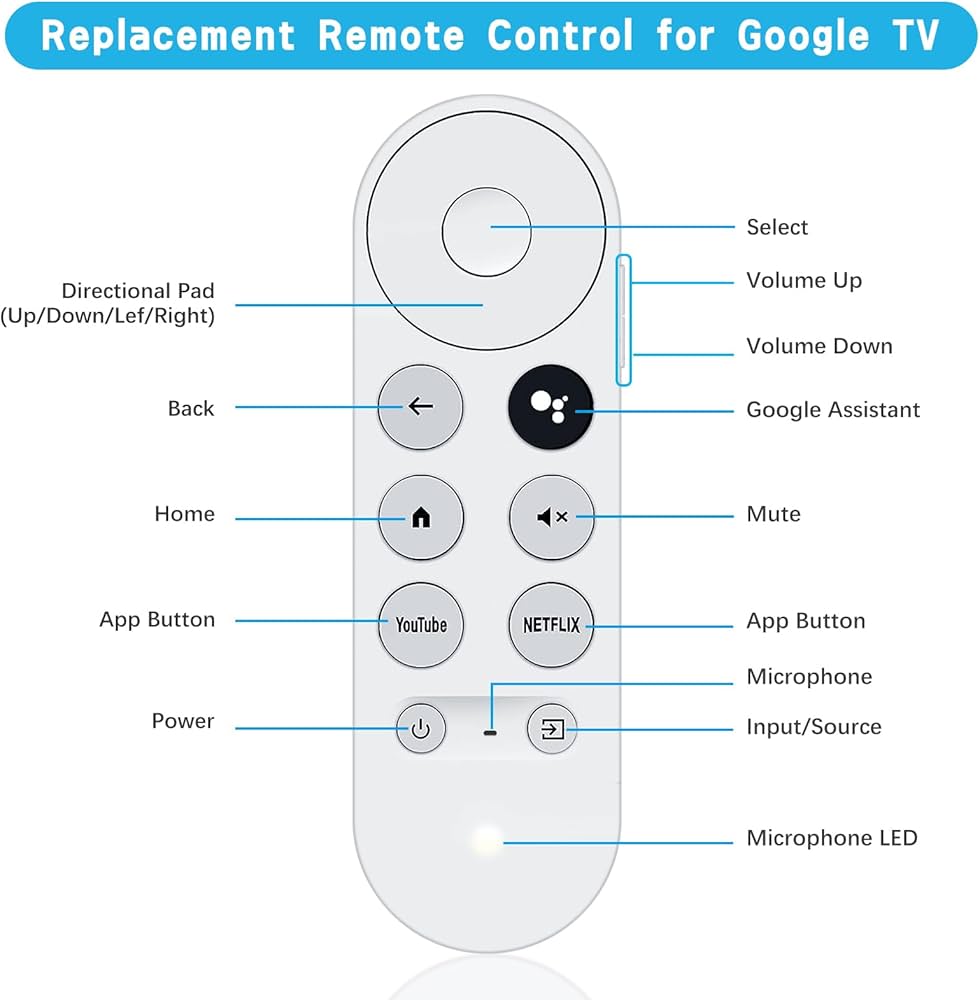
- Unlock The Screen: Press the button on your remote control to unlock the screen.
- Access The Home Screen: Use the navigation buttons to access the Home screen.
- Open The Infinity App: Select the Infinity app icon from the menu.
- Sign in: If you haven’t already, sign in with your Mediaset account credentials.
- Enjoy Your Show!: Start watching Mediaset Infinity on a bigger, more comfortable TV experience.
Chromecast (Older Model)
If you’re using an older Chromecast model without Google TV, follow these steps:
- Connect Your Smartphone or Tablet to The Same Wi-fi Network as Your Chromecast Device.
- Open The Mediaset Infinity App: Start the app on your smartphone or tablet.
- Select The Chromecast Icon: Look for the Chromecast icon in the top-right corner of the screen.
- Choose Your Chromecast Device: Select the name of your Chromecast device from the list.
- Start Streaming!: Mediaset Infinity will start playing on your TV.
Troubleshooting Tips
If you encounter any issues or problems during this process, refer to our guide on how to troubleshoot Google Cast (the protocol used by Chromecast) for further assistance.
Conclusion
Watching Mediaset Infinity with Chromecast is a straightforward process that requires some initial setup. With these steps and tips, you’ll be enjoying your favorite shows in no time! If you have any questions or concerns, feel free to ask.
Frequently Asked Questions (FAQs)
- Q: Can I Use my Smartphone/tablet as a Remote Control For Chromecast?
A: Yes, you can use the Google Home app to control your Chromecast device. - Q: Do I Need a Google Account to Watch Mediaset Infinity on Chromecast?
A: No, but signing in with your account credentials will allow you to access additional features and content. -
Q: Can I Use an Older Chromecast Model Without Google TV to Stream Mediaset Infinity?
A: Yes, follow the steps outlined above for Chromecast (older model) to start streaming. -
Q: What if I Encounter Issues While Setting up my Chromecast Device?
A: Refer to our troubleshooting guide on Google Cast for help resolving any problems. -
Q: Can I Watch Mediaset Infinity on a TV With an Hdmi Connection Using Chromecast?
A: Yes, make sure your TV is connected to the same Wi-Fi network as your Chromecast device and follow the steps outlined above. -
Q: How do I Disconnect From Streaming on Chromecast?
A: Use the pause or stop button on your remote control or within the app to discontinue streaming.


