
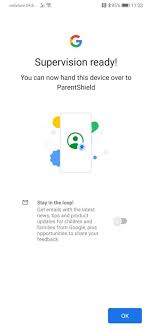
Installing Youtube on a Device Controlled by Google Family Link
Are you tired of worrying about what your child is watching online? Do you want to ensure they have access to safe and kid-friendly content? Look no further! In this article, we will guide you through the process of installing YouTube on a device controlled by Google Family Link.
Why Can’t I Install Youtube on My Child’s Device?
Before we dive into the instructions, it’s essential to understand why some users may not be able to install YouTube on their child’s device. According to Google’s policies, minors under 13 years old cannot install YouTube on their devices due to current valid norms. However, if your child is above 13 years old and you are using Family Link, you can install YouTube with their permission.
Requirements For Installing Youtube With Family Link
To install YouTube on a device controlled by Family Link, follow these requirements:
- Child’s Device: The device must be associated with the parent’s Google account.
- Parental Consent: You will need to approve the installation of YouTube on your child’s device.
- Device Type: This process applies to devices controlled by Family Link and not those using YouTube Kids.
Step-by-step Guide to Installing Youtube With Family Link
Here’s a step-by-step guide to installing YouTube on your child’s device:
Step 1: Open The Play Store
Open the Google Play Store on your child’s device.
Step 2: Search For Youtube Kids
Search for “YouTube Kids” in the search bar. Note that you will need to install YouTube Kids, not the regular YouTube app.
Step 3: Select And Install Youtube Kids
Select the YouTube Kids icon from the results page and tap on the “Install” button. Follow the prompts to complete the installation process.
Installing Regular Youtube With Family Link
If your child is above 13 years old, you can install the regular YouTube app using Family Link. To do this:
Step 1: Open The Family Link App
Open the Family Link app on your device and navigate to your child’s profile.
Step 2: Access Settings
Tap on the “Gestisci settings” option in the menu.
Step 3: Select Controls on Google Play
Select the “Controls on Google Play” option from the list of available settings.
Step 4: Choose App And Games
From the subsequent page, select the “App and games” option.
Step 5: Set Pegi 12 (or Higher) Classification
Tap on the “PEGI 12 (or higher)” classification to set the content restriction level for YouTube.
Additional Steps
If you want to approve manually the installation of YouTube or block it altogether, follow these additional steps:
- If you want to require approval every time your child tries to access YouTube, tap on the “Require approval for” option and select the “All the contents” option.
- If you want to install a filter that restricts certain types of content on YouTube, navigate to the Filters on Google Chrome section and add YouTube to the blocked sites list.
Important Considerations
When setting up filters or restrictions on your child’s device, consider these important factors:
- Age: Ensure that your child is old enough to understand and comply with the rules you set.
- Content: Be aware of the types of content your child may be exposed to online and set filters accordingly.
- Open Communication: Regularly discuss digital safety with your child to ensure they understand the importance of staying safe online.
Conclusion
Installing YouTube on a device controlled by Family Link is straightforward once you understand the requirements. By following these steps, you can help ensure that your child has access to kid-friendly content while minimizing their exposure to mature themes or explicit material. Remember to consider your child’s age and adjust the settings accordingly to create a safe online experience for them.
Related Articles


