
Understanding Your Pc’s Pattern: A Comprehensive Guide
As a computer user, it’s essential to know your machine’s pattern or model number to download specific drivers, upgrade hardware components, or troubleshoot issues. However, many users struggle to find this information, especially when dealing with Windows-based computers. In this article, we’ll explore the various ways to discover your PC’s pattern on both Windows and Mac operating systems.
What is a PC Pattern?
A PC pattern, also known as the model number or code, is a unique identifier assigned to each computer by its manufacturer. This code can be found on the device itself, in the system settings, or through various diagnostic tools. Knowing your PC’s pattern is crucial for:
- Downloading specific drivers and software
- Upgrading hardware components compatible with your machine
- Troubleshooting issues related to hardware or software compatibility
- Understanding your computer’s specifications and technical details
Discovering Your Windows PC Pattern
If you’re using a Windows-based computer, there are several ways to find the pattern:
Using The Label on The Device
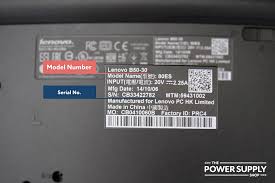
The first method is to look for a label affixed to the back or side of your notebook or desktop computer. This label typically contains the model number and other technical specifications. For example:
Label: MateBookD14
Code Pattern: NBLB-WAX9N
If you have a recent pattern, you might find two labels: One on the device itself and another on the touchpad. The latter might include additional technical details.
Using Windows System Settings
On Windows 11 or Windows 10, follow these steps:
- Click on the Start button (Windows icon) in the lower left corner of your screen.
- Click on the Settings icon (gear symbol).
- In the Settings window, click on “System” in the left-hand menu.
- Select “About” from the System settings page.
- Scroll down to find the “Product Name” and “Code Pattern” sections.
Windows: Prompt of The Comandi
If you’re using an older Windows version or prefer a more direct approach, you can use the Command Prompt:
- Press Win + R on your keyboard to open the Run dialog box.
- Type
cmdin the Run dialog box and press Enter. - In the Command Prompt window, type
wmic csproduct get nameand press Enter. - The code pattern will be displayed.
You can also use additional commands to retrieve more detailed information:
- Type
wmic csproduct get name,vendor,identifyingNumberand press Enter. - This will display the producer’s name, vendor ID, and identifying number, which are useful for further investigation.
Using Bios (Basic Input/output System)
If you’re experiencing issues starting your Windows operating system or need to access low-level settings, you can use the BIOS:
- Restart your computer and repeatedly press the F2, F10, or Esc key to enter the BIOS setup utility.
- Use the arrow keys to navigate to the “System Information” tab.
- Press Enter to select this option and find detailed information about your PC, including the model number.
Discovering Your Mac Pattern
If you’re using a Mac computer, finding the pattern is relatively straightforward:
- Click on the Apple logo in the top left corner of your screen.
- Select “About This Mac” from the dropdown menu.
- In the About window, click on the “System Information” tab (usually located at the bottom of the window).
- Scroll down to find the “Model Name” and “Model Number” sections.
Alternatively, you can check the underside or back of your Mac device for a printed serial number, which corresponds to the model pattern.
Conclusion
In conclusion, knowing your PC’s pattern is crucial for troubleshooting issues, upgrading hardware components, and understanding your computer’s specifications. By following the methods outlined in this article, whether you’re using Windows or Mac, you’ll be able to discover the exact name of your device’s pattern and unlock its technical secrets.
Frequently Asked Questions (FAQs)
- Q: Why is it Essential to Know my Pc’s Pattern?
A: Knowing your PC’s pattern allows you to download specific drivers, upgrade compatible hardware components, troubleshoot issues related to hardware or software compatibility, and understand your computer’s specifications. - Q: How do I Find The Label on my Windows Pc?
A: Look for a label affixed to the back or side of your notebook or desktop computer. This label typically contains the model number and other technical specifications. - Q: Can I Use The Command Prompt to Find my Windows Pc’s Pattern?
A: Yes, you can use the Command Prompt on older Windows versions or when direct access is preferred. Typewmic csproduct get nameand press Enter to retrieve your code pattern. - Q: How do I Access The Bios (Basic Input/output System) on my Windows Pc?
A: Restart your computer and repeatedly press the F2, F10, or Esc key to enter the BIOS setup utility. - Q: Can I Find my Mac’s Pattern Using The About Window?
A: Yes, click on the Apple logo in the top left corner of your screen, select “About This Mac,” and then click on the “System Information” tab to find your Mac’s model name and number.
By following these steps and understanding how to discover your PC’s pattern, you’ll be better equipped to manage and troubleshoot issues related to your computer.


