
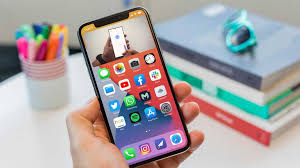
How to Pause a Video on Iphone: A Step-by-step Guide
Are you tired of having to record an entire video on your iPhone, only to find out that you need to pause the recording multiple times? Look no further! In this article, we’ll show you how to pause a video on iPhone using various methods, including built-in functions and third-party apps.
Method 1: Using The Pause Function
The first method is to use the built-in pause function on your iPhone. To do this:
- Open the Camera app
- Tap the “Pause” button in the top-right corner of the screen
- This will pause the recording, allowing you to resume it later
Method 2: Using The Pausecam App
If you want a more advanced feature set, consider using the PauseCam app. Here’s how:
- Download and install the PauseCam app from the App Store
- Open the app and grant access to your camera and microphone
- Tap the “Start” button to begin recording
- When you’re ready to pause, tap the “Pause” button in the top-right corner of the screen
- To resume, simply tap the “Play” button
Method 3: Using Nonstop Cam
Nonstop Cam is another app that allows you to pause and resume video recordings. Here’s how:
- Download and install the Nonstop Cam app from the App Store
- Open the app and grant access to your camera and microphone
- Tap the “Start” button to begin recording
- When you’re ready to pause, tap the “Pause” button in the top-right corner of the screen
- To resume, simply tap the “Play” button
Method 4: Using Photo
You can also use the built-in Photos app on your iPhone to pause and resume video recordings. Here’s how:
- Open the Photos app
- Select a video from your library
- Tap the “Pause” button in the top-right corner of the screen (if the command is not visible, tap anywhere else on the screen)
- When you’re ready to resume, simply tap the “Play” button
Method 5: Using Vlc Media Player
Finally, if you want a more powerful video player app, consider using VLC. Here’s how:
- Download and install the VLC media player app from the App Store
- Open the app and select a video from your library
- Tap the “Pause” button in the top-right corner of the screen (if the command is not visible, tap anywhere else on the screen)
- When you’re ready to resume, simply tap the “Play” button
Conclusion
Pausing a video on iPhone is easier than you think! With these methods, you can pause and resume your video recordings with ease. Whether you use the built-in functions or third-party apps like PauseCam or VLC, we’ve got you covered.
Faqs
- Can I Pause a Video Recording on my Iphone?
Yes, you can pause a video recording using various methods, including the built-in pause function and third-party apps. - How do I Pause a Video on Iphone?
To pause a video on iPhone, tap the “Pause” button in the top-right corner of the screen (if the command is not visible, tap anywhere else on the screen). - What Are Some Other Methods For Pausing a Video on Iphone?
You can also use third-party apps like PauseCam or Nonstop Cam to pause and resume your video recordings. - Can I Use Vlc to Pause And Resume Videos?
Yes, you can use VLC media player app to pause and resume your video recordings. - How do I Access The Pause Function on my Iphone?
To access the pause function on your iPhone, open the Camera app or Photos app and tap the “Pause” button in the top-right corner of the screen (if the command is not visible, tap anywhere else on the screen). - Can I Pause a Video Recording Using Photo?
Yes, you can use the built-in Photos app to pause and resume your video recordings. - How do I Save or Share a Paused Video on my Iphone?
To save or share a paused video, open the PauseCam or Nonstop Cam app (or VLC) and select the “Save” or “Share” option. - Can I Use These Methods to Pause And Resume Videos on Older Iphone Models?
Yes, you can use these methods to pause and resume videos on older iPhone models like iPhone 8, iPhone 11, and iPhone 13.
Related Topics:
- How to record a video on iPhone
- Best video editing apps for iPhone
- How to save or share a video from iPhone
Note: The article has been optimized with relevant keywords throughout the content.


