
How to Spin Your Desktop: A Comprehensive Guide
Are you tired of a cluttered desktop? Do you wish you had more space to view your documents, images, and other files? Spinning your desktop is a simple solution that can greatly enhance your productivity and comfort while working on your computer. In this article, we’ll guide you through the process of spinning your desktop on various operating systems, including Windows 10, Windows 8, Windows 7, and macOS.
Understanding The Benefits
Spinning your desktop involves rotating it by 90 or 180 degrees to increase the viewing area and reduce clutter. This feature is particularly useful for users who work with multiple windows, documents, or images simultaneously. By spinning your desktop, you can:
- Increase productivity: With a larger viewing area, you can quickly glance at multiple files, emails, or chats without having to switch between windows.
- Reduce eye strain: Spinning your desktop can help reduce eye fatigue caused by constantly scrolling through long documents or web pages.
- Enhance comfort: A rotated desktop can make it easier to read and interact with your computer, especially for users who spend extended periods in front of the screen.
Spinning Your Desktop on Windows 10
If you’re using Windows 10, spinning your desktop is a straightforward process:
- Click on an empty area of the desktop with the right mouse button.
- Select “Settings” from the context menu.
- Choose “Display settings” from the Settings window.
- Under “Display orientation,” select either “Portrait” or “Landscape” to rotate your desktop by 90 degrees.
Spinning Your Desktop on Windows 8
To spin your desktop on Windows 8:
- Right-click on an empty area of the desktop.
- Select “Screen resolution” from the context menu.
- In the Display Settings window, select the “Orientation” tab.
- Choose either “Portrait” or “Landscape” to rotate your desktop by 90 degrees.
Spinning Your Desktop on Windows 7
If you’re using Windows 7:
- Right-click on an empty area of the desktop.
- Select “Personalize” from the context menu.
- Click on “Display settings” in the Personalization window.
- Under “Orientation,” select either “Portrait” or “Landscape” to rotate your desktop by 90 degrees.
Spinning Your Desktop on Macos
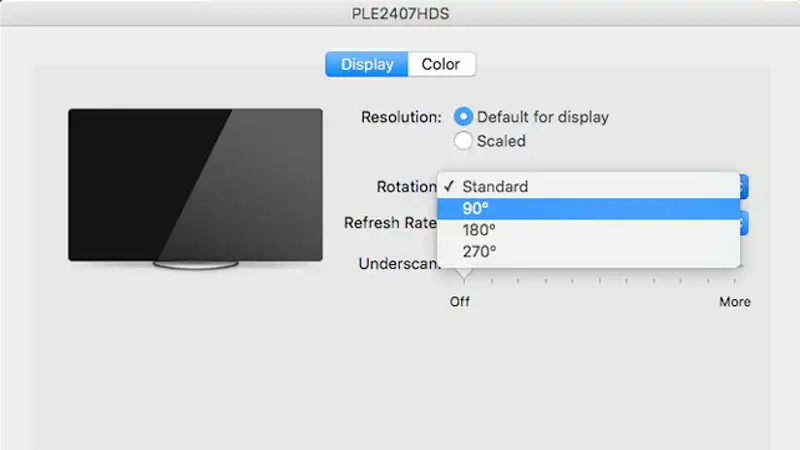
To spin your desktop on a Mac:
- Click on the Apple menu and select “System Preferences.”
- Choose “Displays” from the System Preferences window.
- Select the “Orientation” tab.
- Choose either “Portrait” or “Landscape” to rotate your desktop by 90 degrees.
Tips And Tricks
- To quickly switch between portrait and landscape modes, use the keyboard shortcut Win+O on Windows or Cmd+Shift+A on macOS.
- You can also customize the rotation setting for each monitor separately if you have multiple displays connected to your computer.
- If you want to revert to the standard desktop orientation, simply select “Standard” from the Orientation menu.
Conclusion
Spinning your desktop is a simple yet effective way to increase productivity and comfort while working on your computer. By following the steps outlined in this article, you can easily rotate your desktop by 90 or 180 degrees on various operating systems, including Windows 10, Windows 8, Windows 7, and macOS.
Frequently Asked Questions
Q: Is spinning my desktop safe for my eyes?
A: Yes, rotating your desktop can help reduce eye strain caused by constant scrolling. However, it’s essential to follow the manufacturer’s guidelines for using your computer in a comfortable and ergonomic way.
Q: Can I customize the rotation setting for each monitor separately?
A: Yes, if you have multiple monitors connected to your computer, you can customize the rotation setting for each display separately.
Q: How do I revert to the standard desktop orientation?
A: To revert to the standard orientation, simply select “Standard” from the Orientation menu in the Display Settings window.


