
How to Connect Your Phone to Your Computer: A Step-by-step Guide
Are you tired of juggling your phone and computer, trying to transfer files between the two devices? Look no further! In this comprehensive guide, we’ll show you how to connect your phone to your computer using various methods, including cables, Bluetooth, and cloud services.
Why Connect Your Phone to Your Computer?
Connecting your phone to your computer can be incredibly useful. You can transfer files, share photos and videos, and even use your phone as a modem for your computer. With so many options available, it’s never been easier to stay connected and productive.
Method 1: Using a Cable
The most straightforward way to connect your phone to your computer is by using a cable. This method works with both Android and iOS devices.
- Android: Use a USB-C cable to connect your phone to your computer. Your computer should automatically recognize the device and prompt you to install drivers if necessary.
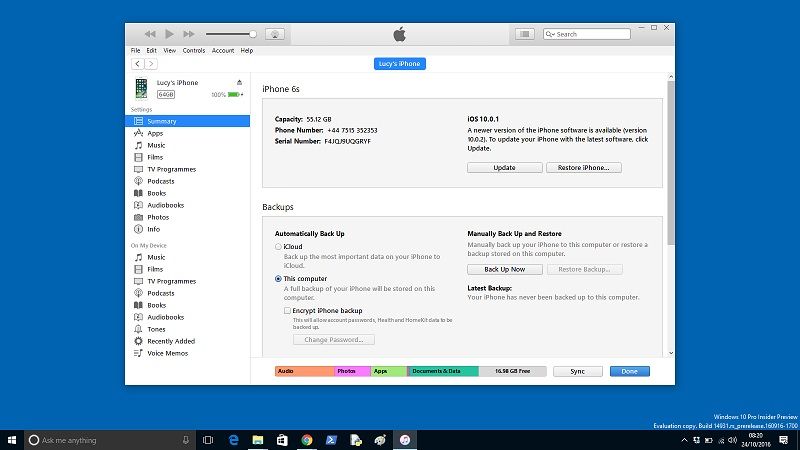
- Ios: Use a Lightning cable to connect your iPhone to your computer. Your computer will automatically recognize the device, and you can transfer files using iTunes.
Method 2: Using Bluetooth
Bluetooth is another convenient way to connect your phone to your computer. This method works with both Android and iOS devices.
- Android: Go to Settings > Connections > Bluetooth on your phone. Select “Pair new device” and choose your computer from the list of available devices.
- Ios: Go to Settings > Bluetooth on your iPhone. Select your computer from the list of available devices.
Method 3: Using Cloud Services
Cloud services like Google Drive, OneDrive, or iCloud can be used to transfer files between your phone and computer.
- Android: Download the cloud service app on your phone and upload the file you want to transfer. Then, access the same file from your computer using a web browser.
- Ios: Download the cloud service app on your iPhone and upload the file you want to transfer. Then, access the same file from your computer using a web browser.
Method 4: Using Usb-otg Adapters
If your phone doesn’t have a USB-C or Lightning port, you can use an OTG adapter to connect it to your computer.
- Android: Purchase an OTG adapter that fits your phone’s USB port. Then, connect the adapter to your computer using a USB cable.
- Ios: Unfortunately, iOS devices do not support OTG adapters.
Method 5: Using Wi-fi
If you don’t have a physical connection between your phone and computer, you can use Wi-Fi to transfer files.
- Android: Use a file-sharing app like Shareit or AirDroid to transfer files between your phone and computer.
- Ios: Use AirDrop to share files between your iPhone and Mac.
Method 6: Using Third-party Apps
There are several third-party apps available that can help you connect your phone to your computer. Some popular options include:
- Link to Windows: A Microsoft app that allows you to connect your Android device to your Windows PC.
- Link to Ios: An Apple app that allows you to connect your iPhone to your Mac.
Conclusion
Connecting your phone to your computer is easier than ever, with multiple methods available depending on your needs. Whether you prefer using cables, Bluetooth, cloud services, or third-party apps, we’ve got you covered. By following the steps outlined in this guide, you’ll be able to transfer files, share photos and videos, and even use your phone as a modem for your computer.
Frequently Asked Questions
- What is The Best Method For Connecting my Phone to my Computer?
The best method depends on your specific needs and preferences. If you prefer a physical connection, using a cable may be the most convenient option. If you prefer a wireless connection, Bluetooth or cloud services may be more suitable. - Can I Connect my Phone to my Computer Without Installing Any Software?
Yes, some methods like Bluetooth and cloud services do not require software installation. However, if you’re using a cable, you may need to install drivers on your computer. - Will Connecting my Phone to my Computer Affect my Phone’s Battery Life?
Generally, connecting your phone to your computer will not significantly impact your phone’s battery life. However, it’s always a good idea to monitor your phone’s power consumption when using a cable or Bluetooth connection. - Can I Connect Multiple Devices to my Computer at Once?
Yes, you can connect multiple devices to your computer using various methods like cables, Bluetooth, and cloud services.


