
How to Update Drivers: A Step-by-step Guide
Are you tired of dealing with outdated drivers on your computer? Do you want to ensure that your device is running smoothly and efficiently? Look no further! In this article, we will guide you through the process of updating drivers on Windows 10/11, macOS, and other operating systems.
Why Update Drivers?
Updating drivers is essential for maintaining the performance and stability of your computer. Outdated drivers can lead to a range of issues, including:
- Slow system performance
- Crashes and freezes
- Incompatibility with new software or hardware
- Security vulnerabilities
By updating drivers, you can fix these problems and ensure that your device runs smoothly.
How to Update Drivers on Windows 10/11
To update drivers on Windows 10/11, follow these steps:
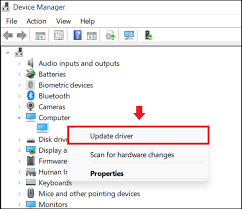
- Open Device Manager: Press the Windows key + X and select Device Manager.
- Check For Updates: Look for any devices with a yellow exclamation mark or a red X. These indicate outdated drivers.
- Update Drivers: Right-click on each device and select “Update driver.”
- Search Automatically: Choose to search automatically for updates.
- Install Updates: If updates are found, follow the prompts to install them.
How to Update Drivers on Macos
To update drivers on macOS, follow these steps:
- Check For Updates: Go to System Preferences > Software Update.
- Update Macos: Check if there are any system software updates available.
- Update Drivers: If you’re using a Mac with macOS Mojave or later, go to System Preferences > Software Update and click on the “Update” button next to each device.
How to Update Drivers For Specific Components
If you need to update drivers for specific components like graphics cards (GPU) or network adapters, follow these steps:
- Visit The Manufacturer’s Website: Go to the website of the manufacturer of your component.
- Download Driver Updates: Look for driver updates specifically designed for your component.
- Install Updates: Follow the prompts to install the updated drivers.
Websites And Utilities For Updating Drivers
In addition to the methods mentioned above, there are websites and utilities that can help you update drivers. Some popular options include:
- Intel’s Driver & Support Assistant
- NVIDIA’s GeForce Experience
- AMD’s Radeon Software: Adrenalin Edition
Remember to only use official websites and utilities from manufacturers to avoid potential security risks.
Common Mistakes to Avoid
When updating drivers, be aware of the following common mistakes:
- Downloading Drivers From Unofficial Sources: Avoid downloading drivers from unofficial sources to prevent malware infections.
- Ignoring System Updates: Regularly update your system software to ensure that all drivers are up-to-date.
- Not Checking For Driver Conflicts: Be cautious when updating multiple devices simultaneously to avoid conflicts between driver versions.
Conclusion
Updating drivers is a crucial step in maintaining the performance and stability of your computer. By following these steps, you can ensure that your device runs smoothly and efficiently. Remember to always check for updates from official sources and be aware of potential mistakes to avoid.
Frequently Asked Questions (FAQs)
- Q: What Happens if I Don’t Update my Drivers?
A: Outdated drivers can lead to slow system performance, crashes, and freezes. - Q: How Often Should I Update my Drivers?
A: Regularly check for updates every 2-3 months or whenever you notice issues with your device. - Q: Can I Update Drivers Manually?
A: Yes, but be cautious when doing so to avoid conflicts between driver versions. - Q: What if I’m Not Sure Which Driver to Update?
A: Consult the manufacturer’s website or contact their support team for guidance. - Q: Are There Any Risks Associated With Updating Drivers?
A: Avoid downloading drivers from unofficial sources, and be aware of potential conflicts between driver versions. - Q: Can I Update Drivers on a Mac?
A: Yes, follow the steps outlined in this article to update drivers on macOS. - Q: What if my Device is Not Recognized by Windows Device Manager?
A: Try restarting your device or reinstalling drivers from official sources.
By following these tips and guidelines, you’ll be able to keep your device running smoothly and efficiently with up-to-date drivers!


