
How to Check The State of Your Android Smartphone’s Battery
Are you tired of your Android smartphone’s battery not lasting as long as it used to? Do you find yourself struggling to get through the day without needing to recharge your device? If so, you’re not alone. Many Android users experience a decline in their phone’s battery life over time, but there are ways to check the state of your battery and take steps to improve its performance.
In this guide, we’ll show you how to check the state of your Android smartphone’s battery, as well as provide tips and tricks for extending its lifespan.
Why Does My Android Smartphone’s Battery Not Last As Long?
Before we dive into the nitty-gritty of checking your battery’s state, let’s quickly discuss why your phone’s battery may not be lasting as long as it used to. There are several reasons for this decline in performance:
- Aging Battery: Just like any other electronic component, batteries have a limited lifespan and can degrade over time.
- Improper Use: If you’re constantly pushing your phone’s battery to its limits (e.G., Using resource-intensive apps or keeping it plugged in for extended periods), this can cause excessive wear and tear on the cells.
- Software Issues: In some cases, software problems or bugs might be draining your phone’s power more quickly than usual.
Checking Your Android Smartphone’s Battery State
Now that we’ve explored some of the possible reasons behind your phone’s declining battery life, let’s move on to checking its state. Here are a few ways to do so:
Using Android Settings
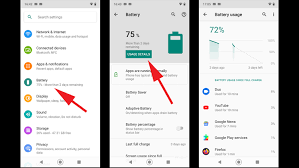
- Accessing Battery Information: On most Android devices, you can find detailed information about your phone’s battery by going to Settings > Battery.
- Monitoring Battery Usage: From this menu, you’ll be able to see which apps are consuming the most power and adjust their settings accordingly.
Using Third-party Apps
If you’re not satisfied with the built-in battery information available on your Android device, there are several third-party apps that can provide more detailed insights into your phone’s power consumption. Some popular options include:
- Accubattery: A comprehensive app that tracks your phone’s battery health and provides suggestions for improving its performance.
- Ampere: An app that monitors your phone’s charging and discharging cycles, helping you identify potential issues with your device’s battery.
Tips For Extending Your Android Smartphone’s Battery Life
Here are some general tips to help extend the lifespan of your Android smartphone’s battery:
- Avoid Extreme Temperatures: Keep your phone away from direct sunlight or extreme cold temperatures.
- Update Your Software: Regularly update your device’s software to ensure you have the latest security patches and performance enhancements.
- Use a Power Bank: Consider investing in a portable power bank to keep your phone charged on-the-go.
By following these simple tips and using the methods outlined above to check your battery’s state, you can help extend its lifespan and get the most out of your Android smartphone.


