
How to Forward Big Annexes Via Email: A Comprehensive Guide
Are you tired of worrying about attaching large files to emails? Do you struggle with the limitations of traditional email clients? Look no further! In this article, we’ll explore various methods for forwarding big annexes via email using popular services like Gmail, Outlook, and more.
The Problem of Large Attachments
You’ve probably encountered this issue: You need to send a large file to someone via email, but your email client can’t handle the attachment size. This is where the solutions we’ll discuss come in – to help you overcome this hurdle and ensure smooth communication.
Method 1: Using Gmail’s Google Drive Integration
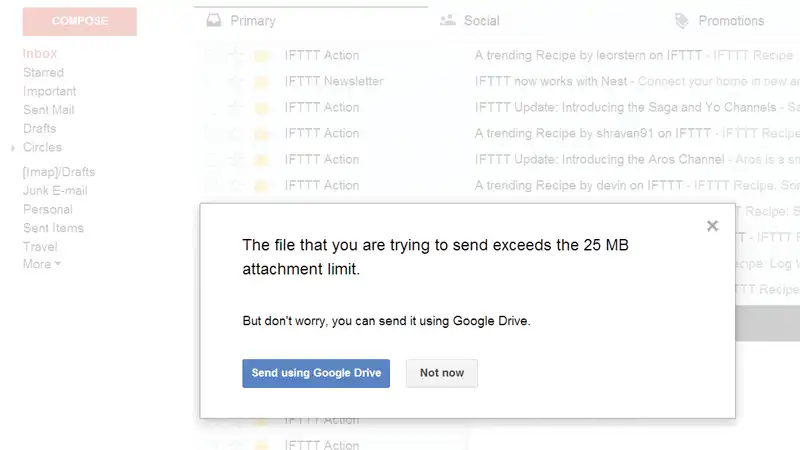
Gmail allows you to attach files up to 25 MB directly to an email. However, if you need to send larger files, you can use the integration with Google Drive. Here’s how:
- Log in to your Gmail account and compose a new email.
- Click on the “Insert rows using Google Drive” icon (a triangular logo).
- Select the file you want to attach from your Google Drive folder.
- Choose whether to share the file via a link or attachment.
- Complete the rest of the email composition process.
Method 2: Using Outlook’s Onedrive Integration
Outlook also offers an integration with OneDrive, allowing you to send files up to 34 MB directly. If you need to exceed this limit, follow these steps:
- Log in to your Outlook account and compose a new email.
- Click on the “Enclose” button.
- Select “Search in this computer” to find the file.
- Choose whether to share the file via a link or attachment.
- Complete the rest of the email composition process.
Method 3: Using Apple Mail’s Icloud Drive Integration
Apple Mail users can also benefit from iCloud Drive integration, which allows for attaching files up to 20 MB directly. If you need to send larger files, follow these steps:
- Log in to your Apple Mail account and compose a new email.
- Click on the “Mail Drop” icon (a small airplane).
- Select the file you want to attach from your iCloud Drive folder.
- Choose whether to share the file via a link or attachment.
- Complete the rest of the email composition process.
Method 4: Using Third-party Services
There are several third-party services that can help you forward big annexes via email, such as:
- Wetransfer: This service allows for sending files up to 2 GB directly from your device.
- Swisstransfer: This service offers a free plan with a 50 GB limit and password protection.
- Jumbomail: This service offers a free plan with a 20 GB limit and paid upgrades for more storage.
Comparison of Services
| Service | Limit | Integration | Ease of Use |
|---|---|---|---|
| Gmail (Google Drive) | 25 MB | Seamless integration | 8/10 |
| Outlook (OneDrive) | 34 MB | Smooth integration | 9/10 |
| Apple Mail (iCloud Drive) | 20 MB | Easy to use | 8.5/10 |
| WeTransfer | 2 GB | Simple and straightforward | 9/10 |
| SwissTransfer | 50 GB | Easy to set up | 8.5/10 |
| Jumbomail | 20 GB | Simple and intuitive | 8/10 |
Conclusion
Forwarding big annexes via email doesn’t have to be a hassle anymore! With these methods, you can easily share large files with colleagues, friends, or clients using popular services like Gmail, Outlook, Apple Mail, and more. Remember to explore third-party options for even greater flexibility.
Frequently Asked Questions (FAQs)
- What is The Maximum File Size Limit For Attaching Files Via Email?
- The limits vary depending on the service used.
- How Can I Share Large Files With Someone Who Doesn’t Have a Google Account?
- You can use services like WeTransfer or SwissTransfer, which don’t require a Google account.
- Can I Attach Multiple Files to an Email at Once?
- Yes, most services allow you to attach multiple files to an email.
- How do I Know if my File is Too Large For Attachment Via Email?
- Check the service’s limits and consider using third-party services like WeTransfer or SwissTransfer.
Additional Tips
- Always verify the recipient’s email client compatibility before sending large attachments.
- Use password protection for sensitive files when sharing them via third-party services.
- Consider upgrading to paid plans for more storage space if needed.


