
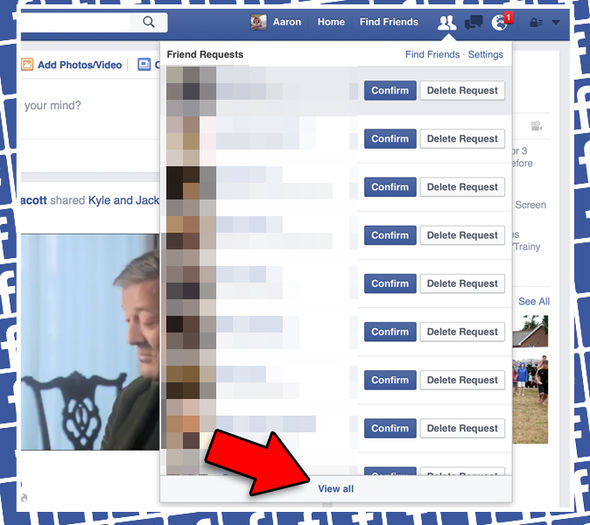
How to See Friendship Requests on Facebook: A Step-by-step Guide
Are you tired of feeling overwhelmed by friend requests on Facebook? Do you want to keep track of who has sent you a friendship request, but don’t know how? Look no further! In this article, we’ll guide you through the process of seeing friendship requests on Facebook, whether you’re using an Android device, an iPhone or iPad, or a computer.
Understanding Friendship Requests
Before we dive into the steps, let’s quickly understand what friendship requests are. When someone sends you a friend request on Facebook, it means they want to be connected with you on the platform. These requests can be sent through various ways, including mutual friends, events, or even by searching for your name.
Seeing Friendship Requests on Android
If you’re using an Android device, follow these steps to see friendship requests:
- Open The Facebook App: First, open the official Facebook app on your Android device.
- Login to Your Account: If you haven’t already, log in to your Facebook account by entering your email address and password.
- Tap on ≡: Tap on the three horizontal lines (≡) at the top right corner of the screen.
- Select “Find Your Friends”: From the menu that appears, select “Find Your Friends.”
- See Friendship Requests: You’ll be taken to a list of people you can friend. Scroll down to see friendship requests.
Seeing Friendship Requests on Iphone or Ipad
If you’re using an iPhone or iPad, follow these steps to see friendship requests:
- Open The Facebook App: Open the official Facebook app on your device.
- Login to Your Account: Log in to your Facebook account by entering your email address and password.
- Tap on ☰: Tap on the three horizontal lines (☰) at the top right corner of the screen.
- Select “Find Friends”: From the menu that appears, select “Find Friends.”
- See Friendship Requests: You’ll be taken to a list of people you can friend. Scroll down to see friendship requests.
Seeing Friendship Requests on Computer
If you’re using a computer, follow these steps to see friendship requests:
- Open Facebook.Com: Open the official Facebook website in your browser.
- Login to Your Account: Log in to your Facebook account by entering your email address and password.
- Click on “Friends”: Click on the “Friends” tab at the top of the page.
- Select “Suggested Friends”: From the menu that appears, select “Suggested Friends.”
- See Friendship Requests: You’ll be taken to a list of people you can friend. Scroll down to see friendship requests.
Canceling Friendship Requests on Facebook
If you’ve sent out friend requests but want to cancel them, follow these steps:
- Open The Facebook App: Open the official Facebook app on your device.
- Login to Your Account: Log in to your Facebook account by entering your email address and password.
- Tap on ≡: Tap on the three horizontal lines (≡) at the top right corner of the screen.
- Select “Find Your Friends”: From the menu that appears, select “Find Your Friends.”
- Cancel Friendship Requests: Scroll down to see friendship requests and tap on the “Cancel Request” button next to each request.
Visualizing a Vault: Erasing Messages on Whatsapp
If you’re using WhatsApp, you can use the “Visualize a Vault” feature to erase messages after they’ve been seen by the recipient. To do this:
- Open Whatsapp: Open the official WhatsApp app on your device.
- Select a Chat: Select a chat where you want to erase messages.
- Tap on a Media File: Tap on a media file (such as a photo or video) that you want to erase.
- Tap on (1): Tap on the icon next to the media file to activate the automatic self-destruction feature.
- Forward The Message: Forward the message in the chat.
Conclusion
In conclusion, seeing friendship requests on Facebook is a straightforward process, whether you’re using an Android device, an iPhone or iPad, or a computer. By following these steps, you can keep track of who has sent you a friend request and cancel any unwanted requests. Remember to also use the “Visualize a Vault” feature on WhatsApp to erase messages after they’ve been seen by the recipient.
Frequently Asked Questions (FAQs)
- Q: How do I See Friendship Requests on Facebook?
A: To see friendship requests, open the official Facebook app or website and select “Find Your Friends.” - Q: Can I Cancel a Friend Request After It’s Been Sent?
A: Yes, you can cancel a friend request by opening the Facebook app, selecting “Find Your Friends,” and tapping on the “Cancel Request” button next to each request. - Q: How do I Use The Visualize a Vault Feature on Whatsapp?
A: To use the Visualize a Vault feature on WhatsApp, select a chat where you want to erase messages, tap on a media file, and activate the automatic self-destruction feature by tapping on (1). - Q: Will Canceling a Friend Request Remove it From my Timeline?
A: Yes, canceling a friend request will remove it from your timeline. - Q: Can I Use The Visualize a Vault Feature to Erase Messages Sent Through Whatsapp Web?
A: Yes, you can use the Visualize a Vault feature to erase messages sent through WhatsApp Web by opening WhatsApp.Com and following the same steps as on the mobile app.


