
How to Create a Custom Screensaver: A Step-by-step Guide
Are you tired of the same old screensavers on your computer or smartphone? Do you want to create a custom screensaver that reflects your personality or style? Look no further! In this article, we will guide you through the process of creating a custom screensaver using various methods and tools.
Understanding Screensavers
Before we dive into the nitty-gritty of creating a custom screensaver, let’s take a moment to understand what screensavers are. A screensaver is a program that displays an image or animation on your screen when it is idle for a certain period of time. The purpose of a screensaver is to prevent burn-in on CRT monitors and to provide a visual treat while you’re away from your computer.
Methods to Create a Custom Screensaver
There are several ways to create a custom screensaver, depending on the operating system you’re using. Here are some methods:
Method 1: Using Built-in Functions (Windows)
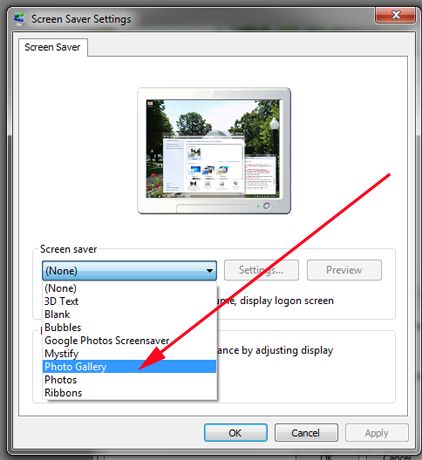
If you’re using Windows, you can create a custom screensaver using the built-in function. To do this:
- Go to Settings > Personalization > Lock screen.
- Click on the “+” icon and select “Screen saver.”
- Choose a pre-made template or create your own image by selecting “Photo” as the screensaver type.
- Select the source of your images (e.G., Google Photos, local files).
- Adjust the settings to your liking.
Method 2: Using Built-in Functions (macOS)
If you’re using macOS, you can create a custom screensaver using the built-in function. To do this:
- Go to System Preferences > Displays.
- Click on the “Screen Saver” tab.
- Choose a pre-made template or create your own image by selecting “Photo” as the screensaver type.
- Select the source of your images (e.G., Photos, local files).
- Adjust the settings to your liking.
Method 3: Using Third-party Apps
There are several third-party apps available that can help you create a custom screensaver. Some popular options include:
- IScreensaver (Windows/macOS): A free app that allows you to create and customize screensavers using various media formats.
- HD, 4K, and GoodFon (Android): A free app that allows you to create and customize screensavers using images from your Google Photos or local files.
- Pixs: Backgrounds and Topics 4K (iOS): A free app that provides a wide range of backgrounds and topics for your iPhone’s lock screen.
Tips And Tricks
Here are some tips and tricks to keep in mind when creating a custom screensaver:
- Use high-quality images or videos to ensure the best visual experience.
- Experiment with different settings and options to customize your screensaver.
- Consider using a combination of images, videos, and audio files to create a dynamic screensaver.
Conclusion
Creating a custom screensaver is easier than you think! Whether you’re using built-in functions or third-party apps, there are plenty of ways to create a visually stunning screensaver that reflects your personality. Remember to experiment with different settings and options to get the best results. Happy creating!
Frequently Asked Questions (FAQs)
- What is a Screensaver?
A screensaver is a program that displays an image or animation on your screen when it is idle for a certain period of time.
- How do I Create a Custom Screensaver?
You can create a custom screensaver using built-in functions (Windows/macOS) or third-party apps (e.G., IScreensaver, HD, 4K, and GoodFon).
- What Are The Benefits of Creating a Custom Screensaver?
Creating a custom screensaver allows you to personalize your device’s lock screen with images or animations that reflect your style.
- Can I Use Any Type of Media For my Screensaver?
Yes, you can use various types of media, including images, videos, and audio files.
- How do I Install a Screensaver?
The installation process varies depending on the app or method used to create the screensaver. Generally, you’ll need to download and install the app, then configure your screensaver settings.


