
How to Use Google Voice Translator: A Step-by-step Guide
Are you planning a trip abroad but struggling to communicate with the locals due to language barriers? Or perhaps you’re trying to understand a specific dialect or accent while watching a video or listening to an audio? Look no further! In this article, we’ll explore how to use Google Voice Translator, a powerful tool that can help bridge language gaps.
What is Google Voice Translator?
Google Voice Translator is a feature within the Google Translate service that allows users to translate speech in real-time. With this feature, you can speak into your phone or computer’s microphone and have the text translated into another language.
How to Use Google Voice Translator on Smartphone And Tablet
Using Google Voice Translator on your smartphone or tablet is a breeze. Here’s how:
- Download The Google Translate App: First, download the official Google Translate app from the App Store (for iOS devices) or Google Play Store (for Android devices).
- Open The App: Once installed, open the app and select the language of origin by tapping on the menu option to the left.
- Choose The Target Language: Next, choose the target language you want to translate into using the menu option to the right.
- Tap The Microphone Icon: Tap the microphone icon in the top-right corner of the screen to activate the voice-to-text feature.
- Speak Your Text: Speak your text into the microphone, and Google Voice Translator will transcribe it in real-time.
Additional Features on Smartphone And Tablet
In addition to voice translation, Google Voice Translator also offers other features on smartphone and tablet devices:
- Conversation Mode: This mode allows you to have a conversation with someone in another language. Simply tap the “Conversation” button at the bottom of the screen.
- Transcription: If you prefer typing over speaking, you can use the transcription feature by tapping the “Transcribe” button.
How to Use Google Voice Translator on Computer
Using Google Voice Translator on your computer is just as easy:
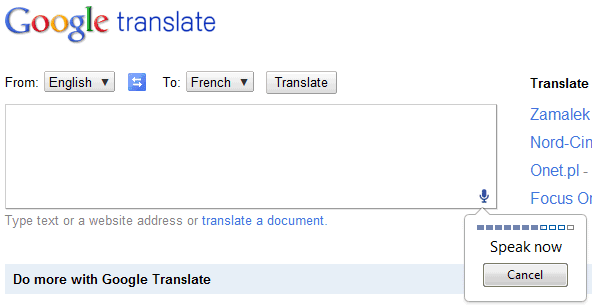
- Open a Compatible Browser: First, open a web browser that supports microphone functionality (such as Google Chrome).
- Visit The Google Translate Website: Navigate to the Google Translate website and select the language of origin from the menu option to the left.
- Choose The Target Language: Next, choose the target language you want to translate into using the menu option to the right.
- Tap The Microphone Icon: Tap the microphone icon at the top-right corner of the screen to activate the voice-to-text feature.
- Speak Your Text: Speak your text into the microphone, and Google Voice Translator will transcribe it in real-time.
Tips And Variations
- Use The Speaker Button: If you want to hear the translated text, tap the speaker button at the top-right corner of the screen.
- Save Translations: You can save your translations for later use by clicking on the star icon next to the translation.
- Access The History: To access your translation history, click on the clock icon at the bottom-left corner of the screen.
What Languages Does Google Voice Translator Support?
Google Voice Translator supports over 100 languages. Here’s a list of supported languages:
- Afrikaans
- Albanian
- Arabic
- Armenian
- Azerbaijani
- Basque
- Belarusian
- Bengali
- Bosnian
- Bulgarian
- Catalan
- Chinese Simplified
- Croatian
- Czech
- Danish
- Dutch
- English
- Estonian
- Finnish
- French
- Galician
- Georgian
- German
- Greek
- Hebrew
- Hindi
- Hungarian
- Icelandic
- Indonesian
- Irish
- Italian
- Japanese
- Javanese
- Kazakh
- Khmer
- Korean
- Kurdish
- Latin
- Latvian
- Lithuanian
- Luxembourgish
- Macedonian
- Malay
- Malayalam
- Maltese
- Marathi
- Mongolian
- Myanmar (Burmese)
- Nepali
- Norwegian
- Occitan
- Pashto
- Persian
- Polish
- Portuguese
- Punjabi
- Romanian
- Russian
- Scottish Gaelic
- Serbian
- Shona
- Sindhi
- Sinhala
- Slovak
- Slovenian
- Somali
- Spanish
- Swahili
- Swedish
- Tajik
- Tamil
- Tatar
- Telugu
- Thai
- Turkish
- Ukrainian
- Urdu
- Uzbek
- Vietnamese
- Welsh
Conclusion
Google Voice Translator is a powerful tool that can help you communicate with people from different linguistic backgrounds. By following the steps outlined in this article, you can use Google Voice Translator on your smartphone, tablet, or computer to break language barriers and facilitate understanding.
Whether you’re traveling abroad, learning a new language, or simply trying to understand a specific dialect, Google Voice Translator is an excellent resource to have at your disposal. So go ahead, give it a try, and experience the magic of seamless communication across languages!


