
Cloning a Dvd: A Step-by-step Guide
Are you tired of dealing with expensive DVDs or worrying about damaging your original copies? Cloning a DVD is a simple solution that can save you time, money, and hassle. In this article, we’ll explore the best ways to clone a DVD using both Windows and macOS computers.
What You Need to Clone a Dvd
Before we dive into the steps, make sure you have the following:
- A DVD copy of your favorite movie or TV show
- An empty diskette
- A master burner (CD/DVD writer)
- A PC or Mac with an operating system
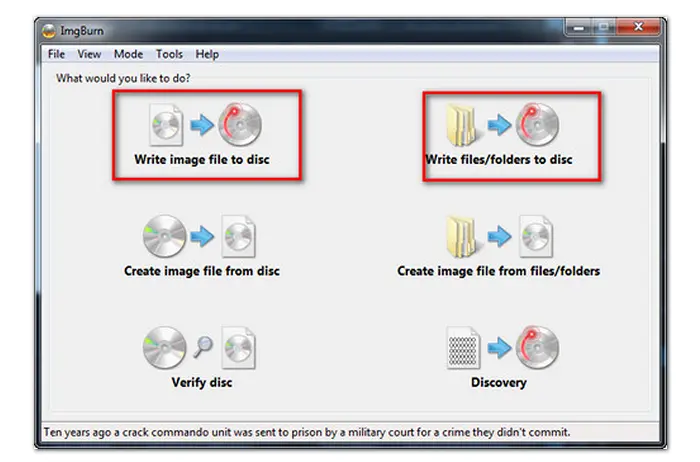
Imgburn For Windows
If you’re using a Windows computer, ImgBurn is an excellent tool to clone a DVD. This free software is easy to use and can create perfect clones of your DVDs.
- Download ImgBurn from the official website
- Run the installation file and follow the prompts
- Translate the interface to Italian (if needed)
- Insert the original DVD into the master burner
- Open ImgBurn and select “Create image from disc”
- Choose the destination folder for the ISO file
- Select the original DVD as the source
- Click “Start” to initiate the cloning process
Burn For Macos
If you’re using a Mac, Burn is another great option to clone a DVD. This free software is easy to use and can create perfect clones of your DVDs.
- Download Burn from the official website
- Run the installation file and follow the prompts
- Insert the original DVD into the master burner
- Open Burn and select “Copy”
- Choose the source DVD as the input
- Select the destination folder for the ISO file
- Click “Scan” to initiate the cloning process
Handbrake For Windows And Macos
Another popular tool to clone a DVD is HandBrake. This free software can convert your DVDs into digital files, making it easy to share or store them.
- Download HandBrake from the official website
- Run the installation file and follow the prompts
- Insert the original DVD into the master burner
- Open HandBrake and select “Source” as the input
- Choose the profile of conversion (e.G., MP4 or MKV)
- Select the destination folder for the output file
- Click “Start” to initiate the cloning process
Other Solutions
If you’re looking for alternative solutions, there are other software options available:
- VLC: A free multimedia player that can copy DVD contents.
- Black: A paid suite for Windows that offers advanced masterization capabilities.
- MacX DVD Ripper Pro: A paid software for macOS that can create perfect clones of DVDs.
Cloning a Protected Dvd
If you have a protected DVD, don’t worry! There are still ways to clone it. However, please note that cloning a protected DVD may require additional steps or software.
- Use a dedicated software like AnyDVD or CloneDVD.
- Follow the instructions in our guide on how to clone a protected DVD.
Conclusion
Cloning a DVD is a simple process that can save you time and hassle. With these step-by-step guides, you can easily create perfect clones of your favorite DVDs using either Windows or macOS computers. Remember to always follow the instructions carefully and ensure that you have the necessary software and hardware to complete the process.
Frequently Asked Questions
- Q: Can I Clone a Dvd on my Usb Drive?
A: Yes, you can clone a DVD onto a USB drive, but you’ll need a dedicated software. - Q: Is Cloning a Protected Dvd Lawful?
A: Cloning a protected DVD is lawful only if you have the original copy and intend to use the cloned copy for personal purposes. - Q: Can I Use Imgburn on my Mac?
A: No, ImgBurn is exclusive to Windows operating systems. - Q: How do I Clone a Dvd Using Handbrake?
A: Follow the steps outlined in our guide to learn how to clone a DVD using HandBrake.
Important Notes
- Always ensure that you have the necessary software and hardware to complete the cloning process.
- Cloning a protected DVD may require additional steps or software.
- Never share cloned copies of copyrighted material without permission from the copyright holder.


