
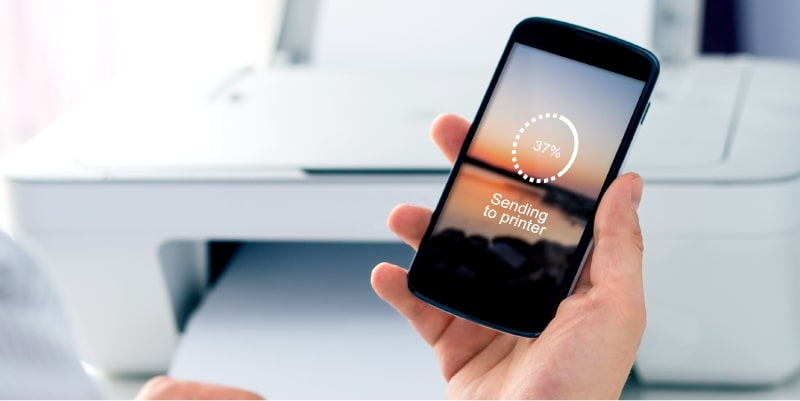
How to Print Photos From Your Smartphone: A Comprehensive Guide
Are you tired of having beautiful photos on your smartphone, but no way to print them? Look no further! In this article, we will guide you through the process of printing photos from your mobile device, using various methods and devices.
Introduction
In today’s digital age, taking photos with our smartphones has become a norm. However, once we’ve taken those perfect shots, what do we do with them? Do we just let them sit on our phone, or do we want to print them out and enjoy them in physical form? The answer is simple: Printing your smartphone photos can be a great way to preserve memories, decorate your home, and even give gifts to loved ones.
Printing Photos From Your Smartphone: A Step-by-step Guide
Preparation
Before you start printing your photos, make sure you have the following:
- A smartphone with internet connectivity
- A printer (either wireless or wired)
- A computer or device with a compatible operating system
Method 1: Printing Photos Directly From Your Smartphone
Printing Photos From Android Devices
To print photos directly from your Android device, follow these steps:
- Download and install the printing plugin for your printer model from the Google Play Store.
- Open the Gallery app and select the photo(s) you want to print.
- Tap on the menu button (three vertical dots) and choose “Print.”
- Select your printer from the list of available devices and adjust any necessary settings (e.G., Orientation, color).
- Tap on the “Print” button to initiate the printing process.
Printing Photos From Ios Devices
To print photos directly from your iPhone, follow these steps:
- Ensure that AirPrint is enabled on your device.
- Open the Photos app and select the photo(s) you want to print.
- Tap on the share icon (a box with an arrow coming out of it).
- Select “Print” from the list of available actions.
- Choose your printer from the list of available devices and adjust any necessary settings (e.G., Orientation, color).
- Tap on the “Print” button to initiate the printing process.
Method 2: Printing Photos From Your Computer
If you prefer to print photos from your computer, follow these steps:
- Transfer the photo(s) from your smartphone to your computer using a USB cable or cloud services like Google Drive or Dropbox.
- Open a photo editing software (e.G., Adobe Photoshop or Canva) and select the transferred photo(s).
- Print the photos using your computer’s printer.
Method 3: Printing Photos With Instant Cameras
If you want to create instant physical copies of your smartphone photos, consider using an instant camera like the Polaroid 9046 Hi-Print or Fujifilm Instax Mini Link 2.
Conclusion
Printing photos from your smartphone is a relatively simple process that can be accomplished through various methods and devices. Whether you prefer to print directly from your device or use a computer, there’s always a way to turn your digital memories into physical keepsakes.
Frequently Asked Questions (FAQs)
Q: What are the best ways to print photos from my smartphone?
A: You can print photos directly from your device using wireless printing plugins or transfer them to your computer and print from there.
Q: Can I use a printer that doesn’t support Wi-Fi or Ethernet connectivity?
A: Yes, you can still use a non-Wi-Fi or Ethernet printer by connecting it to your computer via USB or LPT cable.
Q: How do I transfer photos from my smartphone to my computer?
A: You can transfer photos using a USB cable, cloud services like Google Drive or Dropbox, or Bluetooth connectivity (for Android devices).
Q: Can I print photos with instant cameras like Polaroid or Fujifilm Instax?
A: Yes, you can use instant cameras to create physical copies of your smartphone photos.
Q: Are there any apps that allow me to print photos directly from my smartphone?
A: Yes, there are several apps available for both Android and iOS devices that enable wireless printing of photos.
Q: Can I print photos in different sizes or formats using these methods?
A: Yes, you can adjust the size, format, and other settings before printing your photos.


