
Replacing Cartridges in Your HP Printer: A Step-by-step Guide
Are you tired of dealing with low ink levels in your HP printer? Do you struggle to find the right cartridges for your device? Look no further! In this article, we will guide you through the process of replacing cartridges in your HP printer, ensuring that you get the best results and avoid any potential issues.
Understanding Your Printer’s Cartridge System
Before we dive into the replacement process, it’s essential to understand how your HP printer’s cartridge system works. The typical HP printer has two types of cartridges: Black (contains only black ink) and Tricromia (contains three colors: Magenta, cyan, and yellow). Each cartridge is designed for a specific type of printing.
Checking Ink Levels
To avoid unnecessary purchases, it’s crucial to check the ink levels in your existing cartridges. Here are the steps:
- Windows: Open the “HP Printer Assistant” program (usually found in the Start menu). Click on the “Levels estimated” button to view the ink levels.
- Macos: Go to System Preferences > Printers & Scanners > HP Printer Setup & Software. Select your printer and click on the “Options & Supplies” tab. Choose “Levels & Supplies” from the drop-down menu.
- Smartphone And Tablet: Download and install the HP Smart app (available for Android and iOS). Open the app, select your printer, and tap on the “Cartridge Levels” section.
Acquiring The Right Cartridges
Once you’ve checked the ink levels and determined that you need new cartridges, follow these steps:
- Visit The HP Website: Go to the HP website (www.Hp.Com) and select your printer model from the list.
- Search For Your Printer’s Cartridge Pattern: Enter your printer’s pattern in the search bar, and you’ll find a list of compatible cartridges.
- Choose The Correct Cartridges: Select the correct cartridge type (Black or Tricromia) and choose a cartridge that matches your printer’s specific pattern.
Buying Compatible Cartridges
If you’re not sure which cartridges to buy, consider purchasing compatible cartridges from reputable sources like Amazon or eBay. These cartridges are often cheaper than genuine HP cartridges but may not offer the same level of quality.
Regenerating Your Existing Cartridges
If you want to save money, consider regenerating your existing cartridges with a cartridge regeneration kit. These kits usually contain four pots of ink and a syringe for refilling the cartridges. Follow our guide on how to regenerate cartridges for more information.
Replacing The Cartridges
Now that you’ve acquired the right cartridges, it’s time to replace them in your printer:
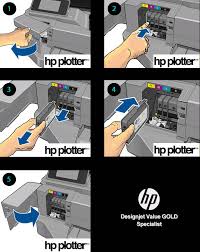
- Open The Printer: Open the external flap and then the access flap to reach the cartridge holder.
- Remove The Old Cartridge: Gently pull out the old cartridge from its holder.
- Insert The New Cartridge: Hold the new cartridge by the copper contacts, and insert it into the holder. Make sure it clicks into place.
- Close The Flaps: Close both flaps to secure the new cartridge in place.
Finalizing The Replacement
If you’re replacing a Black cartridge with a Tricromia cartridge or vice versa, pay attention to the correct insertion direction:
- For Black cartridges, insert them on the right side of the printer.
- For Tricromia cartridges, insert them on the left side of the printer.


