
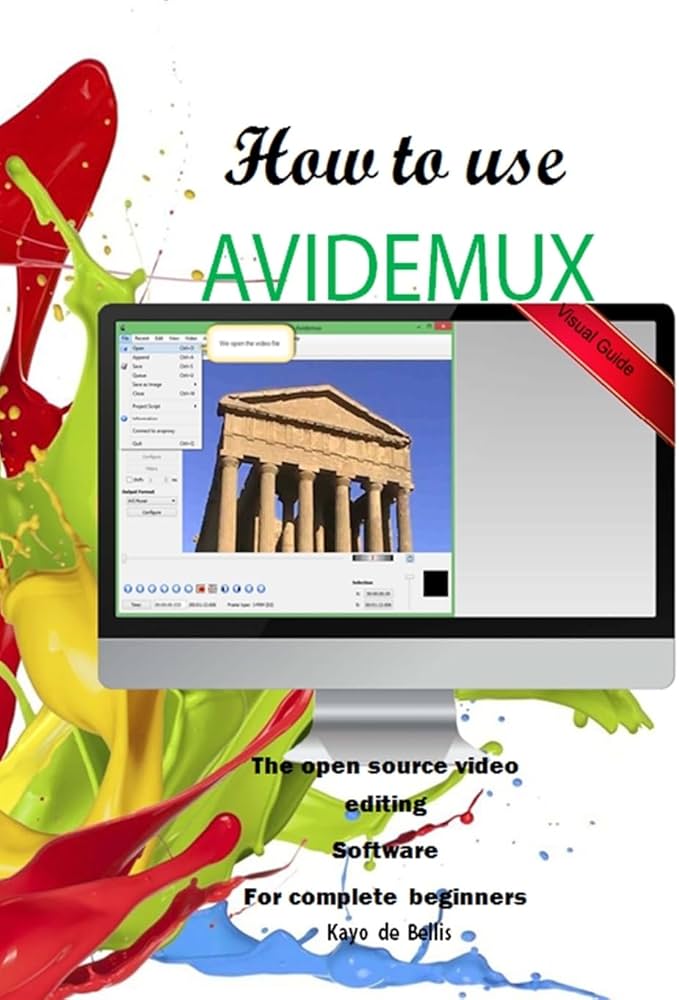
How to Edit Videos Like a Pro: A Beginner’s Guide to Using Avidemux
Are you tired of struggling with video editing software? Do you want to enhance your videos without breaking the bank or dedicating hours to learning complex programs? Look no further than Avidemux, a free and user-friendly video editor that’s perfect for beginners.
In this article, we’ll show you how to download and install Avidemux, as well as provide step-by-step instructions on how to use it to edit your videos. Whether you’re a seasoned pro or just starting out, Avidemux is an excellent choice for anyone looking to improve their video editing skills.
Why Choose Avidemux?
Avidemux is a free and open-source video editor that’s available for Windows, macOS, and Linux operating systems. It’s designed to be easy to use, even for those with no prior experience in video editing. Here are just a few reasons why you should choose Avidemux:
- User-friendly Interface: Avidemux has an intuitive interface that makes it easy to navigate, even for beginners.
- Free And Open-source: Avidemux is completely free to use, with no hidden costs or subscription fees.
- Supports Multiple File Formats: Avidemux supports a wide range of file formats, including AVI, MP4, MKV, and more.
- Customizable: Avidemux allows you to customize your video editing experience by adding filters, effects, and more.
Downloading And Installing Avidemux
Before you can start using Avidemux, you’ll need to download and install it on your computer. Here’s how:
- Open a web browser and navigate to the official website of Avidemux.
- Click on the “Download” button and select the version that matches your operating system (Windows or macOS).
- Once the download is complete, run the installer and follow the prompts to install Avidemux.
Using Avidemux For The First Time
Now that you’ve installed Avidemux, it’s time to start using it! Here’s a step-by-step guide to get you started:
- Open Avidemux by double-clicking on its icon.
- Click on “File” and then select “Open” to load your video file into the editor.
- Once your video is loaded, click on the “Video” tab and select “Filters” to add effects and filters to your video.
- You can also use Avidemux’s built-in tools to trim, cut, and join videos.
How to Enhance a Video Using Avidemux
Avidemux is more than just a simple video editor – it’s also a powerful tool for enhancing your videos. Here are some tips on how to get the most out of Avidemux:
- Add Filters: Use Avidemux’s built-in filter tools to enhance the color, brightness, and contrast of your video.
- Trim And Cut Videos: Use Avidemux’s trimming and cutting tools to remove unwanted parts from your video.
- Join Multiple Videos Together: Use Avidemux’s joining tool to combine multiple videos into a single file.
How to Cut a Video Using Avidemux
Cutting a video can be a bit tricky, but don’t worry – we’ve got you covered! Here’s how to do it:
- Load your video file into Avidemux.
- Use the “Marker” tool to mark the beginning and end of the segment you want to cut.
- Click on “Edit” and then select “Cut” to remove the unwanted part from your video.
How to Join Multiple Videos Together Using Avidemux
Joining multiple videos together can be a bit tricky, but don’t worry – we’ve got you covered! Here’s how to do it:
- Load all of the videos you want to join into Avidemux.
- Click on “File” and then select “Add” to add each video to the editor.
- Once all of your videos are loaded, click on “File” and then select “Save As” to save the joined video.
Conclusion
Avidemux is a powerful tool for anyone looking to edit and enhance their videos. With its user-friendly interface and wide range of features, it’s perfect for beginners and pros alike. Whether you’re looking to trim and cut videos, add filters and effects, or join multiple videos together, Avidemux has got you covered.
Frequently Asked Questions
- Q: Is Avidemux Free?
- A: Yes, Avidemux is completely free to use.
- Q: What Operating Systems Does Avidemux Support?
- A: Avidemux supports Windows, macOS, and Linux operating systems.
- Q: How do I Install Avidemux?
- A: To install Avidemux, simply download the installer from the official website and follow the prompts.
- Q: How do I Use Avidemux to Cut a Video?
- A: To cut a video using Avidemux, load your video file into the editor, use the “Marker” tool to mark the beginning and end of the segment you want to cut, and then click on “Edit” and select “Cut” to remove the unwanted part from your video.
- Q: How do I Join Multiple Videos Together Using Avidemux?
- A: To join multiple videos together using Avidemux, load all of the videos you want to join into the editor, click on “File” and select “Add” to add each video to the editor, and then click on “File” and select “Save As” to save the joined video.


