
Returning to Windows 8: A Step-by-step Guide
Are you tired of the new interface of Windows 10? Do you miss the familiarity of Windows 8? You’re not alone! Many users have struggled to adjust to the changes brought by Windows 10, and some are eager to return to their old operating system. In this article, we’ll guide you through the process of returning to Windows 8, using built-in features of Windows 10.
Why Return to Windows 8?
Before we dive into the step-by-step instructions, let’s briefly discuss why users might want to return to Windows 8. Some of the reasons include:
- Familiarity: Many users were comfortable with the interface and layout of Windows 8.
- Performance: Some users reported that Windows 10 was slower or more resource-intensive than Windows 8.
- Features: Windows 8 had certain features that were missing from Windows 10, such as a built-in DVD player.
Prerequisites
Before attempting to return to Windows 8, there are some prerequisites you should be aware of:
- Your computer must have been upgraded from Windows 8 to Windows 10 within the last 30 days.
- You must have backed up your data using the built-in backup feature or an external drive.
- If you’ve already activated Windows 10, you won’t be able to return to Windows 8 without reinstalling Windows 10.
Step 1: Back Up Your Data
The first step in returning to Windows 8 is to back up your data. This will ensure that you don’t lose any important files or settings during the process.
To backup your data, follow these steps:
- Click on the Start button and select Settings.
- Click on Update & Security.
- Click on Backup.
- Select “Back up now” and choose a location to save your backup file.
Step 2: Prepare Your Computer For Downgrade
Before attempting to downgrade to Windows 8, you need to prepare your computer. This involves:
- Renaming the folder where Windows 10 stores its recovery data.
- Creating a clean installation of Windows 8 from scratch.
To rename the folder, follow these steps:
- Click on File Explorer and navigate to C:\Windows.Old.
- Rename this folder to something like “Windows_old”.
Step 3: Downgrade to Windows 8
Now that you’ve prepared your computer, it’s time to downgrade to Windows 8. To do this, follow these steps:
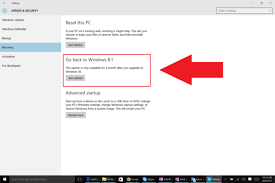
- Click on the Start button and select Settings.
- Click on Update & Security.
- Click on Recovery.
- Select “Get started” under the “Go back to an earlier build of Windows 10” section.
- Choose the date you want to go back to (this should be before upgrading to Windows 10).
- Confirm your selection by clicking Next.
Step 4: Reinstall Windows 8
Once you’ve completed the downgrade process, your computer will restart and begin reinstalling Windows 8. This may take a few minutes, depending on your system specifications.
When the installation is complete, follow these steps to restore your backup data:
- Insert the external drive containing your backup file.
- Click on File Explorer and navigate to C:\Users[YourUsername]\Documents.
- Open the folder where you saved your backup file and copy its contents back onto your computer.
Alternatives to Downgrading
If you’re unable or unwilling to downgrade to Windows 8, there are alternative options available:
- Reinstalling From Scratch: You can create a clean installation of Windows 8 by downloading the ISO file directly from Microsoft.
- Using a Backup Image: If you created a backup image of your system using Windows 10’s built-in feature, you can use this to restore your computer to its previous state.
Conclusion
Returning to Windows 8 may seem daunting at first, but with these step-by-step instructions, it’s easier than ever. Remember to back up your data and prepare your computer before attempting to downgrade, and always follow the instructions carefully to avoid any potential issues.
If you have any further questions or concerns, feel free to ask in the comments below!
Frequently Asked Questions
Q: Can I return to Windows 8 if it’s been more than 30 days since I upgraded?
A: Unfortunately, no. If you’ve exceeded this timeframe, your computer may not be eligible for downgrade.
Q: Will I lose any data by returning to Windows 8?
A: No, as long as you’ve backed up your data using the built-in backup feature or an external drive, all of your files and settings should remain intact.
Q: Can I return to Windows 8 even if I’ve activated Windows 10?
A: Unfortunately, no. Activating Windows 10 means you’ll need to reinstall it in order to use Windows 8 again.
Q: What are the advantages of returning to Windows 8?
A: Some users reported that Windows 8 was faster or more resource-efficient than Windows 10, and some preferred its interface and layout.


