
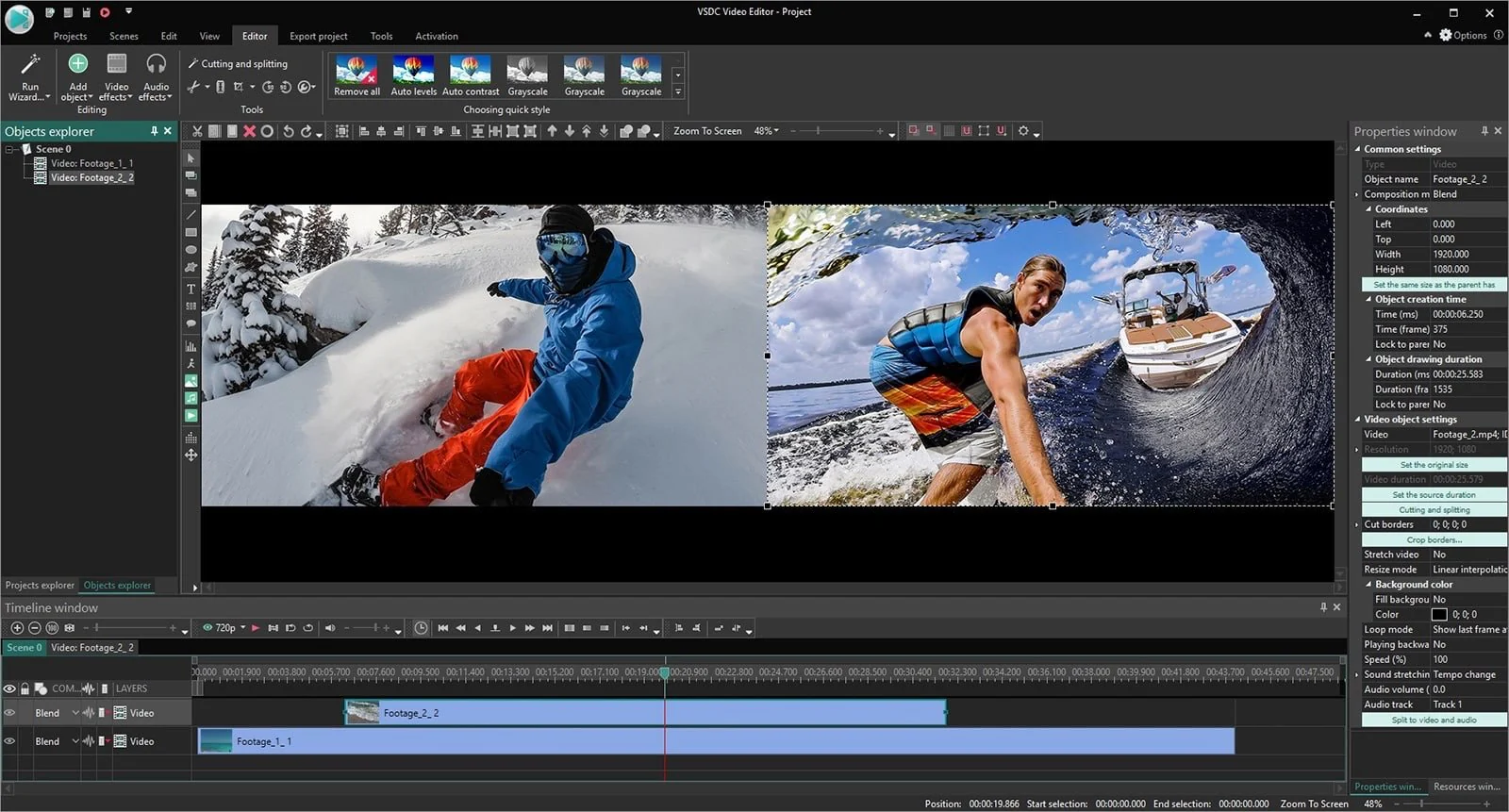
The Ultimate Guide to Free Video Editing Software
Are you tired of spending money on video editing software? Look no further! In this article, we will explore the best free video editing software available in the market.
With so many options out there, it can be overwhelming to choose the right one. But don’t worry, we’ve got you covered. We’ll take a closer look at each of these programs and highlight their unique features.
What is Video Editing Software?
Before we dive into the list, let’s quickly define what video editing software is. Video editing software is a program that allows you to edit and manipulate videos on your computer or mobile device. This includes tasks such as cutting, joining, and adding effects to your video footage.
Top 8 Free Video Editing Software:
1. Avidemux
Available on Windows, macOS, and Linux
Avidemux is a free, open-source video editing software that supports multiple formats, including AVI, MP4, and MKV. It’s user-friendly interface makes it perfect for beginners.
How to Use Avidemux:
To use Avidemux, simply download the program and follow these steps:
- Import your video files
- Cut and join clips as needed
- Add effects, such as transitions and filters
- Export your edited video in the desired format
Available on Windows and macOS
Wondershare Filmora is a popular free video editing software that offers a range of features, including color correction, chroma keying, and audio ducking.
How to Use Wondershare Filmora:
To use Wondershare Filmora, follow these steps:
- Import your video files
- Cut and join clips as needed
- Add effects, such as transitions and filters
- Export your edited video in the desired format
3. Clipify
Available on Windows
Clipify is a free video editing software that offers advanced features, including multi-track audio and chroma keying.
How to Use Clipify:
To use Clipify, follow these steps:
- Import your video files
- Cut and join clips as needed
- Add effects, such as transitions and filters
- Export your edited video in the desired format
4. Lightworks
Available on Windows, macOS, and Linux
Lightworks is a professional-level free video editing software that offers advanced features, including 3D audio and color grading.
How to Use Lightworks:
To use Lightworks, follow these steps:
- Import your video files
- Cut and join clips as needed
- Add effects, such as transitions and filters
- Export your edited video in the desired format
5. Openshot
Available on Windows, macOS, and Linux
OpenShot is a free, open-source video editing software that offers advanced features, including multi-track audio and chroma keying.
How to Use Openshot:
To use OpenShot, follow these steps:
- Import your video files
- Cut and join clips as needed
- Add effects, such as transitions and filters
- Export your edited video in the desired format
6. Shotcut
Available on Windows, macOS, and Linux
Shotcut is a free, open-source video editing software that offers advanced features, including multi-track audio and chroma keying.
How to Use Shotcut:
To use Shotcut, follow these steps:
- Import your video files
- Cut and join clips as needed
- Add effects, such as transitions and filters
- Export your edited video in the desired format
7. Movie Maker
Available on Windows
Movie Maker is a free video editing software developed by Microsoft.
How to Use Movie Maker:
To use Movie Maker, follow these steps:
- Import your video files
- Cut and join clips as needed
- Add effects, such as transitions and filters
- Export your edited video in the desired format
8. Free Video Joiner
Available on Windows
Free Video Joiner is a simple video editing software that allows you to join multiple video files together.
How to Use Free Video Joiner:
To use Free Video Joiner, follow these steps:
- Import your video files
- Cut and join clips as needed
- Export your edited video in the desired format
Conclusion:
There are many free video editing software options available, each with its own unique features. Whether you’re a beginner or an experienced editor, there’s a program out there for you.
In this article, we’ve highlighted the top 8 free video editing software programs available in the market. We hope this guide has been helpful in finding the perfect video editing software for your needs.
Frequently Asked Questions:
Q: What is video editing software?
A: Video editing software is a program that allows you to edit and manipulate videos on your computer or mobile device.
Q: Which free video editing software should I use?
A: The best free video editing software for you will depend on your specific needs and preferences. Consider factors such as ease of use, features, and compatibility with your operating system.
Q: Can I export my edited video in any format?
A: Yes, most free video editing software programs allow you to export your edited video in a variety of formats, including MP4, AVI, and MKV.
Q: Do I need to have experience with video editing software to use these programs?
A: No, many of the free video editing software programs we’ve highlighted are user-friendly and easy to navigate, even for beginners.
Q: Can I add effects and transitions to my video?
A: Yes, most free video editing software programs allow you to add effects and transitions to your video, such as chroma keying and color correction.
Q: Can I join multiple video files together using these programs?
A: Yes, some of the free video editing software programs we’ve highlighted allow you to join multiple video files together, such as Free Video Joiner.


