
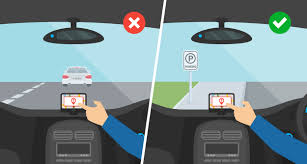
How to Connect Your Phone’s Browser to Your Car’s Machine
Are you planning a road trip and want to navigate using your phone’s browser? Or perhaps you’re looking for ways to minimize distractions while driving? Look no further! In this article, we’ll guide you through the process of connecting your phone’s browser to your car’s machine, ensuring a safe and enjoyable journey.
Understanding Your Car’s Compatibility
Before we dive into the nitty-gritty, it’s essential to understand your car’s compatibility. If your vehicle is equipped with a system like SmartAndroid or Apple CarPlay, you can directly connect your phone’s browser using these platforms. However, if not, don’t worry! We’ll explore other options for you.
Connecting Your Phone to Your Car Using Android Auto
If you own an Android device and a compatible car with the Android Car system, follow these steps:
- Update Your Phone: Ensure your phone is running on Android 5.0 Or later.
- Install Android Car App: Download and install the Android Car app from the Play Store.
- Initiate Android Car: Start the app, accept the terms of use, and grant necessary permissions.
- Connect Your Phone to Your Car: Use a USB cable to connect your phone to your car’s USB port. If you’re in an area with wireless connectivity limitations, you can also use a wired connection.
- Start Navigation: Open Android Car on your car’s display, set your destination, and enjoy safe navigation.
Connecting Your Phone to Your Car Using Apple Carplay
If you own an iPhone and a compatible car with Apple CarPlay, follow these steps:
- Update Your Iphone: Ensure your iPhone is running on iOS 7.1 Or later.
- Check Siri Compatibility: Verify that Siri is enabled on your iPhone.
- Connect Your Iphone to Your Car: Use a Lightning cable to connect your iPhone to your car’s USB port, or use wireless connectivity if available.
- Start Navigation: Open Maps on your iPhone and set your destination. You can also use Siri to initiate navigation.
Alternative Methods: Connecting Using Aux or Bluetooth
If your car doesn’t support SmartAndroid or Apple CarPlay, you can still connect your phone’s browser using an AUX cable or Bluetooth. These methods allow you to get voice instructions from the browser, but require manual control of the phone’s display.
- Aux Connection: Use a male-male AUX cable with 3.5Mm jacks on both ends. Insert one end into your phone’s AUX port and the other into your car’s stereo.
- Bluetooth Connection: Utilize a Bluetooth receiver in your car, which can connect to your phone using Bluetooth.
Tips For Safe Navigation
When navigating using your phone’s browser connected to your car’s machine:
- Avoid Distractions: Keep your eyes on the road and minimize screen time while driving.
- Use Voice Commands: Take advantage of voice commands to control navigation, calls, and messages.
- Keep Your Phone Charged: Ensure your phone is fully charged before embarking on a long journey.
Conclusion
Connecting your phone’s browser to your car’s machine can enhance your driving experience while minimizing distractions. By understanding your car’s compatibility and following the steps outlined in this article, you’ll be well-equipped to navigate safely using your phone’s browser connected to your car’s machine.
Frequently Asked Questions (FAQs)
- Q: What is Android Auto?
A: Android Auto is a system that connects an Android device to a compatible car, allowing for safe navigation and voice control. - Q: How do I Connect my Iphone to my Car Using Apple Carplay?
A: Connect your iPhone to your car’s USB port or use wireless connectivity if available. Then, open Maps on your iPhone and set your destination. - Q: Can I Connect my Phone to my Car Using Bluetooth?
A: Yes! Utilize a Bluetooth receiver in your car, which can connect to your phone using Bluetooth. - Q: Are There Any Specific Cables Needed For an Aux Connection?
A: Use a male-male AUX cable with 3.5Mm jacks on both ends for an AUX connection. - Q: Can I Use my Phone’s Browser Connected to my Car’s Machine While Driving?
A: Yes, but always prioritize safe navigation and minimize distractions while driving. - Q: How do I Update my Phone For Android Auto or Apple Carplay Compatibility?
A: Ensure your phone is running on the latest software version required by Android Auto or Apple CarPlay.
Hope this article was helpful.


