
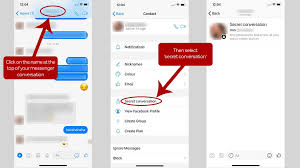
How to Disable Secret Conversations on Messenger: A Step-by-step Guide
Are you curious about how to disable secret conversations on Messenger? You’re not alone! Many users have been wondering about this feature, especially since it was introduced as a way to add an extra layer of security and privacy to their conversations. In this article, we’ll show you exactly how to do it.
Why Disable Secret Conversations on Messenger?
Before we dive into the step-by-step guide, let’s quickly discuss why you might want to disable secret conversations on Messenger. While they’re designed to be secure and private, there are some scenarios where you might want to turn them off. For example:
- You might not need the added security of end-to-end encryption.
- You may have concerns about the storage and management of your secret conversations.
- You could simply prefer a more traditional messaging experience without the extra features.
Whatever your reasons, disabling secret conversations on Messenger is a relatively straightforward process that we’ll walk you through below.
How to Disable Secret Conversations on Messenger: A Step-by-step Guide
To disable secret conversations on Messenger, you can follow these steps:
Android And Ios Devices
- Open the Messenger app on your Android or iOS device.
- Tap on the conversation you want to disable secret conversations for.
- Long press (or tap and hold) on the conversation to open its menu.
- Select “Delete” from the menu.
- Confirm that you want to delete the conversation by tapping “Delete” again.
PC And Mac Devices
- Open the Messenger website or desktop app on your PC or Mac device.
- Log in to your account if prompted.
- Click on the conversation you want to disable secret conversations for.
- Click on the three dots (…) next to the conversation title.
- Select “Delete” from the menu that appears.
- Confirm that you want to delete the conversation by clicking “Delete” again.
Disabling Notifications For Secret Conversations
If you only want to turn off notifications for secret conversations, follow these steps:
Android And Ios Devices
- Open the Messenger app on your Android or iOS device.
- Tap on the conversation you want to disable notifications for.
- Long press (or tap and hold) on the conversation to open its menu.
- Select “Notifications” from the menu.
- Turn off the toggle next to “Show Notifications” to disable notifications for that conversation.
PC And Mac Devices
- Open the Messenger website or desktop app on your PC or Mac device.
- Log in to your account if prompted.
- Click on the conversation you want to disable notifications for.
- Click on the three dots (…) next to the conversation title.
- Select “Notifications” from the menu that appears.
- Turn off the toggle next to “Show Notifications” to disable notifications for that conversation.
How to Re-enable Secret Conversations And Notifications
If you’ve disabled secret conversations or notifications, but want to re-enable them later, follow these steps:
Android And Ios Devices
- Open the Messenger app on your Android or iOS device.
- Tap on the conversation you previously disabled secret conversations for.
- Long press (or tap and hold) on the conversation to open its menu.
- Select “Notifications” from the menu.
- Turn back on the toggle next to “Show Notifications” to re-enable notifications for that conversation.
PC And Mac Devices
- Open the Messenger website or desktop app on your PC or Mac device.
- Log in to your account if prompted.
- Click on the conversation you previously disabled secret conversations for.
- Click on the three dots (…) next to the conversation title.
- Select “Notifications” from the menu that appears.
- Turn back on the toggle next to “Show Notifications” to re-enable notifications for that conversation.
That’s it! Disabling secret conversations and notifications on Messenger is a straightforward process that we’ve outlined above. Whether you want to turn them off permanently or just temporarily, follow these steps to get started.
Final Thoughts
While disabling secret conversations and notifications may be useful in certain scenarios, keep in mind that they’re designed to provide an extra layer of security and privacy for your conversations. If you’re unsure about whether to disable these features, consider consulting with a trusted friend or family member who can offer guidance based on their experience.
Additional Resources
If you have any questions or concerns about Messenger’s secret conversations feature, we recommend checking out the official Facebook Help Center article on the topic. Additionally, feel free to reach out to our support team for further assistance.
We hope this guide has been helpful!


