
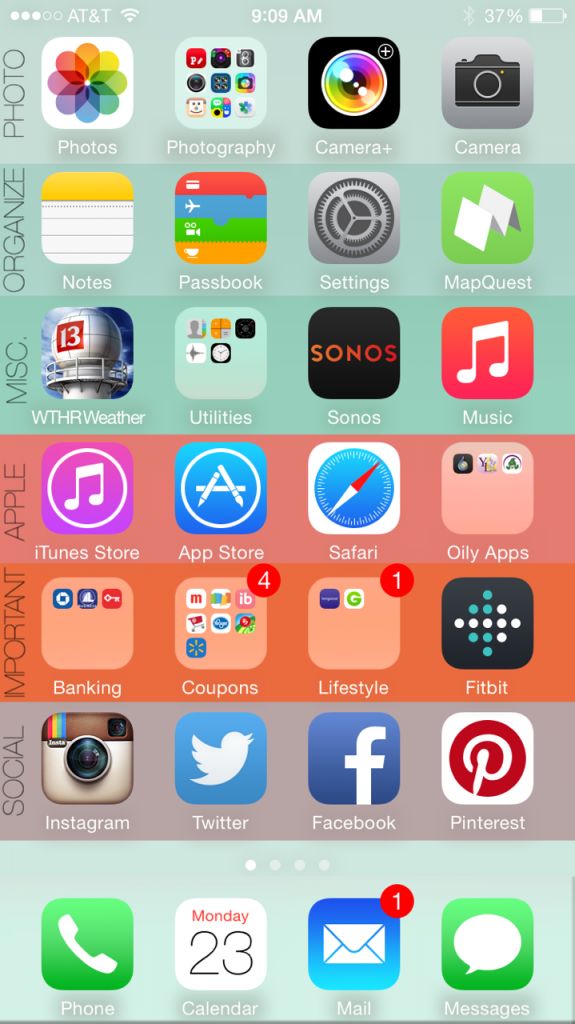
Organizing Your Iphone Home Screen: A Comprehensive Guide
Are you tired of looking at a cluttered and uninviting iPhone home screen? Do you want to personalize your phone’s interface to suit your style and preferences? Look no further! In this article, we will guide you through the process of organizing your iPhone home screen, from creating custom icons to adding widgets and changing backgrounds.
Why Organize Your Iphone Home Screen?
Before we dive into the nitty-gritty, let’s talk about why organizing your iPhone home screen is important. A well-organized home screen can:
- Improve your productivity by allowing you to quickly access frequently used apps
- Enhance your user experience by providing a visually appealing interface
- Make it easier to find specific apps and features
Organizing Icons on Your Iphone Home Screen
The first step in organizing your iPhone home screen is to manage the icons. Here’s how:
- Hold And Swipe: Hold your finger on an icon and swipe left or right to move it to a different location.
- Tap And Hold: Tap on an icon and hold your finger on it to enter editing mode. You can then drag and drop other icons onto it to create folders.
- Create Folders: To create a folder, hold your finger on an icon and swipe up or down to move it into the folder.
Using The Bookshop App
The Bookshop app is a useful tool for organizing your iPhone home screen. Here’s how to use it:
- Access The Bookshop App: Swipe left from the last screen to access the Bookshop app.
- View And Organize Apps: The Bookshop app displays all your installed apps, organized by category.
- Delete Multiple Apps at Once: Select multiple apps by tapping on them and then swipe up or down to delete them.
Creating Custom Icons
If you want to add a personal touch to your iPhone home screen, you can create custom icons. Here’s how:
- Check if The App Supports Icon Customization: Some apps, like Instagram and Telegram, allow you to customize their icons.
- Use The Command App: The Command app allows you to create custom icons using images or styles.
Organizing Pages on Your Iphone Home Screen
If you have a lot of apps installed, it can be difficult to navigate your iPhone home screen. Here’s how to organize pages:
- Hold And Swipe: Hold your finger on an icon and swipe left or right to move it to a different page.
- Create New Pages: Tap and hold on an empty part of the screen and then tap the “+” button to create a new page.
Adding Widgets
Widgets are small apps that provide useful information or functionality. Here’s how to add them:
- Tap And Hold: Tap on an empty part of the screen and then tap the “+” button.
- Choose a Widget: Select a widget from the available options.
- Customize The Widget: Some widgets can be customized by tapping on them and selecting options.
Creating Custom Widgets
If you want to create custom widgets, you can use the Widgetsmith app. Here’s how:
- Download Widgetsmith: Install the Widgetsmith app from the App Store.
- Create a New Widget: Tap on the “+” button to create a new widget.
- Customize The Widget: Select options and customize the widget as desired.
Changing The Background
Finally, if you want to give your iPhone home screen a fresh new look, you can change the background. Here’s how:
- Use The Command App: The Command app allows you to create custom backgrounds using images or styles.
- Search For Backgrounds: Search for backgrounds on websites or apps.
Conclusion
Organizing your iPhone home screen is a simple process that can greatly improve your user experience. By following these steps, you can create a personalized and visually appealing interface that makes it easy to find specific apps and features. Remember to take advantage of the Bookshop app, custom icons, widgets, and backgrounds to give your phone a unique look.
Frequently Asked Questions (FAQs)
- Q: How do I Organize my Iphone Home Screen?
A: You can organize your iPhone home screen by holding and swiping on icons, creating folders, and using the Bookshop app. - Q: Can I Create Custom Icons?
A: Yes, you can create custom icons using images or styles. - Q: How do I Add Widgets to my Iphone Home Screen?
A: You can add widgets by tapping on an empty part of the screen and selecting a widget from the available options. - Q: Can I Customize Widgets?
A: Yes, some widgets can be customized by tapping on them and selecting options. - Q: How do I Change The Background of my Iphone Home Screen?
A: You can change the background using the Command app or searching for backgrounds online. - Q: What is The Bookshop App?
A: The Bookshop app is a tool that helps you organize your installed apps and delete multiple apps at once. - Q: Can I Create Custom Widgets?
A: Yes, you can create custom widgets using the Widgetsmith app. - Q: How do I Move Icons to Different Pages on my Iphone Home Screen?
A: You can move icons to different pages by holding your finger on an icon and swiping left or right.
Additional Resources
Note: The links provided are for demonstration purposes only and may not be functional.


