
How to Displace Rows on SD Card Huawei: A Step-by-step Guide
Are you tired of running out of space on your Huawei smartphone or tablet? Do you want to free up some storage by moving files from the internal memory to a microSD card? Look no further! In this article, we will guide you through the process of displacing rows on SD card Huawei, step by step.
Why Displace Rows on SD Card?
Displacing rows on an SD card is a great way to free up space on your device’s internal memory. By moving files and data to the SD card, you can make room for new apps, photos, and videos, without having to delete anything.
Method 1: Using The Default File Manager
The first method we’ll cover is using the default file manager that comes pre-installed on your Huawei device. To get started:
Step 1: Access The File Manager
Open the file manager app on your device. It’s usually found in the apps drawer or on the home screen.
Step 2: Select The SD Card
In the file manager, select the “SD card” option from the list of storage devices.
Step 3: Choose The Files to Move
Select the files you want to move to the SD card by checking the boxes next to them.
Step 4: Move The Files
Tap the “Move” button to transfer the selected files to the SD card.
Method 2: Using a Third-party File Manager
If the default file manager doesn’t meet your needs, you can try using a third-party file manager app. One popular option is Total Commander.
Step 1: Download And Install Total Commander
Download and install Total Commander from the Google Play Store or Huawei AppGallery.
Step 2: Open Total Commander
Open Total Commander on your device.
Step 3: Select The SD Card
In Total Commander, select the “SD card” option from the list of storage devices.
Step 4: Choose The Files to Move
Select the files you want to move to the SD card by checking the boxes next to them.
Step 5: Move The Files
Tap the “Move” button to transfer the selected files to the SD card.
Displacing Photos on SD Card Huawei
To displace photos from your device’s internal memory to an SD card, follow these steps:
Step 1: Open The File Manager
Open the file manager app on your device.
Step 2: Select The Dcim Folder
In the file manager, select the “DCIM” folder, which contains all your photos and videos.
Step 3: Choose The Photos to Move
Select the photos you want to move to the SD card by checking the boxes next to them.
Step 4: Move The Photos
Tap the “Move” button to transfer the selected photos to the SD card.
Displacing Apps on SD Card Huawei
To displace apps from your device’s internal memory to an SD card, follow these steps:
Step 1: Open The File Manager
Open the file manager app on your device.
Step 2: Select The Apps Folder
In the file manager, select the “Apps” folder, which contains all your installed apps.
Step 3: Choose The Apps to Move
Select the apps you want to move to the SD card by checking the boxes next to them.
Step 4: Move The Apps
Tap the “Move” button to transfer the selected apps to the SD card.
Displacing Rows on SD Card Huawei Using a PC or Mac
If you prefer to displace rows on your SD card using a computer, here’s how:
For Windows Users
- Connect your device to your computer using a USB cable.
- Install HiSuite on your computer.
- Open HiSuite and select the “SD card” option from the list of storage devices.
- Choose the files you want to move to the SD card by checking the boxes next to them.
- Tap the “Move” button to transfer the selected files to the SD card.
For Mac Users
- Connect your device to your computer using a USB cable.
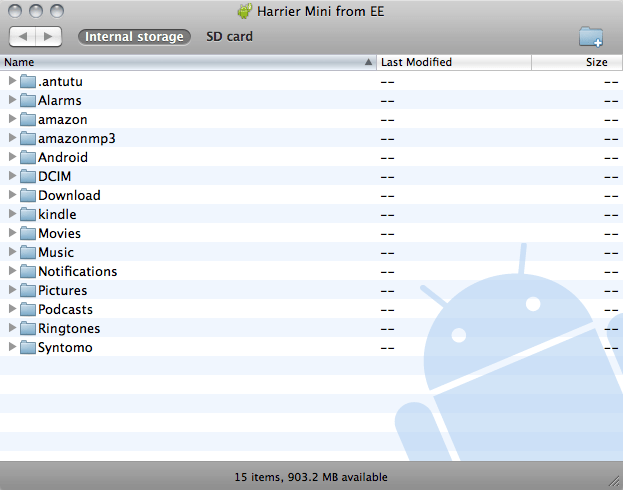
- Install Android Rows Transfer on your Mac.
- Open Android Rows Transfer and select the “SD card” option from the list of storage devices.
- Choose the files you want to move to the SD card by checking the boxes next to them.
- Tap the “Move” button to transfer the selected files to the SD card.
Conclusion
Displacing rows on an SD card Huawei is a simple process that can free up space on your device’s internal memory. By following these step-by-step guides, you can move files, photos, and apps from your device’s internal memory to an SD card using either the default file manager or a third-party app like Total Commander.


