
Lighting a Remote Pc: A Comprehensive Guide
Are you tired of manually turning on your remote computer every time? Do you want to experience the convenience of remotely accessing your computer from anywhere in the world? Look no further! In this article, we will guide you through the process of lighting a remote PC using various methods and tools.
What is Wake-on-lan (WoL)?
Before diving into the nitty-gritty details, let’s first understand what WoL is. Wake-on-LAN (WoL) is a feature that allows a computer to be turned on remotely by sending a magic packet over a network. This technology uses Ethernet or Wi-Fi connections to send a signal to the computer, which then responds by turning itself on.
The Requirements
To use WoL, you will need:
- A remote computer with an operating system (Windows, macOS, or Linux)
- A network connection (Ethernet or Wi-Fi)
- A tool that can send the magic packet (e.G., TeamViewer, AnyDesk, or a dedicated app)
Configuring Wake-on-lan on Your Remote Computer
To enable WoL on your remote computer:
- Check if Wol is Enabled in Bios/uefi: Access your BIOS/UEFI settings and look for the option related to WoL. This may be called “Remote Event Wake Up,” “Wake-on-LAN,” or “Magic Packet Wake Up.”
- Enable Wol in Windows: Go to Device Management, select the network adapter, and enable WoL.
- Configure Wol in Macos: Open System Preferences, click on Energy Saver, and select the option to wake up from sleep when receiving a remote request.
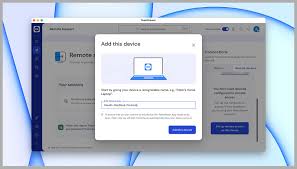
Lighting Your Remote PC With Teamviewer
One of the most popular tools for remote access is TeamViewer. Here’s how you can use it to light your remote computer:
- Install Teamviewer: Download and install TeamViewer on both computers.
- Create an Account: Sign up for a free account, if you don’t already have one.
- Configure Wol in Teamviewer: In the Remote Control section of TeamViewer settings, enable Wake-on-LAN.
Lighting Your Remote PC With Anydesk
Another excellent tool is AnyDesk. Here’s how to use it:
- Install Anydesk: Download and install AnyDesk on both computers.
- Configure Wol in Anydesk: In the Settings section of AnyDesk, select Wake-on-LAN.
Other Tools For Lighting Your Remote PC
There are several other tools available that can help you light your remote computer using WoL:
- Wake On Lan for Windows 10
- Wake on LAN for macOS
- Android apps like Wake On Lan and Remote Wake Up
Lighting Your Remote PC With Android or Iphone
If you have an Android or iPhone, you can use dedicated apps to light your remote computer. Here are some popular options:
- Wake On Lan (Android)
- Swol (iPhone)
These apps work similarly to the tools mentioned earlier.
Conclusion
In this article, we’ve explored the world of lighting a remote PC using various methods and tools. With Wake-on-LAN technology, you can turn on your computer remotely using a network connection. We’ve walked through configuring WoL on your remote computer, as well as using popular tools like TeamViewer and AnyDesk to light up your device.
Faqs
- What is The Purpose of Wake-on-lan?
Wake-on-LAN allows a computer to be turned on remotely by sending a magic packet over a network. - How do I Configure Wol in Windows?
In Device Management, select the network adapter and enable WoL. - Can I Use Wol With Macos?
Yes, you can enable WoL in System Preferences under Energy Saver. - What is Teamviewer, And How Does it Work?
TeamViewer is a remote access tool that allows you to control another computer over the internet. It supports Wake-on-LAN. - Can I Use Anydesk For Lighting my Remote Pc?
Yes, AnyDesk is another popular tool for remote access that supports Wake-on-LAN. - How do I Light my Remote PC With Android or Iphone?
Use dedicated apps like Wake On Lan (Android) and Swol (iPhone). - Can I Use Wake-on-lan on Multiple Computers?
Yes, you can configure WoL on multiple computers to be turned on remotely.
Remember to follow the specific instructions for each tool and operating system to ensure a smooth experience.


